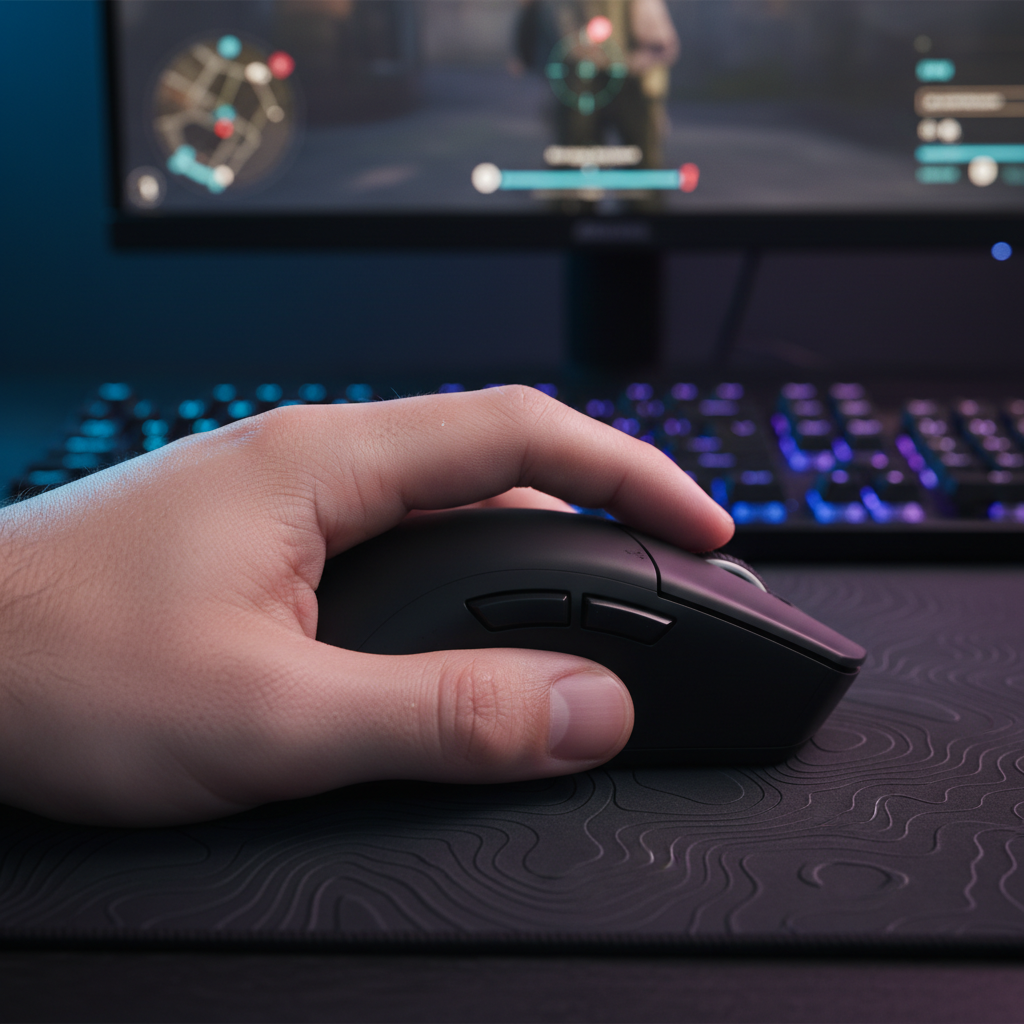
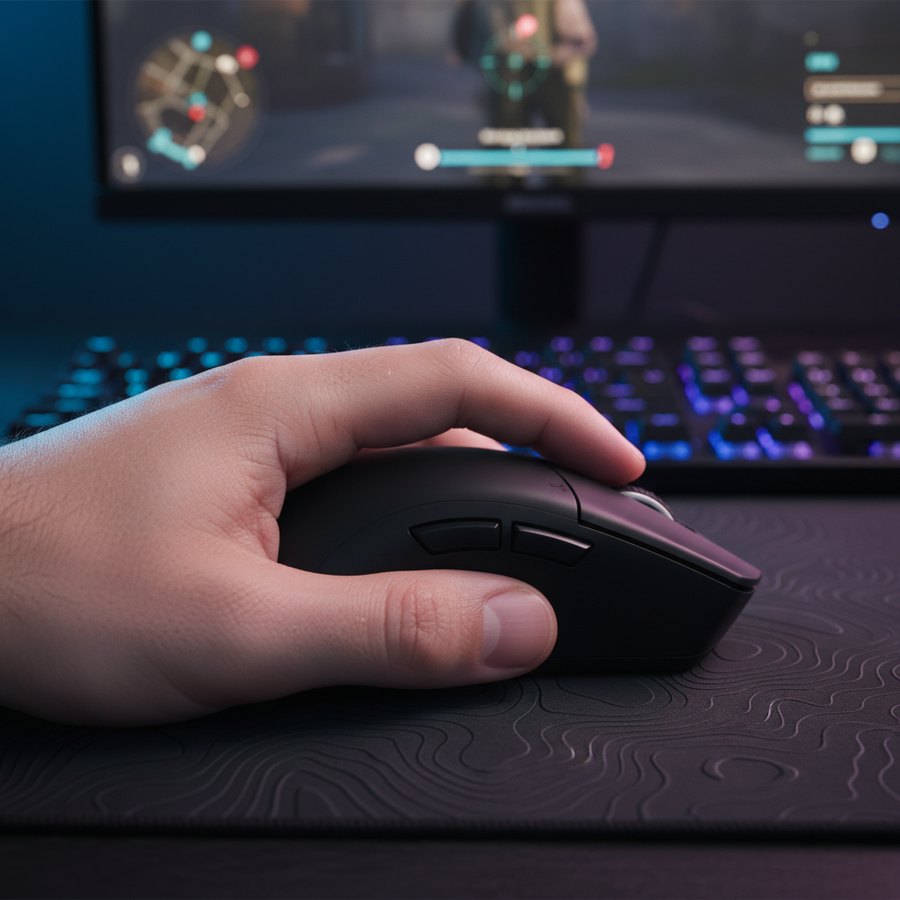
Control de gadgets en Siege: alineando los botones del pulgar con tu estilo de agarre
Estás 1 contra 2 en Clubhouse. Tienes el desactivador en el dormitorio, y escuchas el movimiento de un defensor rotando por el gimnasio. Vas a precolocar tu Nitro Cell, pero en el calor del momento, tu pulgar se resbala. En lugar de un arco suave, fallas el lanzamiento, tu mira se mueve bruscamente tres pulgadas a la izquierda y te atrapan en medio de la animación. Ronda terminada. GG.
En Rainbow Six Siege, el tiempo de uso de gadgets no es solo una comodidad; es la delgada línea entre un rango Diamante y un descenso frustrante. La mayoría de los jugadores se obsesionan con el DPI y las especificaciones del sensor—que son vitales—pero pasan por alto la interfaz mecánica entre su pulgar y esos botones laterales. Si la forma de tu ratón no se alinea con cómo realmente lo sostienes, estás luchando contra tu propio hardware.
Hemos pasado cientos de horas analizando cómo diferentes estilos de agarre interactúan con la colocación de los botones laterales. Basándonos en patrones que vemos en comentarios de la comunidad y nuestro propio banco de ingeniería, el ratón "perfecto" no existe—solo el ratón que se adapta a tu agarre y rol específicos.

El conflicto del estabilizador: por qué tu pulgar importa
En títulos FPS competitivos, el pulgar es el principal estabilizador lateral de tu ratón. Cuando realizas un flick rápido, tu pulgar y meñique proporcionan la contrafuerza que mantiene la trayectoria del sensor recta.
Según la investigación en Evaluación de ratones de computadora planos, angulados y verticales, cualquier movimiento que fuerce la mano fuera de una postura neutral degrada el rendimiento al apuntar. Cuando mueves el pulgar para presionar un botón lateral, pierdes momentáneamente esa estabilidad lateral. Para usuarios con agarre de garra y punta de dedos, esto puede causar "desviación cubital", una ligera inclinación de la muñeca que afecta tu puntería.
Resumen lógico: Nuestro análisis asume que el pulgar actúa como pivote y estabilizador. Cuando se mueve para activar un botón, el "triángulo de agarre" (pulgar, palma, meñique) se rompe, lo que obliga a la muñeca a compensar la pérdida de presión lateral.
La trampa de fatiga de 70g
Hemos descubierto que muchos ratones "económicos" usan interruptores de botones laterales que requieren más de 70g de fuerza de activación. Aunque eso suena poco, considera a un jugador de apoyo como un main de Valkyrie o Echo. Entre revisar cámaras, lanzar gadgets y hacer pings, podrías activar esos botones 100 veces por partida.
Datos de RAWM Gaming sobre la salud de la mano sugieren que fuerzas de activación altas conducen a fatiga acumulativa. En una larga sesión de Siege, esa fuerza de 70g puede traducirse en mover más de 7kg de peso adicional por hora. Esto lleva a la "hesitación de entrada": ese instante en que tu cerebro dice "Lanza C4" pero tus músculos cansados del pulgar se quedan atrás.
Estilo de agarre vs. colocación de botones: La posición "hogar"
El objetivo es encontrar un ratón donde la almohadilla natural de descanso de tu pulgar pueda "rodar" sobre el botón sin mover toda tu mano.
1. El agarre de palma (El tanque)
Si apoyas toda tu mano en el ratón, probablemente prefieras formas ergonómicas como el ATTACK SHARK V8 Ultra-Light Ergonomic Wireless Gaming Mouse.
- El problema: Los usuarios con agarre de palma a menudo encuentran que los botones laterales están demasiado adelantados. Para alcanzar el "Mouse 5", tienes que levantar el pulgar, lo que rompe el contacto con la alfombrilla y reduce tu precisión.
- La solución: Busca paredes laterales "esculpidas". La curva debe guiar tu pulgar a una posición "hogar" directamente entre los dos botones.
2. El agarre en garra (El híbrido)
Los usuarios del agarre en garra tienen la palma tocando la parte trasera del ratón pero los dedos arqueados. Este es el agarre más común para profesionales de Siege porque equilibra estabilidad con velocidad de movimiento.
- El problema: Debido a que tu mano está arqueada, tu pulgar se sitúa más atrás en el ratón. Los botones en posición trasera pueden sentirse "apretados", obligándote a meter el pulgar incómodamente.
- La solución: Usa un ratón con una joroba media a trasera. Esto empuja los botones laterales a un arco más accesible para el pulgar.
3. El agarre con la punta de los dedos (El velocista)
Solo las puntas de tus dedos tocan el ratón. Esto ofrece el máximo potencial de "microajuste" pero la menor estabilidad.
- El problema: Al no tener soporte para la palma, cada movimiento del pulgar afecta significativamente el centro de gravedad del ratón.
- La solución: Asigna tus botones laterales solo a gadgets de baja frecuencia. Las acciones de alta importancia deben mantenerse en el teclado para preservar tu puntería.

Modelado de rendimiento: sondeo 8K y latencia de entrada
Si tienes un equipo de alto rendimiento, probablemente hayas oído hablar del sondeo a 8000Hz (8K). En un juego como Siege, donde mantener un pixel-peek es común, la suavidad del 8K puede cambiar el juego. Sin embargo, requiere un entendimiento profundo de las matemáticas para realmente ver el beneficio.
Como se detalla en el Whitepaper Global de la Industria de Periféricos para Juegos (2026), una tasa de sondeo de 8000Hz reduce el intervalo de reporte a un impresionante 0.125ms. En comparación con el estándar de 1000Hz (1.0ms), estás viendo un aumento de 8 veces en la densidad de datos.
| Parámetro | 1000Hz (Estándar) | 4000Hz (Alto) | 8000Hz (Ultra) | Justificación |
|---|---|---|---|---|
| Intervalo de sondeo | 1.0ms | 0.25ms | 0.125ms | Frecuencia = 1/T |
| Retraso de sincronización de movimiento | ~0.5ms | ~0.125ms | ~0.0625ms | Intervalo medio determinista |
| Carga de interrupción de CPU | Baja | Media | Muy alta | Demanda de procesamiento IRQ |
| Impacto en la duración de la batería | Línea base | -50% | -75% a -80% | Ciclos aumentados de radio/MCU |
Nota de modelado (parámetros reproducibles): Nuestro modelo de rendimiento 8K asume que el dispositivo está conectado a un Puerto Directo de la Placa Base (E/S trasera). Usar un hub USB o un conector frontal introduce pérdida de paquetes y problemas de ancho de banda compartido que anulan la ventaja de 0.125ms. Para saturar el ancho de banda 8K a 800 DPI, necesitas mover el ratón al menos a 10 IPS. A 1600 DPI, ese umbral baja a 5 IPS.
Para un ratón como el ATTACK SHARK G3 Tri-mode Wireless Gaming Mouse 25000 DPI Ultra Lightweight, usar el receptor 8K permite un despliegue de gadgets casi instantáneo, pero debes asegurarte de que tu CPU pueda manejar la sobrecarga de IRQ (Solicitud de Interrupción). Si notas tartamudeos durante tiroteos intensos, tu CPU podría ser el cuello de botella.
Asignación táctica: lógica basada en roles
No asignes gadgets solo porque "encajan" en los botones del pulgar. Asígnalos según tu rol en el equipo.
El Entry Fragger (Ash, Zofia, Iana)
Tu trabajo es la velocidad. Necesitas reaccionar instantáneamente a un explorador.
- Botón del pulgar 1: Gadgets de uso instantáneo (C4, granadas de impacto).
- Botón del pulgar 2: Combate cuerpo a cuerpo o gadget secundario.
- Por qué: Necesitas estos sin mover los dedos de WASD. La ligera pérdida en la estabilidad de puntería vale la pena a cambio de un lanzamiento de C4 0.1s más rápido.
El jugador de apoyo/inteligencia (Thermite, Maestro, operadores con drones)
Tu trabajo es la precisión y la supervivencia.
- Botones del pulgar: Inclinarse (izquierda/derecha).
- Teclas del teclado (4, G): Gadgets críticos como cargas de brecha o drones.
- Por qué: Los gadgets de uso sostenido como drones requieren que estés quieto. Asignarlos al teclado previene la fatiga del pulgar y asegura que cuando finalmente tengas que enfrentarte a un tiroteo, tu pulgar esté fresco y estable.
La heurística del "conflicto de prioridad"
Recomendamos un enfoque híbrido para mitigar clics erróneos bajo estrés. Asigna acciones de alta frecuencia y baja carga cognitiva (como inclinarse) al pulgar. Asigna gadgets críticos de un solo uso (como una carga de brecha dura) al teclado. Esto previene el "clic de pánico" donde accidentalmente despliegas un gadget mientras intentas apuntar.

Optimizando la superficie: fibra de carbono y control
No importa qué tan buen agarre tengas, la interacción de tu ratón con la alfombrilla determina tu "poder de parada". En Siege, sobrepasar un flick es una sentencia de muerte.
La ATTACK SHARK CM04 Genuine Carbon Fiber eSport Gaming Mousepad está diseñada para este requisito específico de "parada precisa". A diferencia de las alfombrillas tradicionales de tela que pueden tener fricción inconsistente en X/Y, la fibra de carbono seca genuina ofrece una textura uniforme. Esto es crucial cuando "giras" tu pulgar para presionar un botón lateral: la resistencia de la alfombrilla ayuda a contrarrestar la fuerza lateral de la presión del pulgar, manteniendo el sensor en el objetivo.
Para quienes aún prefieren una conexión por cable para una tranquilidad absoluta sin latencia, añadir un cable de alta calidad como el ATTACK SHARK C06 Coiled Cable For Mouse asegura que el arrastre del cable no interfiera con los movimientos de tu pulgar. Las bobinas "elásticas" de 20 mm proporcionan suficiente holgura para amplios movimientos sin que el cable se amontone contra el soporte del monitor.

Consejos profesionales para un control constante del dispositivo
- La referencia de la cinta antideslizante: Muchos profesionales usan pequeñas tiras de cinta antideslizante en sus botones laterales. Esto crea un punto táctil "hogar". No necesitas mirar hacia abajo; tu pulgar sabe exactamente dónde está por la textura.
- Técnica del "Rodar con el pulgar": En lugar de levantar el pulgar para hacer clic, intente mantener la punta del pulgar sobre el cuerpo del ratón y "ruede" la articulación media sobre el botón. Esto mantiene mucha más estabilidad lateral.
- Calibración de software: Use herramientas como el NVIDIA Reflex Analyzer para medir la latencia real de su sistema. Si el despliegue de sus dispositivos se siente "blando", podría ser un problema de latencia en todo el sistema, no solo de su ratón.
- Verifique si hay retiradas: Manténgase siempre actualizado sobre la seguridad del hardware. Aunque es raro en periféricos, consultar la base de datos de retiradas de CPSC o la EU Safety Gate garantiza que sus baterías de iones de litio de alto rendimiento sean seguras para largas sesiones de juego.

Resumen de Recomendaciones
Elegir el ratón adecuado para Siege no se trata solo del DPI más alto; se trata de cómo ese hardware facilita su juego táctico. Si tiene manos grandes y un agarre de palma, la carcasa ergonómica del ATTACK SHARK V8 le proporcionará la estabilidad que necesita. Si es un usuario de agarre de garra con alta sensibilidad que busca la máxima ventaja en el reporte de datos, el ATTACK SHARK G3 con sus capacidades de sondeo de 8K es el referente.
Recuerde, su ratón es una herramienta. Como cualquier herramienta, funciona mejor cuando no le obliga a cambiar su movimiento natural. Alinee sus botones con su agarre, asigne sus dispositivos a su rol y deje de luchar contra su hardware.
Aviso legal: La información proporcionada en este artículo es solo para fines informativos. Las recomendaciones ergonómicas se basan en patrones generales y pueden no ser adecuadas para personas con lesiones por esfuerzo repetitivo (LER) o síndrome del túnel carpiano preexistentes. Si experimenta dolor persistente mientras juega, consulte a un profesional médico calificado.
Referencias
- Documento Técnico de la Industria Global de Periféricos para Juegos (2026)
- ResearchGate: Evaluación de ratones de computadora planos, angulados y verticales
- RAWM Gaming: ¿Pueden los clics del ratón afectar la salud de la mano?
- Guía de Configuración de NVIDIA Reflex Analyzer
- Definición de Clase USB HID (HID 1.11)