






Más Vendidos




Entradas del blog
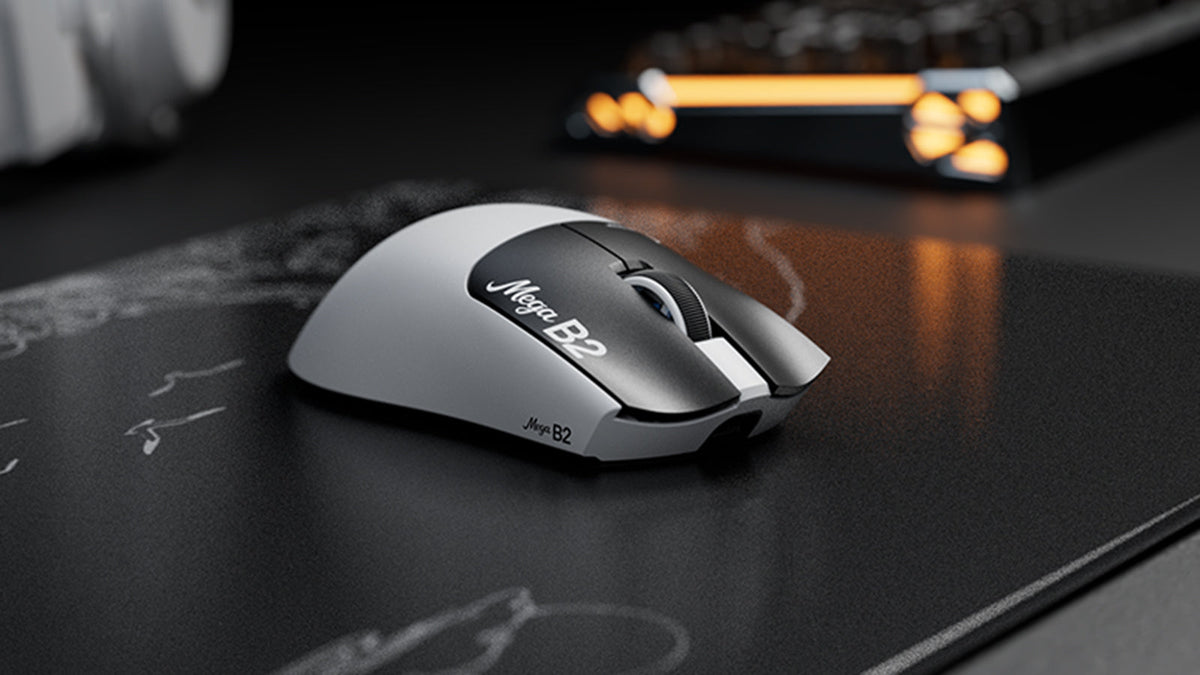
¿Qué es un ratón con activación rápida? Cómo la detección magnética TMR cambia los clics del ratón
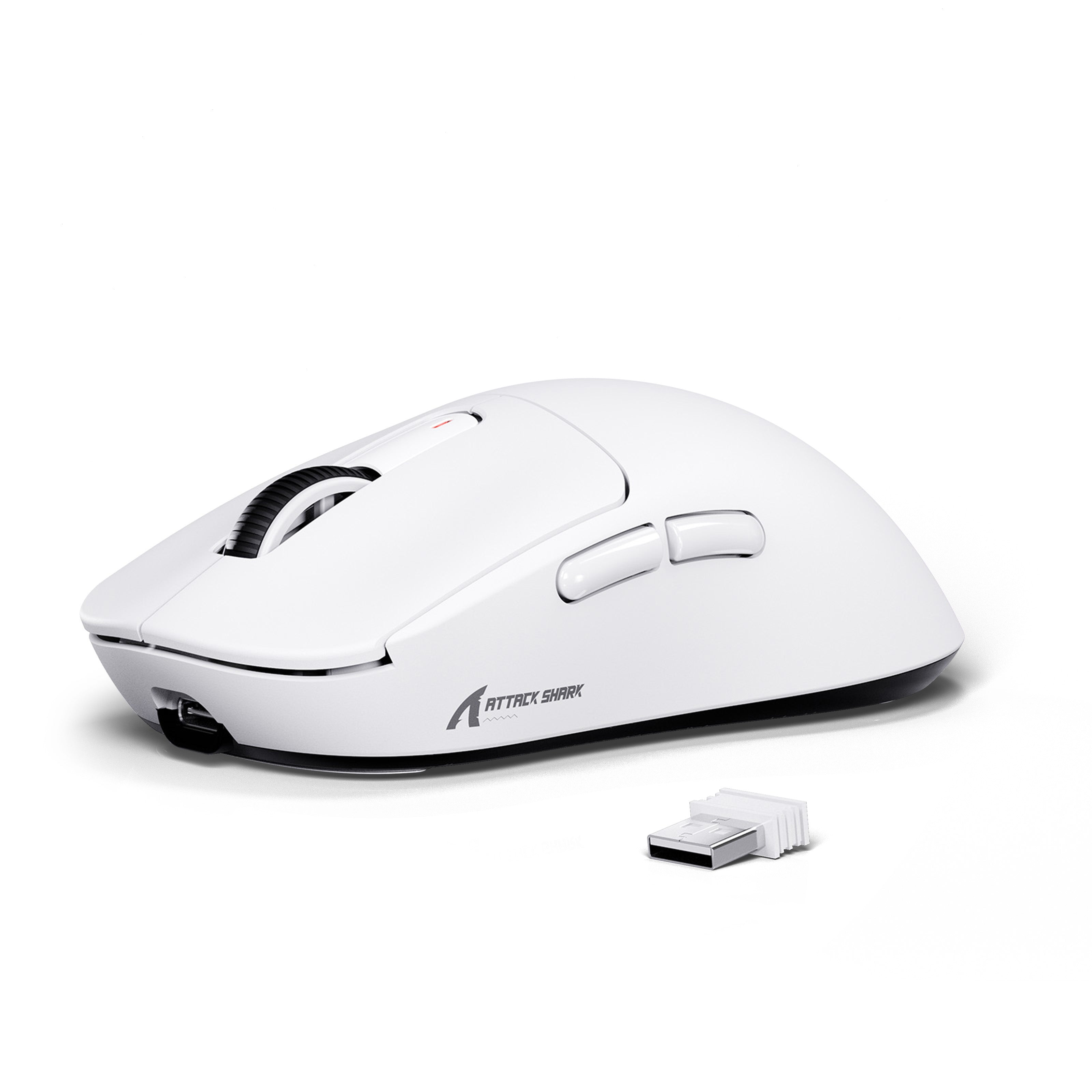
Rapid Trigger restablece un botón del ratón tras un recorrido ascendente mínimo, mientras que la detección magnética TMR permite ajustar el punto de actuación sin contactos fijos.

ATTACK SHARK anuncia una alianza estratégica con el equipo de League of Legends de Cloud9 Kia
Descubre por qué esta colaboración entre Cloud9 y League of Legends es importante para los aficionados a los esports, el equipo de nivel profesional y los periféricos gaming accesibles.
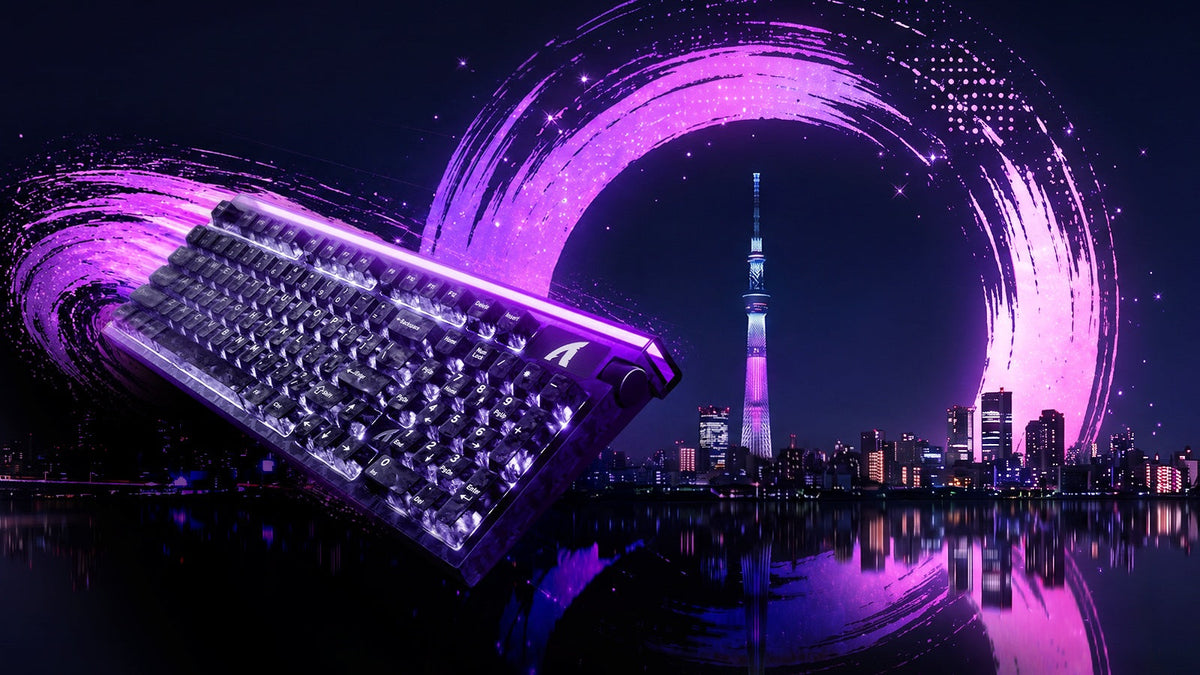
Conoce ATTACK SHARK en la EXPO DE TECLADOS DE TOKIO 2026
ATTACK SHARK se dirige al Tokyo Ryutsu Center el 23 de septiembre de 2026 para realizar pruebas prácticas de teclados con efecto Hall y ratones gaming en los stands B21-B23.
Prueba de Ratón y Teclado
Por qué es importante la prueba esencial de periféricos
Ya seas un jugador competitivo, un mecanógrafo profesional o un desarrollador de software, la integridad de tus dispositivos de entrada es fundamental. Un teclado que no funciona bien o un ratón que se salta movimientos puede interrumpir tu flujo de trabajo y arruinar sesiones de juego. Usar un probador de teclado y ratón en línea proporciona retroalimentación visual inmediata para verificar que cada interruptor, sensor y botón se registre correctamente en tu computadora. Las pruebas regulares aseguran que tu hardware funcione a su máximo potencial.
Características completas para la prueba de teclado
Una prueba de teclas robusta va más allá de simplemente verificar si una letra aparece en la pantalla. Analiza el rendimiento mecánico de tu dispositivo.
Identificación de teclas muertas y interruptores atascados
El problema más común que enfrentan los usuarios es una "tecla muerta": un interruptor específico que no registra un comando. Por otro lado, una "tecla atascada" registra una entrada continua sin ser presionada físicamente. Nuestra herramienta de prueba resalta las entradas activas en tiempo real, permitiéndote detectar al instante interruptores que no responden o que generan "rebotes" (doble pulsación).
Comprendiendo el ghosting y el N-Key Rollover (NKRO)
Para los jugadores, el ghosting en el teclado es un problema crítico. Esto ocurre cuando un teclado no registra una pulsación porque se están presionando varias teclas simultáneamente. Nuestra herramienta te ayuda a probar las capacidades de Key Rollover de tu teclado. Al presionar varias teclas a la vez (por ejemplo, WASD + Espacio + Shift), puedes verificar si tu dispositivo soporta 6-Key Rollover (6KRO) o N-Key Rollover completo (NKRO), asegurando que ningún comando se pierda durante el juego intenso.
Verificación del rendimiento y precisión del ratón
Tu ratón es tu herramienta principal de navegación. Probar su precisión es tan importante como probar tu teclado.
Prueba de respuesta de botones del ratón
Con el tiempo, los interruptores del ratón (particularmente los Omron o Huano) pueden degradarse, causando el temido problema de "doble clic" o clics perdidos. Esta herramienta te permite aislar y probar el Clic Izquierdo, Clic Derecho y Clic Central de forma independiente. También soporta la prueba de botones laterales (MB4/MB5) que a menudo se usan para macros en software de productividad y juegos.
Rueda de desplazamiento y seguimiento del sensor
Una rueda de desplazamiento defectuosa puede saltar o desplazarse en la dirección incorrecta. Nuestro visualizador rastrea la dirección del desplazamiento (arriba/abajo) para asegurar que el codificador funcione correctamente. Además, al mover tu ratón por la pantalla, puedes verificar visualmente que el sensor sigue un movimiento suave del cursor sin vibraciones ni giros inesperados.
Solución de problemas de hardware
Si descubres una falla durante la prueba, considera estos pasos antes de reemplazar tu dispositivo:
- Limpia los interruptores: El aire comprimido puede eliminar el polvo que causa teclas atascadas o saltos en la rueda de desplazamiento.
- Revisa las conexiones: Asegúrate de que el cable USB esté completamente insertado o prueba con otro puerto USB.
- Actualiza los controladores: Los controladores corruptos pueden causar retrasos en la entrada o botones no reconocidos.
- Prueba en otra PC: Aísla el problema para asegurarte de que sea el hardware y no el sistema operativo.
Preguntas frecuentes (FAQ)
P: ¿Por qué mi teclado escribe dos letras cuando presiono una vez la tecla? R: Este fenómeno se conoce como "rebote de tecla". Es una falla mecánica común donde los contactos metálicos en el interruptor vibran, enviando múltiples señales. Puedes intentar limpiar el interruptor con alcohol isopropílico, pero a menudo el interruptor necesita ser reemplazado.
P: ¿Cómo pruebo el ghosting en el teclado? R: Para probar el ghosting, presiona y mantén una combinación de teclas que normalmente usas simultáneamente (como W, A y Shift). Si una de las teclas no se ilumina en la pantalla mientras las otras sí, tu teclado está experimentando ghosting.
P: ¿Cuál es la diferencia entre 6KRO y NKRO? R: 6KRO significa que el teclado solo puede manejar 6 pulsaciones simultáneas. NKRO (N-Key Rollover) significa que puedes presionar tantas teclas como quieras (incluso todo el teclado) y cada una se registrará.
P: ¿Esta herramienta funciona para Mac y Windows? R: Sí. Esta prueba se ejecuta en tu navegador web y es compatible con los sistemas operativos Windows, macOS y Linux. Sin embargo, la tecla "Win" se registrará como "Command" en macOS.
P: ¿Puedo probar la tasa de sondeo de mi ratón aquí? R: Esta herramienta se centra en la funcionalidad de los botones y el seguimiento de coordenadas. Aunque puedes ver la suavidad del movimiento, la prueba específica de Hz (para verificar si tienes 1000Hz o 8000Hz) requiere software especializado para la tasa de sondeo.