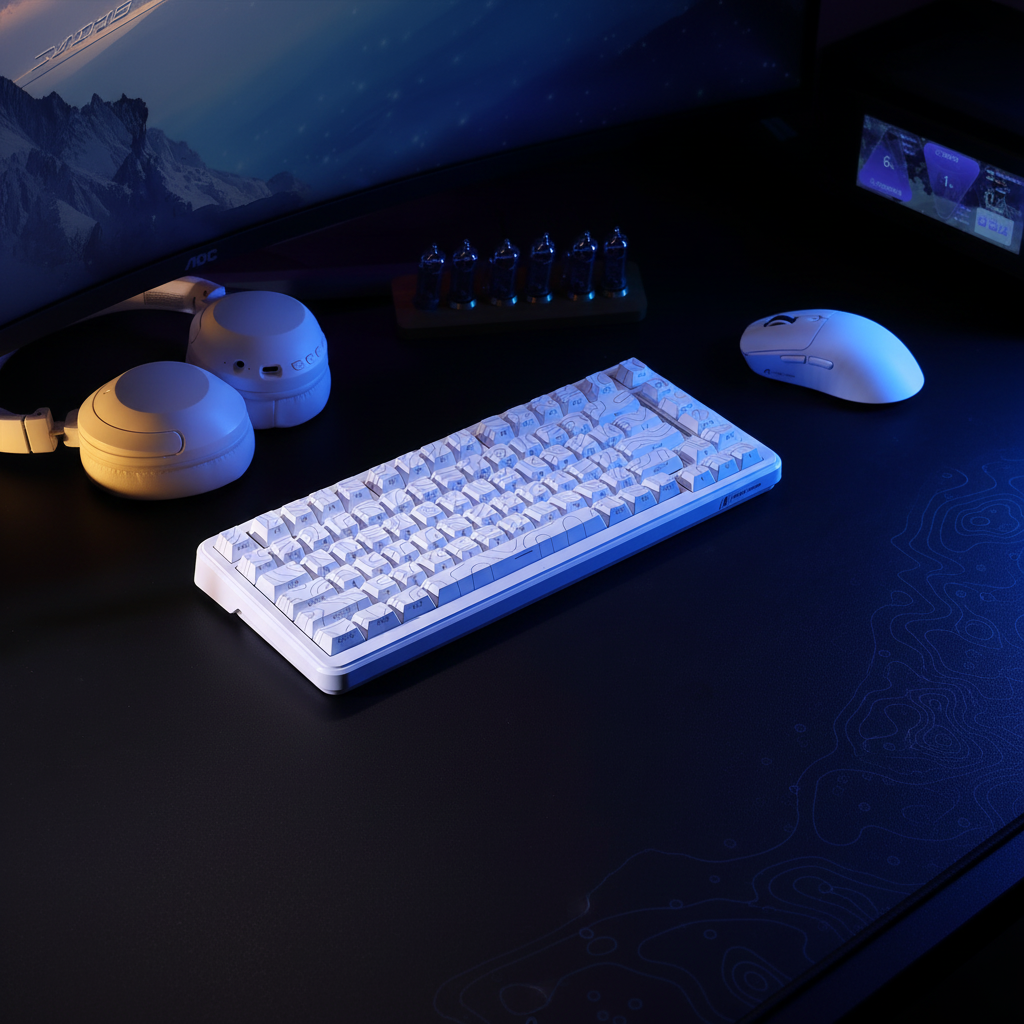
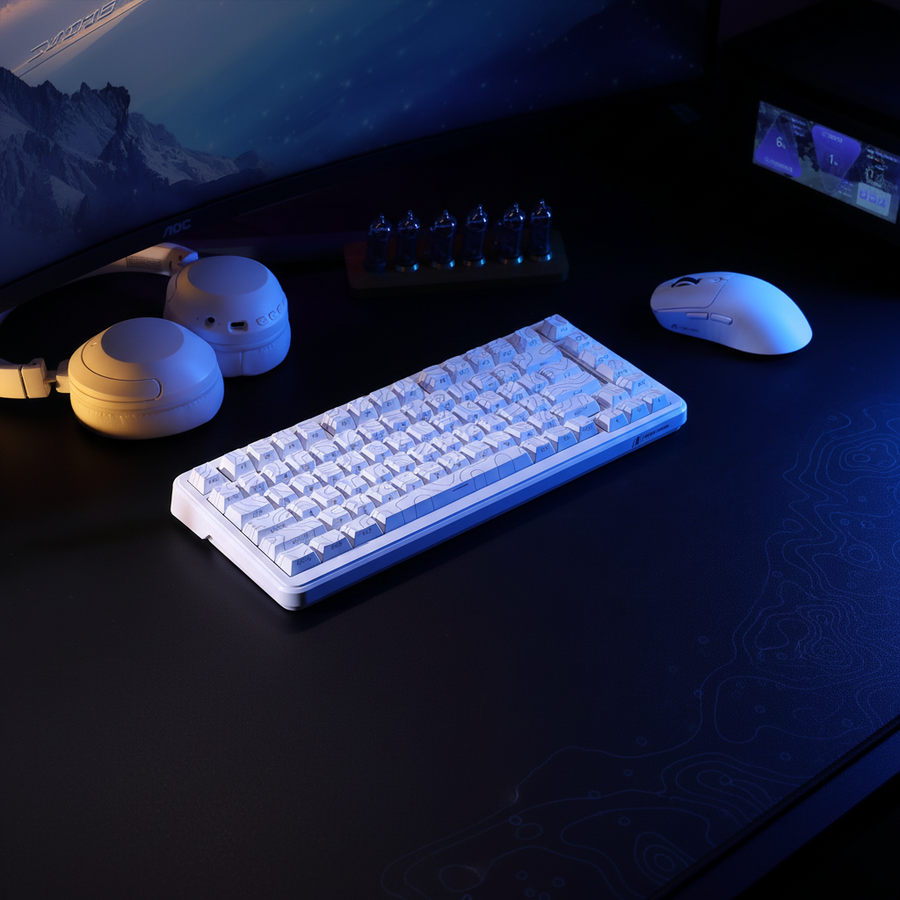
La física de la zona de flick: por qué importa la posición del teclado
En los shooters en primera persona (FPS) competitivos, la diferencia entre un disparo a la cabeza exitoso y una oportunidad perdida a menudo se reduce al espacio físico. Mientras que gran parte de la industria se enfoca en especificaciones internas como la latencia del sensor y las tasas de sondeo, la geometría externa de la configuración del escritorio—específicamente la relación entre el teclado y el ratón—es el cuello de botella más común para un apuntado de alto rendimiento.
Para jugadores de baja sensibilidad, un giro de 180 grados puede requerir más de 17 cm de desplazamiento horizontal libre del ratón. Cuando un teclado se coloca en una orientación paralela tradicional de oficina, a menudo invade esta "zona de flick", causando colisiones físicas que interrumpen la consistencia del apuntado. Basándonos en nuestro análisis de patrones comunes de soporte al cliente y retroalimentación de la comunidad, muchos gamers limitan inconscientemente su techo mecánico al no optimizar la huella y la inclinación de su teclado.
La geometría de la interferencia: modelando el déficit espacial
Para entender por qué los diseños tradicionales fallan, modelamos el "alcance de movimiento" de un jugador competitivo de FPS. En este escenario, analizamos a un jugador con manos grandes usando una configuración de baja sensibilidad (35cm/360).
Nota de modelado (análisis de escenario): Estos datos se derivan de un modelo determinista parametrizado basado en las siguientes suposiciones. Es un escenario ilustrativo, no un estudio de laboratorio controlado.
Parámetro Valor Justificación / Categoría de fuente Longitud de la mano 21.5 cm Hombre en percentil 95 (ISO 7250-1:2017) Sensibilidad 35 cm/360 Línea base profesional de baja sensibilidad Resolución 2560 x 1440 Configuración competitiva estándar 1440p Espacio requerido para flick 17.5 cm Espacio horizontal para un flick de 180° Espacio estándar en escritorio 12.0 cm Espacio estimado con teclado paralelo
Nuestro modelo indica un déficit de espacio de 5.5 cm en configuraciones estándar. Para un jugador que usa un agarre de garra agresivo, este déficit a menudo resulta en que los nudillos del meñique o del anular choquen con el borde derecho del teclado durante flicks hacia la derecha. Además, el Whitepaper Global de la Industria de Periféricos para Juegos (2026) señala que las limitaciones espaciales son un factor principal para la adopción de factores de forma más pequeños en el circuito profesional.

La estrategia de rotación de 15-30 grados
La solución más efectiva para este déficit espacial es girar el teclado 15-30 grados en sentido antihorario. Este ajuste cumple tres funciones críticas:
- Alineación del arco: Un movimiento rápido con la mano derecha no sigue una línea horizontal perfectamente recta; se mueve en un arco natural centrado en el codo o la muñeca. Rotar el teclado alinea el grupo 'WASD' hacia el centro del monitor mientras inclina el borde derecho alejándolo del camino del ratón.
- Ganancia de espacio libre: Esta rotación puede añadir 3-4 cm de espacio útil en el lado derecho sin requerir un escritorio más grande.
- Neutralidad del hombro: Al inclinar el teclado, los jugadores a menudo pueden acercar sus brazos a una alineación neutral de 15 grados, que los Centros para el Control y la Prevención de Enfermedades (CDC) identifican como crucial para prevenir trastornos musculoesqueléticos crónicos.
Sin embargo, una inclinación extrema (más allá de 45 grados) puede ser contraproducente. Las investigaciones sugieren que los ángulos agudos pueden aumentar la desviación cubital, lo que podría provocar lesiones por esfuerzo repetitivo. Recomendamos la "prueba de una mano": deberías poder realizar un movimiento rápido de 180 grados en el juego sin que la mano del ratón toque el teclado o su cable.
Verticalidad y fricción de la superficie: las dimensiones pasadas por alto
El espacio libre no es solo un problema horizontal; el plano vertical y la textura de la superficie también dictan la fiabilidad del movimiento rápido. Un teclado con una inclinación positiva pronunciada (usando las patas traseras) eleva el borde derecho aproximadamente 1,5 cm. Esto crea un obstáculo vertical que obliga a la mano del ratón a un plano más alto, aumentando la extensión de la muñeca y la fatiga.
Para mitigar esto, las configuraciones orientadas al rendimiento suelen utilizar una inclinación plana o negativa. Usar un soporte especializado como el ATTACK SHARK Cloud Keyboard Wrist Rest puede ayudar a mantener una postura neutral de la muñeca, pero debe colocarse de modo que no invada la alfombrilla del ratón.
Sinergia de la superficie
La interacción entre los pies del ratón y la alfombrilla es igualmente vital. Para jugadores que requieren paradas casi instantáneas tras un movimiento rápido de alta velocidad, la ATTACK SHARK CM04 Genuine Carbon Fiber eSport Gaming Mousepad ofrece un perfil ultra delgado de 2 mm. Esta delgadez es estratégica; minimiza la diferencia de altura entre el escritorio y la superficie de seguimiento, reduciendo la posibilidad de que el ratón se "enganche" en el borde de una alfombrilla de tela más gruesa durante un movimiento amplio.
Seguimiento de Alta Frecuencia: El Factor de Polling 8K
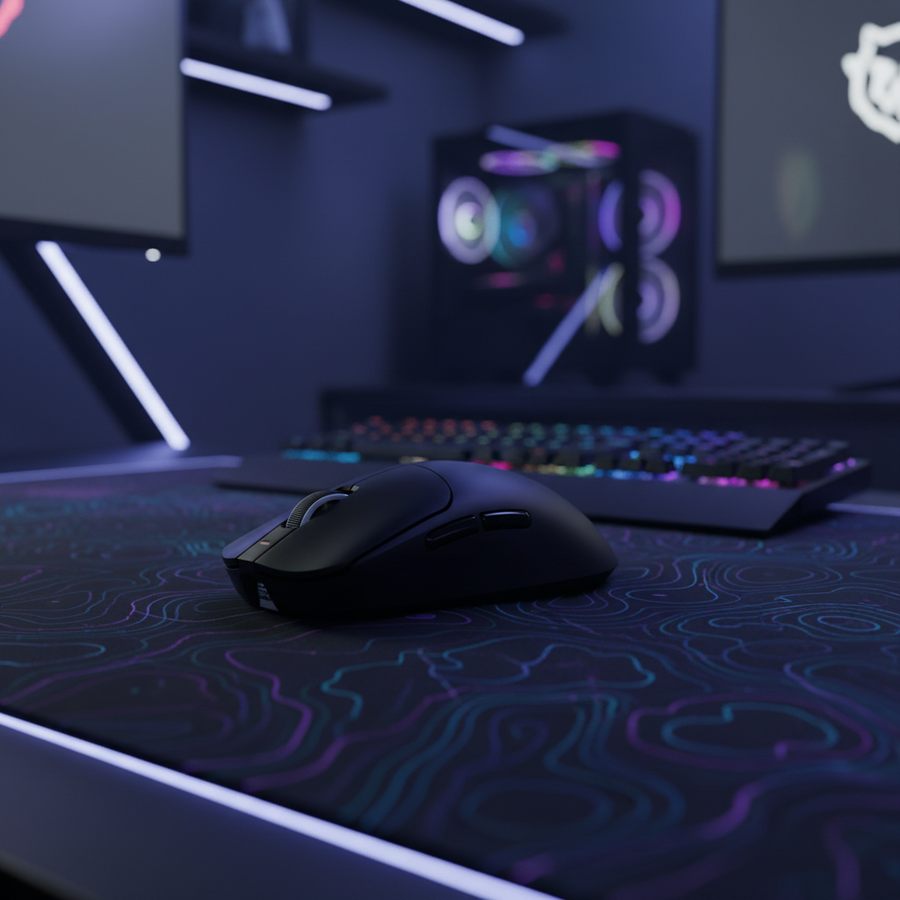
Cuando has logrado la separación física, el siguiente cuello de botella es la fidelidad de los datos. Sensores modernos, como los que se encuentran en el ATTACK SHARK X8 Series Ratón Gaming Inalámbrico Ligero Tri-modo, ahora soportan tasas de polling de 8000Hz (8K).
A 8000Hz, el intervalo de polling es casi instantáneo 0.125msEsto reduce drásticamente el micro-tartamudeo comparado con el intervalo de 1.0 ms de ratones estándar a 1000Hz. Sin embargo, saturar este ancho de banda requiere configuraciones específicas:
- Saturación del Sensor: Para aprovechar completamente los 8000Hz, debes mover el ratón a velocidades suficientes. A 800 DPI, necesitas al menos 10 IPS (pulgadas por segundo) de movimiento. Al aumentar a 1600 DPI, este umbral baja a 5 IPS, haciendo que las actualizaciones de alta frecuencia sean más consistentes durante microajustes.
- Impacto en la CPU: El polling a 8K traslada el cuello de botella al procesamiento IRQ (Solicitud de Interrupción) del sistema. Esto requiere una CPU de alto rendimiento para manejar los 8,000 paquetes por segundo sin pérdida de frames.
- Conectividad: Siempre usa los puertos traseros directos de la placa base. Evita hubs USB o conectores frontales, ya que el ancho de banda compartido puede causar pérdida de paquetes, anulando la ventaja de 0.125 ms.
Resumen Lógico: Nuestras estimaciones de rendimiento 8K asumen una configuración de 1600 DPI y una conexión directa USB 3.0+ a la placa base, basadas en las especificaciones estándar del sensor PixArt Imaging.
Gestión de Cables y Reducción de Arrastre
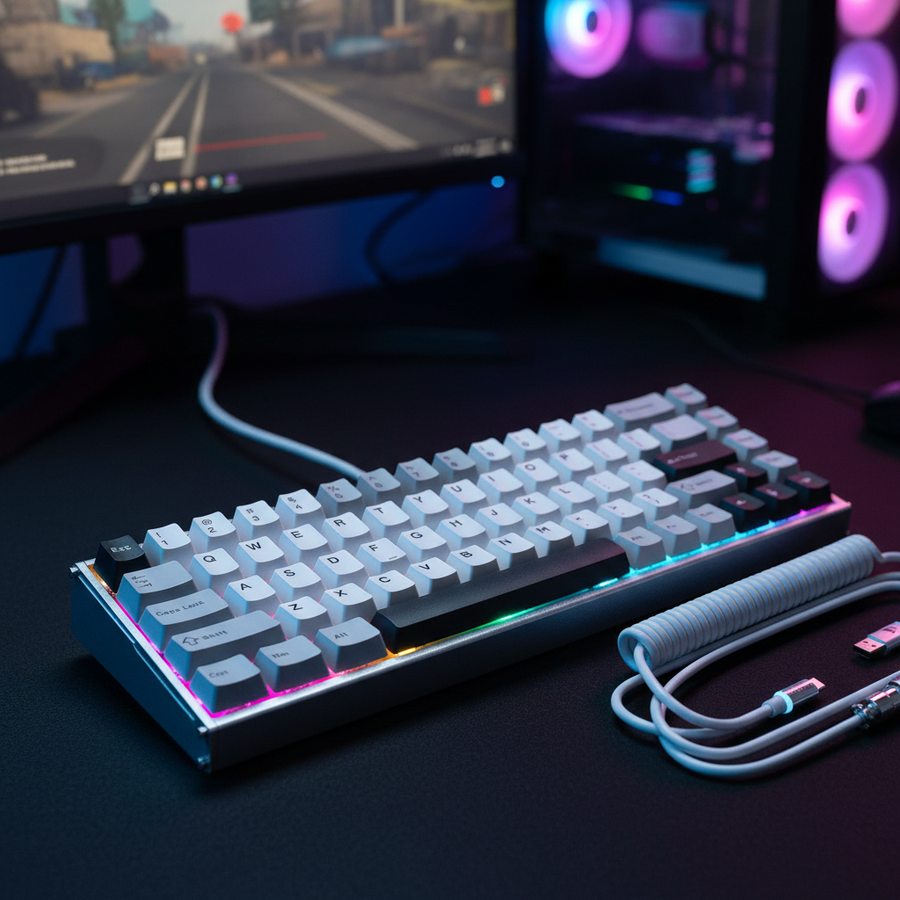
Incluso con un ratón inalámbrico, la gestión de cables del teclado puede interferir con la zona de movimiento rápido. Un cable recto estándar a menudo se amontona cerca de la parte superior del mouse pad. Utilizar un ATTACK SHARK C06 Cable Enrollado para Ratón (que también es compatible con teclados Type-C) permite dirigir la conexión fuera del área principal de movimiento. Las bobinas "elásticas" de 20 mm proporcionan un anclaje resistente que evita que el cable se deslice hacia el camino de tu ratón durante sesiones intensas.
Ergonomía, Salud y Sostenibilidad del Rendimiento
Optimizar el espacio libre a menudo pone a los jugadores en conflicto con los consejos ergonómicos tradicionales. Aunque rotar el teclado resuelve el problema de "colisión", puede introducir nuevas tensiones. Nuestro modelado de una sesión de juego de alta intensidad usando el Índice de Tensión Moore-Garg (SI) resultó en una puntuación de 48.0, que se clasifica como peligroso (comparado con un umbral base de 5.0).
Esta puntuación alta se debe a la naturaleza balística de los movimientos en FPS y la extensión de la muñeca causada por ángulos no neutrales del teclado. Para equilibrar rendimiento y salud, sugerimos:
- Selección de Diseño: Un diseño de teclado del 65% o 60% ofrece aproximadamente 5cm de espacio horizontal adicional comparado con un teclado Tenkeyless (TKL), reduciendo la necesidad de rotación extrema.
- Entrenamiento por Intervalos: Dado el alto APM (acciones por minuto) y la intensidad, son esenciales descansos cortos cada 45 minutos para mitigar el riesgo de trastornos en las extremidades superiores distales.
Confianza y Seguridad: Una Nota sobre Cumplimiento
Al seleccionar equipos inalámbricos de alto rendimiento, asegúrese de que los dispositivos cumplan con normas internacionales. Por ejemplo, la Autorización de Equipos FCC garantiza que ratones y teclados inalámbricos operen dentro de límites seguros de frecuencia radioeléctrica, mientras que la certificación UN 38.3 es el estándar industrial para la seguridad de baterías de litio durante el transporte y uso.
Resumen de Tácticas de Optimización
Para maximizar el espacio libre para flicking y su ventaja competitiva, siga esta jerarquía de ajustes:
- Priorice el Espacio Libre: Gire el teclado 15-30° en sentido antihorario para despejar el arco horizontal.
- Reduzca el Tamaño: Cambie a un diseño del 65% para recuperar ~5cm de espacio en el escritorio.
- Nivele la Superficie: Use una alfombrilla delgada (~2mm) y una inclinación plana del teclado para reducir obstáculos verticales.
- Maximice la Fidelidad: Configure su ratón a 1600 DPI para asegurar un sondeo estable en 8K durante el microapuntamiento.
- Organice los Cables: Use cables en espiral o guiados para mantener la zona de flick 100% despejada.
Aviso Legal: Este artículo es solo para fines informativos y no constituye asesoramiento médico profesional. Las necesidades ergonómicas varían significativamente según el tamaño de la mano y condiciones preexistentes. Consulte a un fisioterapeuta calificado si experimenta dolor persistente en la muñeca o el hombro.