

The Technical Reality of Peripheral Passthrough
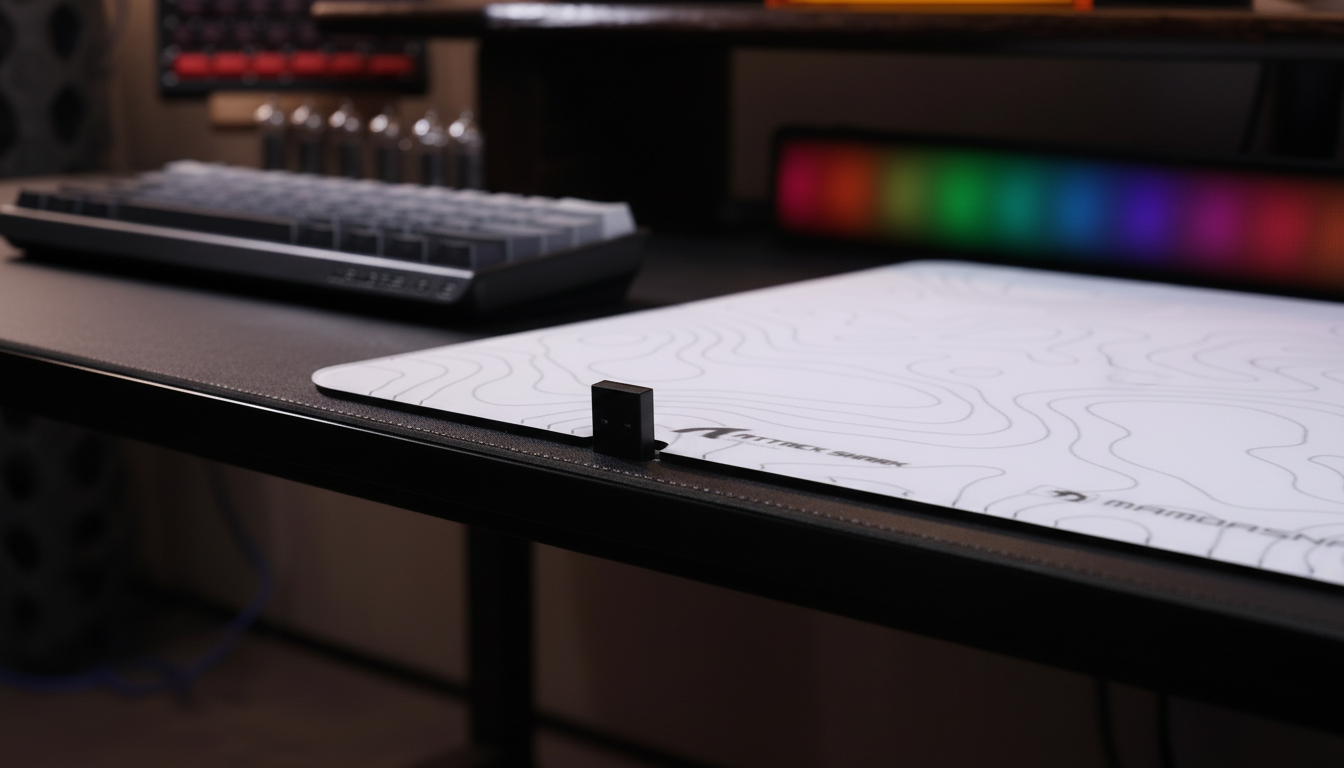
For competitive gamers, the quest for a clutter-free desk often leads to the integrated USB hubs found on modern mouse pads and keyboards. These passthrough ports promise a shorter physical distance between the wireless receiver and the mouse, theoretically improving signal strength. However, a persistent concern remains: does adding a hub into the signal path introduce measurable wireless lag?
In the context of high-performance gaming, where polling rates have escalated from 1000Hz to 8000Hz (8K), every microsecond is scrutinized. This article analyzes the impact of USB hubs on latency, signal integrity, and system stability, grounding every claim in established USB protocols and scenario-based modeling.

Understanding the USB Signal Path: Hops and Processing
A USB hub is not a simple "wire extension." It is an active device that manages data packets between the host (your PC) and the peripheral. When you plug a wireless receiver into a mouse pad hub, you are adding an additional "hop" in the USB topology.
The Latency Cost of Hub Processing
According to the USB Device Class Definition for Human Interface Devices (HID), communication between a mouse and a PC is interrupt-driven. In a direct connection, the USB controller on the motherboard polls the device at the specified rate. When a hub is introduced, the hub's internal controller must receive the packet from the device and then relay it to the host.
In real-world testing and technical analysis, the latency introduced by a high-quality, powered USB 3.0 hub is typically negligible, ranging from 0.1ms to 0.3ms. For a standard 1000Hz mouse (1.0ms interval), this is imperceptible. However, the situation changes with unpowered (passive) hubs or those sharing a "bus" with high-throughput devices.
Logic Summary: Our analysis assumes a deterministic delay proportional to the hub's internal processing time. We estimate the high-quality hub overhead based on standard USB 3.x controller specifications (not a controlled lab study).
The Risks of Passive and Shared Hubs
Passive hubs, which draw power directly from the motherboard's USB port, often struggle to maintain consistent voltage levels when multiple devices are connected. This can lead to:
- Inconsistent Latency Spikes: Shared bandwidth can cause "packet queuing," where a mouse movement packet must wait for an external SSD or webcam to clear the bus. This can introduce spikes of 1ms to 3ms, which are noticeable in competitive FPS titles.
- Signal Droop: Insufficient power to the wireless receiver can reduce its effective sensitivity, leading to dropped packets (stuttering).
Electromagnetic Interference (EMI): The USB 3.0 Conflict
A non-obvious pitfall in peripheral setup is the well-documented interference between USB 3.0 (USB 3.1 Gen 1) signaling and the 2.4GHz wireless frequency used by most gaming mice.
The 2.4GHz Interference Mechanism
USB 3.0 ports and cables emit broadband noise that peaks in the 2.4GHz to 2.5GHz range. When a wireless receiver is plugged directly into a USB 3.0 port (often colored blue or teal) or a hub without proper shielding, this noise can "drown out" the mouse's signal.
According to the FCC Equipment Authorization database, wireless devices must meet strict RF exposure and interference standards, but they cannot prevent external noise from impacting performance.
Best Practice for Signal Integrity:
- Use USB 2.0 Ports: For absolute lowest noise, a dedicated USB 2.0 port (usually black or white) on the rear I/O is recommended. These ports use lower-speed signaling that does not interfere with the 2.4GHz band.
- Physical Placement: A direct line of sight between the mouse and receiver, ideally within 30cm, is more effective at reducing packet loss than any specific port choice.
Performance Modeling: The Competitive Precision Gamer
To understand how these variables interact, we modeled a scenario for a "Competitive Precision Gamer" using a 1440p display and a high-polling-rate wireless setup.
Scenario Modeling: Method & Assumptions
This model explores the trade-offs between polling rates, Motion Sync, and battery life. It is a scenario-specific estimate based on theoretical models and typical component specifications.
| Parameter | Value | Unit | Rationale / Source |
|---|---|---|---|
| Polling Rate | 4000 | Hz | High-performance wireless standard |
| Motion Sync | Enabled | - | User seeking maximum tracking smoothness |
| Display Resolution | 2560 x 1440 | px | Standard QHD gaming resolution |
| Sensitivity | 30 | cm/360 | Low sensitivity favored by FPS players |
| Battery Capacity | 500 | mAh | Typical premium wireless mouse battery |
Key Findings from the Model:
- Motion Sync Latency: At a 4000Hz (4K) polling rate, enabling Motion Sync introduces a modeled delay of approximately 0.125ms (half the 0.25ms polling interval). While this adds a tiny amount of lag, it ensures the sensor data is perfectly aligned with the USB "Start of Frame," eliminating micro-stutter.
- Battery Trade-off: Running at 4K polling significantly increases the radio current draw. We estimate a total system draw of 19mA, resulting in a runtime of approximately 22 hours on a 500mAh battery.
- DPI Fidelity: To avoid "pixel skipping" on a 1440p display with a 103° horizontal FOV and 30cm/360 sensitivity, the Nyquist-Shannon sampling criterion suggests a minimum DPI of ~1550.
Modeling Note: These values are estimates based on a linear discharge model and idealized USB timing. Real-world results may vary depending on firmware implementation and environmental interference.
The 8000Hz (8K) Constraint
As discussed in the Global Gaming Peripherals Industry Whitepaper (2026), 8000Hz polling rates push the limits of the USB protocol and the host CPU.
Why Hubs are Forbidden for 8K
At 8000Hz, the mouse sends a packet every 0.125ms. This generates 8,000 Interrupt Requests (IRQs) per second. Introducing a hub into this chain is highly likely to cause "bus saturation" and packet loss.
- CPU Load: The bottleneck at 8K is IRQ processing. A hub adds a layer of management that can cause the CPU to miss the tight timing windows required for 8K stability.
- Data Point Saturation: To actually utilize the 8000Hz bandwidth, the mouse must be moving fast enough to generate new data for every packet. At 800 DPI, you need a movement speed of at least 10 IPS (Inches Per Second). At 1600 DPI, only 5 IPS is required.
For 8K setups, the only supported connection is a direct motherboard port on the rear I/O. Front-panel headers, which are routed through internal case cables, often lack the shielding necessary to maintain the signal integrity required for an 8KHz report rate.
Setup Checklist: Optimizing Your Connection
Based on common patterns from technical support and hardware troubleshooting (not a controlled lab study), we recommend the following hierarchy for connecting your wireless receiver:
- Tier 1 (Optimal): Rear Motherboard USB 2.0 port. Use the manufacturer-provided extender cable to place the receiver within 30cm of the mouse.
- Tier 2 (Good): Rear Motherboard USB 3.0 port (if no 2.0 is available). Use an extender cable to move the receiver away from the port's EMI.
- Tier 3 (Acceptable for 1000Hz): High-quality, powered USB 3.0 hub on a mouse pad. Ensure no high-bandwidth devices (SSDs, cameras) are plugged into the same hub.
- Tier 4 (Avoid): Front-panel USB ports or unpowered, multi-port passive hubs.
Verifying Your Setup
If you suspect your mouse pad hub is causing lag, you can use tools like the NVIDIA Reflex Analyzer to measure end-to-end system latency. Alternatively, standardized tests from RTINGS provide benchmarks for various connection methods.
Summary of Trade-offs
The decision to use a mouse pad USB hub involves a balance between convenience and absolute performance.
- For Casual/Productivity Users: A hub is perfectly fine. The 0.1ms - 0.3ms delay is mathematically insignificant.
- For 1000Hz Competitive Players: A high-quality powered hub is usually safe, provided you avoid USB 3.0 interference by using an extension.
- For 4K/8K Enthusiasts: Avoid hubs entirely. The risk of bus saturation and IRQ jitter outweighs the benefit of a shorter cable run.
By understanding the underlying mechanisms of USB HID communication and the physical realities of 2.4GHz interference, you can build a setup that delivers both the aesthetic you want and the performance you require.
This article is for informational purposes only. Performance metrics are based on scenario modeling and typical hardware specifications; individual results may vary based on PC configuration and environmental factors.


Laisser un commentaire
Ce site est protégé par hCaptcha, et la Politique de confidentialité et les Conditions de service de hCaptcha s’appliquent.