






Meilleures ventes




Articles de blog
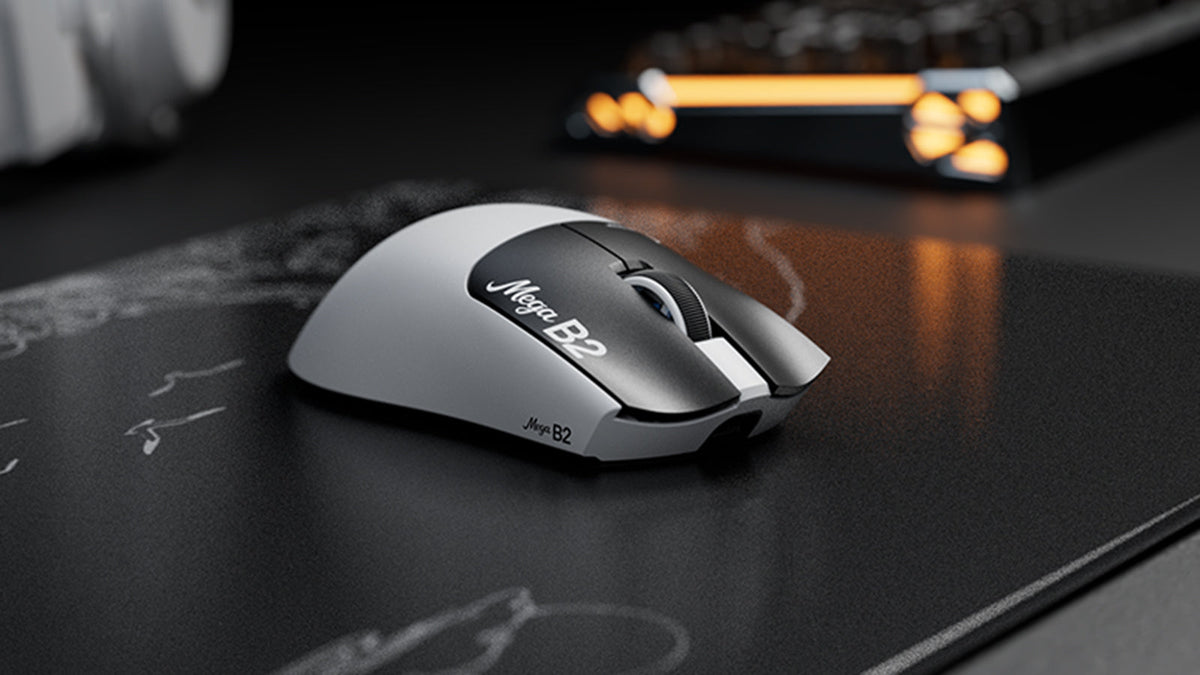
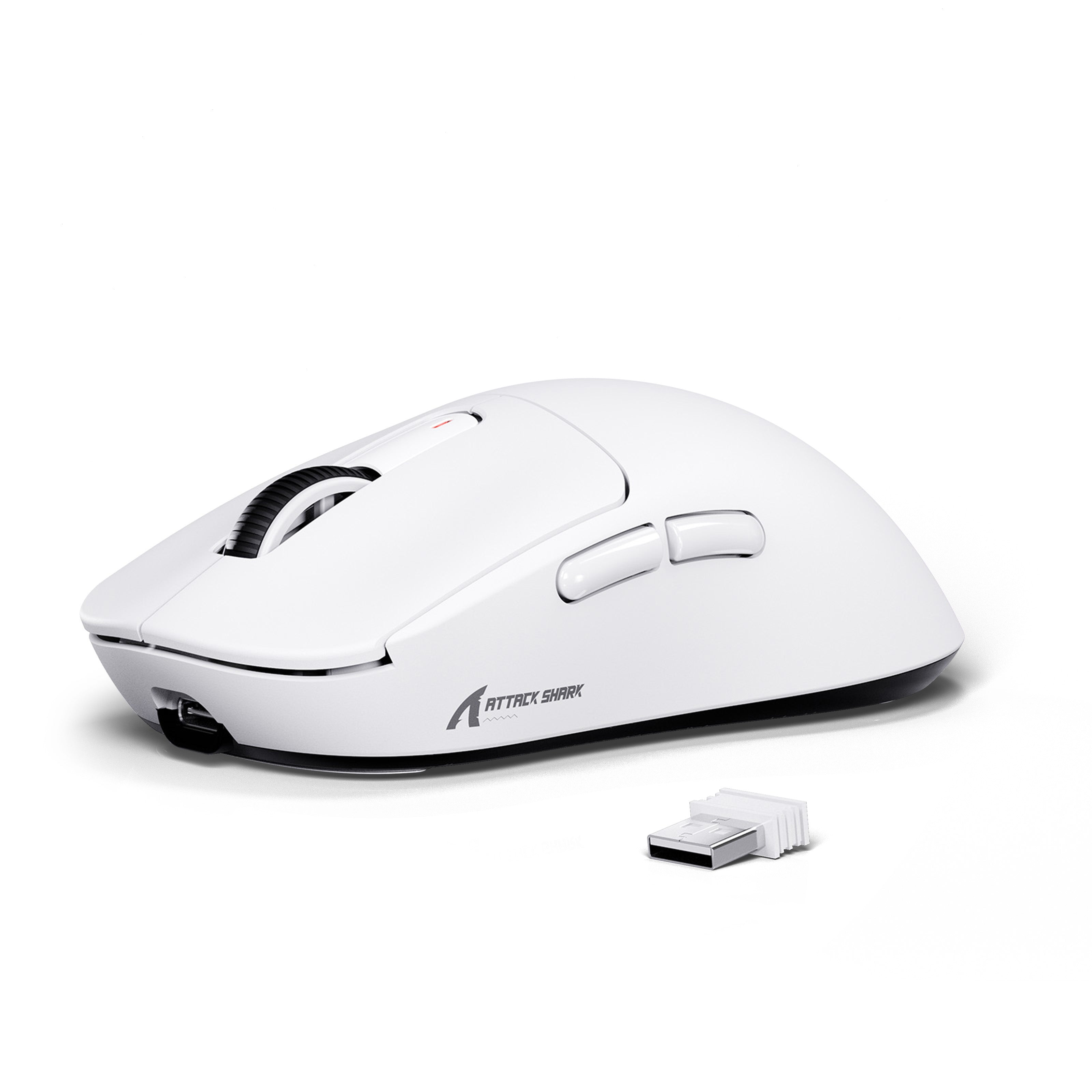
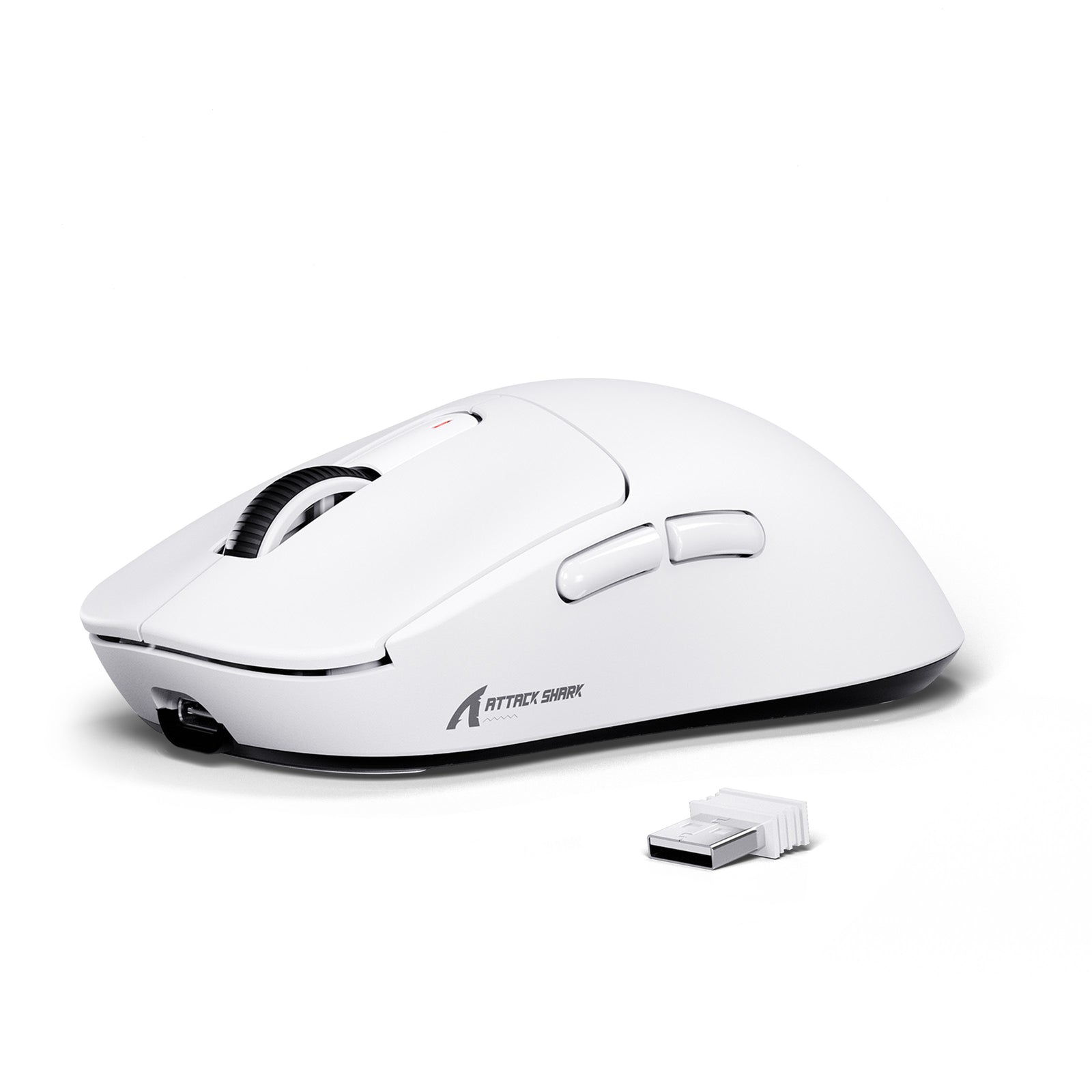
Rapid Trigger réinitialise un bouton de souris après une course ascendante minimale, tandis que la détection magnétique TMR permet un point d'activation réglable sans contacts fixes.

ATTACK SHARK annonce un partenariat stratégique avec l’équipe de League of Legends de Cloud9 Kia
Découvrez pourquoi ce partenariat entre Cloud9 et League of Legends est important pour les fans d’esport, les équipements de niveau professionnel et les périphériques de jeu accessibles.
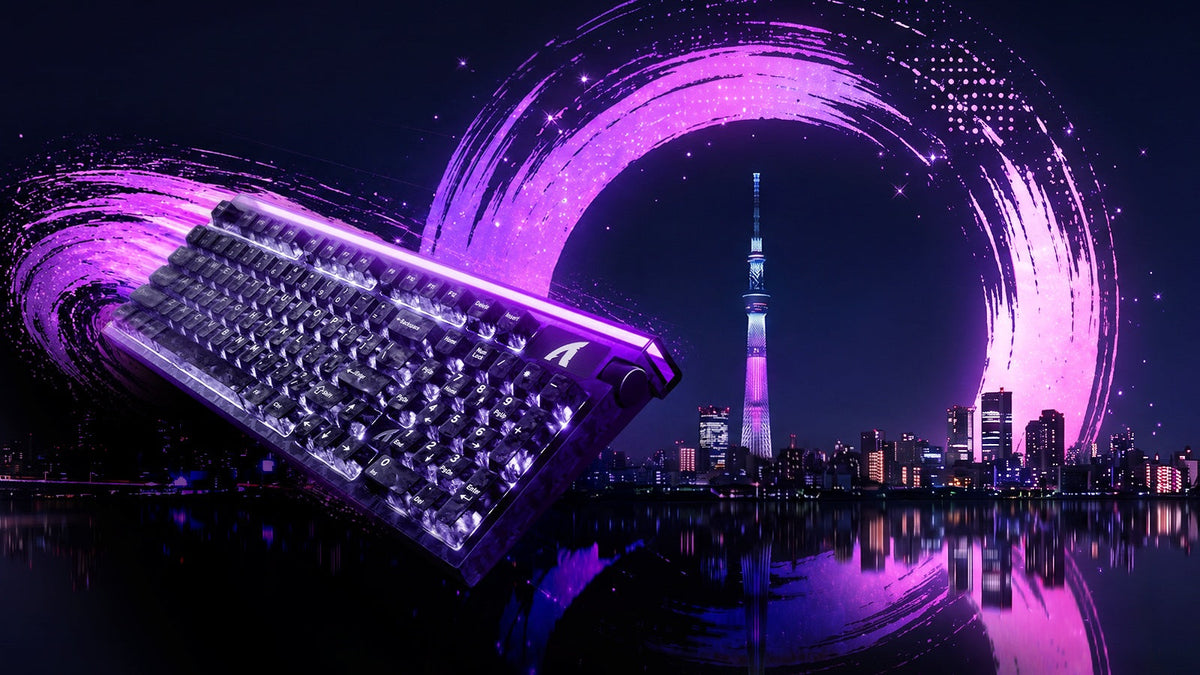
Retrouvez ATTACK SHARK à l’EXPO TOKYO DU CLAVIER 2026
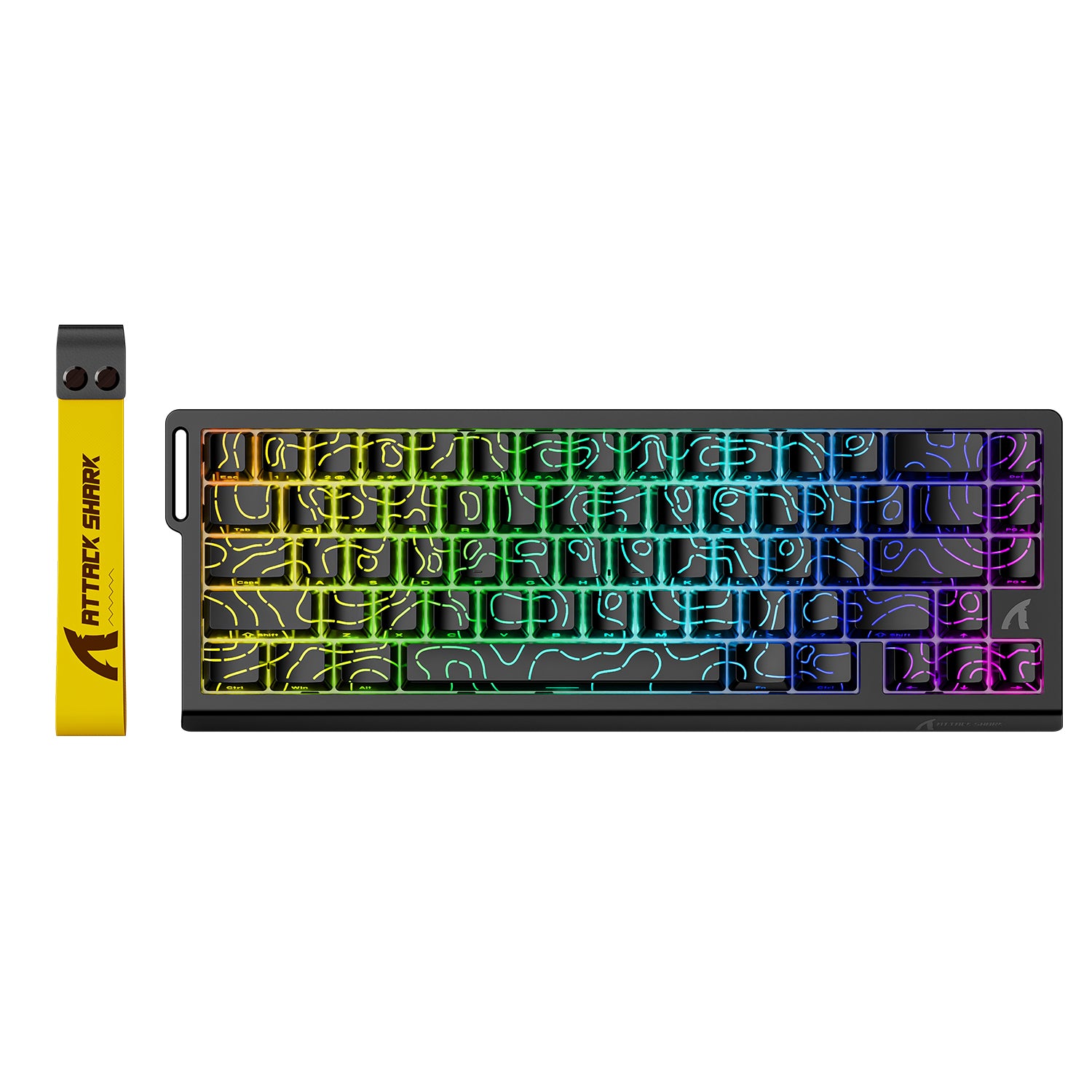
ATTACK SHARK se rend au Tokyo Ryutsu Center le 23 septembre 2026 pour tester directement des claviers à effet Hall et des souris gaming au stand B21-B23.
Test de souris et clavier
Pourquoi le test essentiel des périphériques est important
Que vous soyez un joueur compétitif, un dactylographe professionnel ou un développeur logiciel, l'intégrité de vos dispositifs d'entrée est primordiale. Un clavier défectueux ou une souris qui saute peut perturber votre flux de travail et gâcher vos sessions de jeu. Utiliser un testeur de clavier et de souris en ligne fournit un retour visuel immédiat pour vérifier que chaque interrupteur, capteur et bouton est correctement enregistré par votre ordinateur. Des tests réguliers garantissent que votre matériel fonctionne à son plein potentiel.
Fonctionnalités complètes de test de clavier
Un test de touches robuste va au-delà de la simple vérification de l'apparition d'une lettre à l'écran. Il analyse la performance mécanique de votre appareil.
Identifier les touches mortes et les interrupteurs bloqués
Le problème le plus courant rencontré par les utilisateurs est une "touche morte" — un interrupteur spécifique qui ne déclenche pas de commande. À l'inverse, une "touche bloquée" enregistre une entrée continue sans action physique. Notre outil de test met en évidence les entrées actives en temps réel, vous permettant de repérer instantanément les interrupteurs non réactifs ou provoquant un "battement" (double frappe).
Comprendre le ghosting et le N-Key Rollover (NKRO)
Pour les joueurs, le ghosting du clavier est un problème critique. Cela se produit lorsqu'un clavier ne parvient pas à enregistrer une pression de touche parce que plusieurs autres touches sont pressées simultanément. Notre outil vous aide à tester les capacités de Key Rollover de votre clavier. En appuyant sur plusieurs touches à la fois (par exemple, WASD + Espace + Maj), vous pouvez vérifier si votre appareil supporte le 6-Key Rollover (6KRO) ou le N-Key Rollover complet (NKRO), garantissant qu'aucune commande n'est perdue lors de sessions de jeu intenses.
Vérification des performances et de la précision de la souris
Votre souris est votre principal outil de navigation. Tester sa précision est tout aussi important que tester votre clavier.
Test de réponse des boutons de la souris
Avec le temps, les interrupteurs de souris (en particulier les Omron ou Huano) peuvent se dégrader, entraînant le redouté problème de "double-clic" ou des clics manqués. Cet outil vous permet d'isoler et de tester indépendamment le Clic gauche, le Clic droit et le Clic du milieu. Il prend également en charge le test des boutons latéraux (MB4/MB5) souvent utilisés pour les macros dans les logiciels de productivité et les jeux.
Molette de défilement et suivi du capteur
Une molette de défilement défectueuse peut sauter ou défiler dans la mauvaise direction. Notre visualiseur suit la direction du défilement (haut/bas) pour s'assurer que l'encodeur fonctionne correctement. De plus, en déplaçant votre souris à travers l'écran, vous pouvez vérifier visuellement que le capteur suit un mouvement fluide du curseur sans tremblements ni dérapages.
Dépannage des problèmes matériels
Si vous découvrez un défaut lors de votre test, considérez ces étapes avant de remplacer votre appareil :
- Nettoyez les interrupteurs : L'air comprimé peut éliminer la poussière provoquant des touches bloquées ou des sauts de molette.
- Vérifiez les connexions : Assurez-vous que votre câble USB est bien inséré ou essayez un autre port USB.
- Mettez à jour les pilotes : des pilotes corrompus peuvent causer des retards d'entrée ou des boutons non reconnus.
- Testez sur un autre PC : Isolez le problème pour vous assurer qu'il s'agit du matériel et non du système d'exploitation.
Questions fréquemment posées (FAQ)
Q : Pourquoi mon clavier tape-t-il deux lettres quand j'appuie une fois sur une touche ? R : Ce phénomène est connu sous le nom de "battement de touche". C'est une défaillance mécanique courante où les contacts métalliques dans l'interrupteur vibrent, envoyant plusieurs signaux. Vous pouvez essayer de nettoyer l'interrupteur avec de l'alcool isopropylique, mais souvent l'interrupteur doit être remplacé.
Q : Comment tester le ghosting du clavier ? R : Pour tester le ghosting, appuyez et maintenez une combinaison de touches que vous utilisez habituellement simultanément (comme W, A et Maj). Si l'une des touches ne s'allume pas à l'écran alors que les autres le font, votre clavier présente du ghosting.
Q : Quelle est la différence entre 6KRO et NKRO ? R : 6KRO signifie que le clavier ne peut gérer que 6 pressions de touches simultanées. NKRO (N-Key Rollover) signifie que vous pouvez appuyer sur autant de touches que vous voulez (même tout le clavier), et chacune sera enregistrée.
Q : Cet outil fonctionne-t-il pour Mac et Windows ? R : Oui. Ce test s'exécute dans votre navigateur web et est compatible avec les systèmes d'exploitation Windows, macOS et Linux. Cependant, la touche "Win" sera enregistrée comme "Command" sur macOS.
Q : Puis-je tester ici le taux de sondage de ma souris ? R : Cet outil se concentre sur la fonctionnalité des boutons et le suivi des coordonnées. Bien que vous puissiez voir la fluidité du mouvement, un test spécifique en Hz (vérifier si vous obtenez 1000Hz ou 8000Hz) nécessite un logiciel spécialisé pour le taux de sondage.