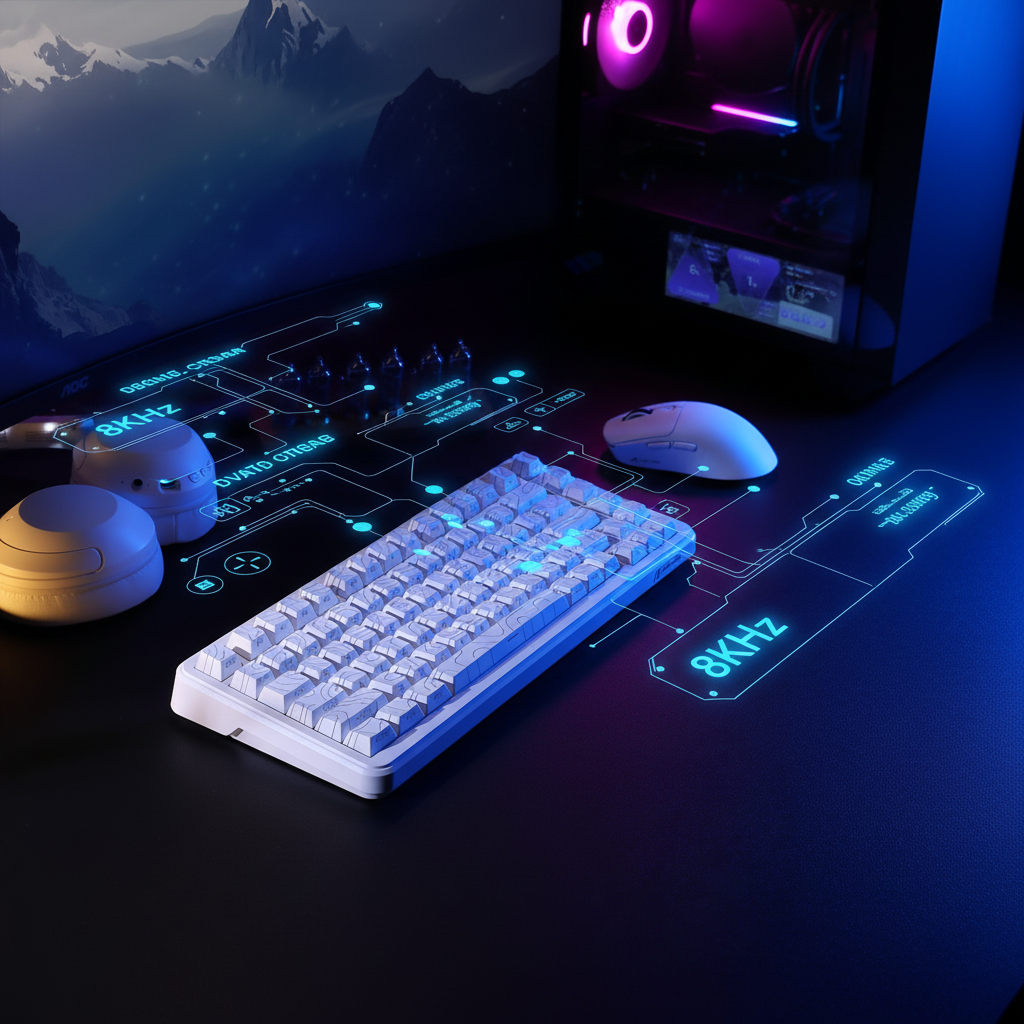
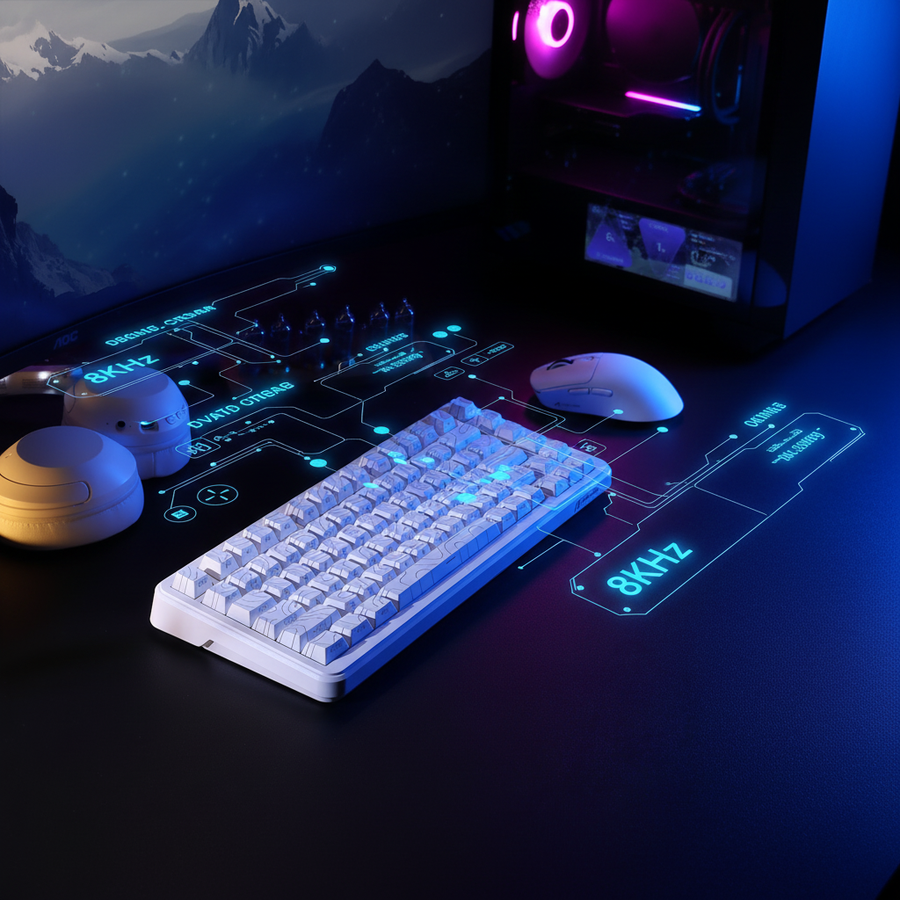
Gestion de la bande passante USB pour les configurations de périphériques Dual 8K
La transition vers des taux de polling de 8000 Hz (8K) représente le saut le plus significatif en fidélité d'entrée depuis le passage du PS/2 à l'USB. Cependant, pour les joueurs compétitifs utilisant une configuration « Dual 8K » — avec une souris 8KHz et un clavier 8KHz avec Rapid Trigger — le chemin vers une latence quasi nulle est semé d'embûches techniques. Alors que le marketing se concentre souvent sur la bande passante brute, le véritable goulot d'étranglement n'est que rarement la limite de 480 Mbps de l'USB 2.0. Le défi réside plutôt dans la gestion complexe des requêtes d'interruption (IRQ) et la planification des contrôleurs.
Dans ce guide technique, nous analyserons les mécanismes au niveau système des configurations double 8K, identifierons les goulots d'étranglement « cachés » dans l'architecture USB de votre PC, et fournirons un cadre basé sur les données pour optimiser votre matériel afin d'éviter les pics de latence d'entrée lors de combats intenses.

Le mythe de la bande passante vs. la réalité des interruptions
Une idée fausse courante chez les joueurs est que les périphériques 8K « saturent » le bus USB. Mathématiquement, c'est incorrect. Un rapport USB HID standard (périphérique d'interface humaine) pour une souris de jeu se compose généralement de 8 octets de données. À un taux de polling de 8000 Hz, le périphérique envoie 8 000 paquets par seconde.
- 8 octets × 8 000 rapports = 64 000 octets/s (64 Ko/s)
- Configuration double 8K (Souris + Clavier) = 128 Ko/s
Comparé au débit pratique d'un port USB 2.0 — qui est d'environ 40 Mo/s — une configuration double 8K consomme moins de 0,5 % de la bande passante disponible. Le vrai problème n'est pas la taille des données, mais la fréquence des requêtes. Selon la définition de la classe USB HID (HID 1.11), chaque rapport nécessite une interruption. Dans une configuration double 8K, votre CPU doit gérer 16 000 interruptions par seconde rien que pour vos périphériques.
Résumé logique : Notre analyse suppose un modèle d'interruption déterministe où le principal goulot d'étranglement est la fenêtre de planification de l'interface du contrôleur hôte (xHCI). Bien que la bande passante soit suffisante, la fenêtre temporelle de 0,125 ms pour les rapports 8K est très sensible à la « contention d'interruption » lorsque plusieurs périphériques à haute fréquence de polling partagent un même concentrateur racine.
Identifier le goulot d'étranglement : concentrateurs racine et topologies USB
La plupart des cartes mères modernes disposent de plusieurs ports USB, mais ceux-ci sont souvent acheminés via un nombre limité de contrôleurs de concentrateur racine internes. Si vous branchez à la fois une souris 8K et un clavier 8K sur des ports gérés par le même contrôleur, ce dernier doit alterner entre le service de chaque périphérique. Cela peut provoquer des pics de latence périodiques de 0,5 ms à 2,0 ms — annulant ainsi l'avantage de 0,125 ms du polling 8K.
Le piège du "traducteur de transaction unique" (STT)
Un piège critique dans l'architecture USB concerne les appareils hérités. Si vous utilisez un concentrateur USB 2.0 qui emploie un traducteur de transaction unique (STT), connecter un seul appareil USB 1.1 (comme un ancien dongle de casque ou un clavier de bureau basique) peut compromettre le timing de tout le concentrateur. Comme indiqué dans la documentation Concentrateur USB - Wikipédia, les concentrateurs STT acheminent tout le trafic basse vitesse par un point unique, créant un jitter massif qui détruit la précision requise pour le sondage 8K.
Comment isoler vos contrôleurs
Pour atteindre des performances de référence, vous devez isoler physiquement vos appareils à haute fréquence de sondage. Nous recommandons d'utiliser un outil comme USBTreeView pour cartographier la topologie de votre carte mère.
- Identifiez les concentrateurs racines séparés : Recherchez les ports correspondant à différents contrôleurs xHCI.
- Isolez les appareils à haute fréquence de sondage : Assignez votre souris 8K à un concentrateur racine et votre clavier 8K à un autre.
- Utilisez les ports I/O arrière : Branchez toujours directement sur la carte mère. Les connecteurs du panneau avant utilisent souvent des câbles internes non blindés qui introduisent du bruit de signal et des pertes de paquets.
Impact système global : mise à l'échelle du CPU et compromis PCIe
Gérer 16 000 interruptions par seconde impose une charge mesurable sur le processeur. Selon notre modélisation de scénario, activer le sondage double 8K peut augmenter l'utilisation du CPU de 2 % à 5 % par appareil. Sur un processeur moderne à 8 cœurs, cela est négligeable. Cependant, pour les utilisateurs sur des systèmes plus anciens à 4 cœurs, cette surcharge peut entraîner des "micro-saccades" dans des jeux CPU-intensifs comme Valorant ou Counter-Strike 2.
De plus, de nombreuses configurations "pro" tentent de résoudre les problèmes de bande passante USB en ajoutant une carte contrôleur USB PCIe dédiée. Bien que cela offre un environnement contrôleur propre, cela introduit un nouveau risque : le partage des lignes PCIe. Selon le Livre blanc mondial sur l'industrie des périphériques de jeu (2026), l'installation d'une carte USB 3.2 à haute vitesse peut parfois forcer le slot GPU principal à passer du mode x16 au mode x8, ou réduire les vitesses des SSD NVMe, créant un compromis de performance caché.
| Fonctionnalité | Impact sur la stabilité 8K | Recommandation |
|---|---|---|
| États C du processeur | Élevé (peut causer un délai de réveil de 0,05 ms) | Désactivez les états C dans le BIOS pour un timing cohérent |
| Concentrateurs USB | Très élevé (introduit du jitter/délai STT) | À éviter complètement pour les appareils 8K |
| Ports du panneau avant | Élevé (problèmes d'intégrité du signal) | Utilisez uniquement les ports I/O arrière de la carte mère |
| Blindage des câbles | Moyen (perte de paquets/interférences) | Utilisez des câbles de haute qualité et blindés |
Synergie matérielle : Optimiser les souris 8K et les claviers magnétiques
Pour maximiser le rapport performance/prix du matériel haut de gamme, l’interaction entre la souris et le clavier est vitale. Par exemple, en utilisant un capteur haute précision comme celui du ATTACK SHARK G3PRO Souris gaming sans fil tri-mode avec station de charge 25000 DPI Ultra légère, la réduction de la latence d’entrée est la plus perceptible lors des micro-ajustements rapides.
L’avantage Rapid Trigger
Les claviers magnétiques utilisent des capteurs à effet Hall pour permettre la fonctionnalité « Rapid Trigger », qui réinitialise la touche dès que vous relevez le doigt. Dans notre modèle d’avantage effet Hall, nous avons calculé qu’une configuration Rapid Trigger peut offrir un avantage d’environ 9 ms par rapport aux interrupteurs mécaniques traditionnels en éliminant le rebond fixe et les distances de réinitialisation.
Cependant, cet avantage dépend de l’intégrité du signal. Pour une utilisation filaire en 8K, un câble premium blindé comme le ATTACK SHARK C01Ultra Câble Aviator personnalisé pour clavier magnétique 8KHz est essentiel. Les câbles non blindés standards peuvent subir des interférences électromagnétiques (EMI) à haute fréquence, entraînant des rapports « perdus » qui se traduisent par des saccades en jeu.
Optimisation de la surface et du mouvement
La précision d’entrée ne dépend pas seulement de l’électronique ; elle dépend aussi de l’interface physique. Une souris à haute fréquence de rapport nécessite une surface de suivi constante pour maintenir son timing de rapport. Le ATTACK SHARK CM05 Tapis de souris en verre trempé pour gaming offre une texture nano-micro-gravée qui minimise la friction, garantissant que le capteur capture chaque micro-mouvement sans le « glissement » qui peut rendre les données du capteur incohérentes.
Guide d’optimisation étape par étape pour le double 8K
Basé sur des schémas courants issus du support technique et des retours de la communauté compétitive, suivez cette liste de contrôle pour garantir que votre configuration double 8K fonctionne à son efficacité maximale :
- Configuration du BIOS : Désactivez la « Suspension sélective USB » et les « États C globaux ». Cela empêche le processeur et les contrôleurs USB d’entrer en modes basse consommation qui introduisent une latence au réveil.
- Cartographie du contrôleur : Utilisez USBTreeView pour vous assurer que votre souris et votre clavier sont sur des Root Hubs séparés. Si vous devez utiliser un convertisseur pour jouer sur console, assurez-vous qu'il est compatible haute vitesse, comme le ATTACK SHARK G6L Gaming Converter, conçu pour gérer le flux de données des périphériques modernes.
- Mise à l'échelle DPI : À 8000 Hz, le capteur doit envoyer suffisamment de données pour "remplir" les fenêtres de 0,125 ms. À 400 DPI, vous devez déplacer la souris très rapidement pour voir le bénéfice de l'8K. Nous recommandons 1600 DPI ou plus pour assurer un sondage stable lors de mouvements lents.
- Vérification du signal : Utilisez un outil en ligne comme le Testeur de fréquence de sondage de souris Attack Shark pour vérifier que votre appareil atteint sa fréquence cible sans chutes significatives.
- Synergie de rafraîchissement du moniteur : Bien qu'il n'existe pas de "règle du 1/10e", le bénéfice visuel de l'8K est le plus apparent sur des moniteurs à 240 Hz et plus. Des taux de rafraîchissement plus faibles peuvent ne pas représenter visuellement le chemin plus fluide du curseur offert par le sondage 8K.
Note de modélisation : méthodes et hypothèses
Les données présentées dans ce guide sont dérivées du scénario de modélisation suivant. Ce sont des estimations basées sur des heuristiques industrielles standard et des spécifications matérielles, non des études en laboratoire contrôlées.
| Paramètre | Valeur | Unité | Justification / catégorie de source |
|---|---|---|---|
| Intervalle de sondage (8K) | 0.125 | ms | Calcul standard fréquence-temps |
| Délai de synchronisation du mouvement (8K) | ~0,06 | ms | 0,5 * Intervalle de sondage (théorie du traitement du signal) |
| Réinitialisation rapide du déclencheur | 0.1 | mm | Seuil typique du capteur à effet Hall |
| Surcharge d'interruption CPU | 0.5 - 1.0 | μs | Surcharge ISR xHCI estimée par paquet |
| Limite pratique USB 2.0 | ~40 | Mo/s | Limite pratique après surcharge du protocole |
Conditions limites :
- Latence système : Ces optimisations concernent la latence "Entrée-vers-PC" ; elles ne prennent pas en compte la latence "PC-vers-affichage" (temps de rendu GPU).
- Planification du système d'exploitation : La "résolution du minuteur" de Windows peut affecter la façon dont les interruptions sont traitées ; nous supposons un système optimisé avec un minuteur à 0,5 ms.
- Variabilité matérielle : La qualité du VRM de la carte mère et le blindage du contrôleur USB varient considérablement selon les marques.
L'avantage professionnel
Gérer une configuration double 8K ne se limite pas à brancher des câbles ; il s'agit d'auditer l'architecture de votre système pour éliminer les points de friction cachés. En isolant vos contrôleurs, en désactivant les fonctions d'économie d'énergie et en utilisant des accessoires blindés de haute qualité, vous pouvez garantir que votre matériel offre des temps de réponse quasi instantanés nécessaires pour un jeu de niveau élite.
Avertissement : Cet article est à titre informatif uniquement. Modifier les paramètres du BIOS ou les configurations PCIe comporte des risques inhérents. Consultez toujours la documentation de votre fabricant de carte mère avant d'effectuer des modifications au niveau du système. Les gains de performance peuvent varier en fonction des configurations matérielles individuelles et des optimisations du moteur de jeu.