






Attack Shark Mouse Polling Test
Mouse polling rate results are estimates
This web tool can only estimate the polling rate from browser events. Browser throttling, event coalescing, system scheduling, page focus, and device drivers can all affect the displayed Hz.
Use the result as a reference only.
How To Use
1. Start Testing
Click the START button to begin. This activates high-frequency tracking inside the page. Keep the pointer in the browser window while the test is running.
2. Move Your Mouse
Move your mouse continuously in circles or side-to-side. The faster and more consistent your movement, the more accurate the polling rate reading will be.
3. Analyze Graph
The blue line represents your real-time polling rate (Hz). A flat, stable line indicates a consistent sensor performance. Drops indicate instability.
4. Scale & Controls
Use the dropdown to set the Max Hz (e.g., 1000Hz or 4000Hz). Use PAUSE to freeze the data or RESET to clear all history.
FAQ & Knowledge
Featured collection


Blog posts
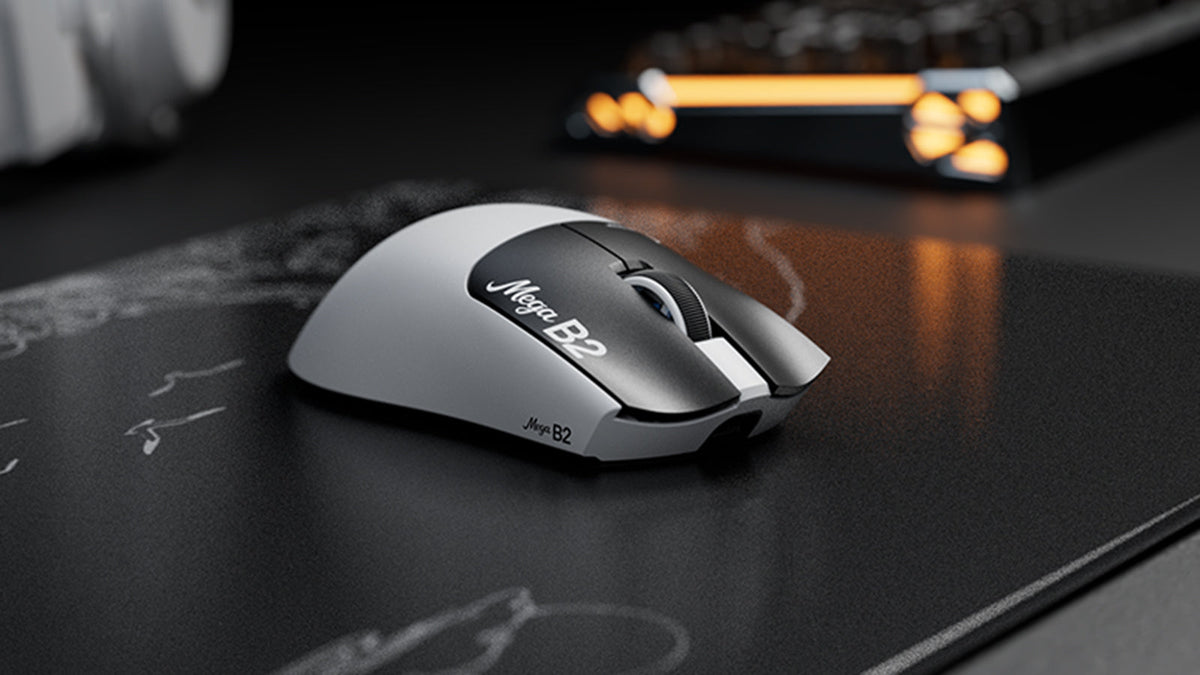
What Is a Rapid Trigger Mouse? How TMR Magnetic Sensing Changes Mouse Clicks
Rapid Trigger resets a mouse button after minimal upward travel, while TMR magnetic sensing enables adjustable actuation without fixed contacts.

ATTACK SHARK Announces Strategic Partnership With Cloud9 Kia’s League of Legends Team
Find out why this Cloud9 League of Legends partnership matters for esports fans, pro-level gear, and accessible gaming peripherals.

Meet ATTACK SHARK at TOKYO KEYBOARD EXPO 2026
ATTACK SHARK heads to Tokyo Ryutsu Center on September 23, 2026 for hands-on testing of Hall Effect keyboards and gaming mice at Booth B21-B23.