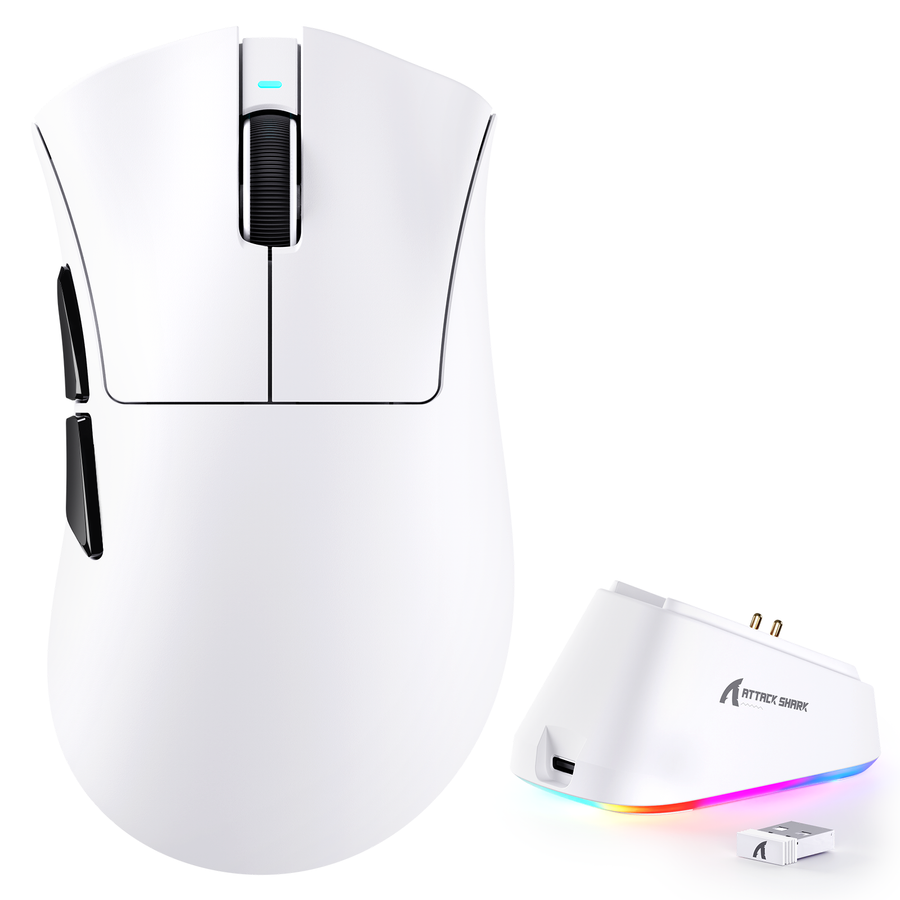



A wireless gaming mouse with a charging dock is a good fit when you have a stable, accessible place to return the mouse after use. USB cable charging is usually simpler if you move the mouse between locations, have limited desk space, or want fewer dedicated connections. Think of the dock as an ownership convenience, not a gaming-performance upgrade.

Should You Buy a Dock or a USB-Cable-Charged Wireless Mouse?
Choose a dock when a fixed, powered home can become part of your normal end-of-session routine. It should stay accessible without disrupting the mousepad or another peripheral. Choose USB cable charging when flexibility, minimal hardware, or moving the mouse between locations matters more.
A comparable charging-system review shows why the setup test matters: measure the clear area, return path, and full cable route before ordering. The dock is only convenient if that physical arrangement works with your desk.
Choose a standard wireless mouse that charges by USB cable if you use most of the available surface for mouse movement or do not want another powered component and connection to manage. If the mouse will not naturally return to the dock or its cable would obstruct the setup, cable charging better matches how you use the desk.
Before browsing products, measure the proposed dock location. If the space, return path, cable route, and USB arrangement all work, continue with dock-equipped models. If any important physical check fails, compare cable-charging options instead.

How Does a Wireless Gaming Mouse With a Charging Dock Change Daily Mouse Ownership?
A dock turns charging into a visible return routine, but it also reserves desk space and adds hardware that stays connected. A USB cable eliminates the dedicated dock surface and gives you a more flexible charging location, but you must connect the cable to the mouse when charging is needed. The practical benefits of a wireless mouse charging dock are therefore convenience and consistency—not proven performance or faster charging.
| Ownership factor | Charging dock | USB cable charging |
|---|---|---|
| Charging routine | Fixed return routine | Manual plug-in routine |
| Desk placement | Dedicated powered surface | No dedicated dock surface |
| Cable and USB connections | Model-specific power and receiver arrangement | Direct cable connection at the mouse |
| Flexibility during use | Less flexible charging location | More flexible charging location |
| Ongoing upkeep | Additional physical contact and connection point | Simpler hardware to keep connected |
Pay close attention to the USB and receiver setup. Independent testing of charging hardware shows why you should check whether the dock needs another USB connection and whether it hosts, supplements, or simply powers the wireless receiver. Do not assume that every dock saves a port, uses an extra port, or works as a general-purpose hub.
A dock also adds another physical contact and connection point to everyday use. That is a practical upkeep consideration, not evidence of a particular failure rate or a reason to invent a cleaning routine. Compare the added contact with the cable setup you would otherwise use, then choose the arrangement that creates less recurring friction at your desk.
How Can You Measure a Charging Dock's Fit on Your Desk?
Use the actual desk setup, not the desk's total dimensions. Measure the usable surface, return path, full cable route, and USB access around the mousepad, keyboard, monitor, and nearby ports. Product dimensions can refine the result when the listing provides them.
- Measure the clear landing area. Mark the usable surface where the dock would sit. Include enough room to lift the mouse from the dock and return it without colliding with the keyboard, monitor stand, speakers, or another peripheral.
- Test the return path. Place the mouse at its normal resting position and trace the movement to the proposed dock. The dock should be reachable without moving another device first or cutting into the area needed for normal mouse movement.
- Trace the complete cable route. Follow the cable from the dock to the intended powered USB connection. Look for crossings over the mousepad, tension, excess slack, or a route that interferes with the movement area. Measure the route you actually have, including the position of nearby ports.
- Compare it with direct cable charging. At the mouse's normal resting location, consider whether plugging in a cable would be easier than returning the mouse to the dock. This comparison bases the choice on your routine rather than the dock's appearance.
The dock passes when the clear surface, return path, cable route, and USB access work together without disrupting normal use. If the dock lacks usable surface, requires an obstructed return path, or creates an impractical cable route, choose USB cable charging. Keep the exact product dimensions beside these measurements when the listing provides them.
What Charging Behavior Must You Verify on the Exact Mouse?
A dock's presence does not prove that the mouse can remain connected wirelessly while it charges. Start with the exact model's charging, power, receiver, and connection details, because they determine whether the routine you want is possible.
Can You Charge While Staying Wireless?
Look for explicit wording that the exact mouse can charge on the dock while maintaining its wireless connection. The documentation should also distinguish whether charging, wireless use, and wired use work together or require a mode change.
What Should You Confirm About the Dock and Connections?
Use these product-specific details to define the charging routine:
- How the mouse meets the dock and whether the dock is included in the listed package.
- What powers the dock and whether its USB connection hosts, supplements, or merely powers the wireless receiver.
- Whether the exact model lists wired, 2.4GHz wireless, and Bluetooth modes, and whether changing modes is required for charging.
- Whether the cable and connection point match the desk route you measured.
- Whether magnetic attachment, RGB lighting, USB-C, or tri-mode connectivity is documented for that model rather than assumed from another product.
If the listing or manual does not document the charging and wireless behavior required for your routine, treat that behavior as unverified. Select a cable-charging setup or continue comparing models with clearer documentation instead.
Which Supported Dock-Equipped Mice Can You Inspect After the Fit Check?
These are listed catalog starting points, not a ranking. After measuring your desk, use each listing to compare the dock, connection modes, receiver arrangement, and any stated use while charging.
- ATTACK SHARK X11: The listing identifies an RGB magnetic charging dock, wired USB-C, 2.4GHz wireless, and Bluetooth 5.2 connectivity. Its FAQ says the dock's USB port is designed for the wireless receiver. Inspect the X11 charging dock for those listed details.
- ATTACK SHARK X1: The listing identifies a touchpad RGB magnetic charging dock and wired USB-C, 2.4GHz wireless, and Bluetooth connectivity. Review the X1 magnetic dock for the listed dock and connection details.
- ATTACK SHARK V3PRO: The listing identifies an RGB magnetic charging dock and wired, 2.4GHz wireless, and Bluetooth connectivity. Use the V3PRO charging dock as another starting point for its listed dock and connection details.
The listed dock and wireless modes do not establish simultaneous wireless use while charging. Compare only models whose documented behavior and measured physical fit match your setup.
Frequently Asked Questions About Wireless Gaming Mouse Charging Docks
Use the measured desk route and the product listing to apply these short answers.
What Does a Charging Dock Add to a Wireless Gaming Mouse Setup?
It adds a fixed, visible charging home. That can make the routine easier when you naturally return the mouse there, but it also reserves desk space and needs a powered connection. Measure that location before treating the convenience as a benefit.
Are Gaming Mouse Charging Docks Worth It?
A gaming mouse with a charging dock is worth it when the dock has a stable, reachable home and returning the mouse is realistic after use. Choose USB cable charging if you move the mouse, lack clear surface, or prefer fewer dedicated components.
Can a Mouse Charge on Its Dock While Connected Wirelessly?
Only if the model documents that charging and the intended wireless mode work together. The dock's presence alone is not enough. If that behavior is not stated, choose a setup that does not depend on it.
Is a Charging Dock Better Than a USB Cable for a Gaming Mouse?
Neither is universally better. A dock favors a fixed, repeatable routine, while a cable favors flexible placement and simpler hardware. Compare the measured route and connection needs rather than assuming a difference in charging speed or gaming performance.
What Should I Measure Before Buying a Wireless Mouse With a Charging Dock?
Measure the clear dock surface, the mouse's lift-and-return path, cable reach to a powered USB connection, and interference with the movement area. Then compare that setup with direct cable charging.
Measure the proposed location first, then inspect only the exact listing whose dock fit, receiver arrangement, connection modes, and documented charging behavior match your setup.