


You can spend an evening comparing gaming mice and still be stuck on one question: which one will actually feel right in your hand? Maybe you want more room to pull the mouse back with your fingers, a lighter body for repeated resets, or smaller DPI steps to dial in your sensitivity. Start with what you want to change about your current mouse, and use that to narrow the list.
Find a Shape and Weight That Suit Your Grip

A mouse can feel fine when you rest your hand on it, then get in the way once you start aiming. Pay attention to where your thumb and ring finger sit, how the hump meets your palm, and whether you can lift it without shifting your grip.
If the back catches your palm during fingertip adjustments, look at hump height and position. For claw grip, check where the rear supports your hand. Palm-grip players need enough support under the hand while keeping the buttons within comfortable reach.
When you can try a mouse, run through three movements:
- A wide swipe: Notice whether your fingers stay in place or slide into an awkward position.
- A lift and reset: Check whether you need to squeeze the sides hard to keep hold of it.
- Small aim corrections: Pull the mouse back and push it forward with your fingers to see whether the shell gets in the way.
For online purchases, compare top-view and side-view photos alongside dimensions. Overall width can be misleading because the sides may curve inward where you actually grip the mouse.
Weight affects the effort needed to start and stop a movement, while the pad and mouse feet affect glide. If you’re happy with your current pad, keeping it while trying a new mouse gives you one less thing to adjust to.
Sensitivity and Lift-Off Distance for Precise Adjustments
Set Sensitivity Around Your Available Pad Space
DPI determines how many movement counts the mouse reports per inch of travel, while in-game sensitivity translates those counts into camera movement. Together, they determine how far you need to move the mouse to turn.
In a practice range, measure the distance needed for a full turn, often called cm/360. Then track a moving target and try a quick turnaround. You should have room for the movements you regularly make without constantly running out of pad. Keep that measurement if you want to match your sensitivity when switching mice.
If small corrections regularly carry your crosshair past the target, try a modest sensitivity reduction. Smaller DPI steps give you another way to fine-tune the result. Test scoped aiming separately, since games may have their own ADS or zoom sensitivity settings.
Adjust LOD for Cleaner Resets
Lift-off distance, or LOD, sets how far the sensor can rise above the pad before tracking stops. If your crosshair moves while you lift and carry the mouse back after a wide swipe, try a lower setting.
Test it on your usual pad with a few normal swipes and resets. If tracking cuts out during normal swipes after lowering LOD, try the next preset. Keep sensitivity unchanged while testing so you can feel what the LOD adjustment does.
What Matters for Consistent Wireless Response?

Check which connection modes support the advertised polling rate. Wired, 2.4GHz wireless, and Bluetooth can have different limits on the same mouse.
| Connection | What to Check |
|---|---|
| Wired | Maximum polling rate and whether the cable moves comfortably across your setup |
| 2.4GHz wireless | Maximum polling rate and whether the required receiver is included |
| Bluetooth | Bluetooth-specific performance and compatibility with your other devices |
At 1,000Hz, the time between mouse reports is 1 millisecond; at 8,000Hz, it is 0.125 milliseconds. Total input-to-screen delay also includes game processing and display updates.
Try 8K in the games you actually play, with your usual apps running. Higher polling rates give your PC more mouse input to process, and some background apps handle that input too. If you notice stuttering, lower the polling rate and compare again without changing your DPI or graphics settings.
If wireless tracking becomes choppy, move the receiver closer to the mouse and away from USB 3.0 drives or cables. They can produce interference in the 2.4GHz band.
When Is It Worth Upgrading Your Gaming Mouse?
If a familiar mouse suddenly feels different, check the setup first. Clean the pad and mouse feet, confirm that your usual DPI profile is active, and check receiver placement. Then repeat a warm-up you know well.
For a mouse that has always felt awkward, focus your next purchase on the part you want to change:
- Cramped fingers or an intrusive hump: Make shape and grip width your priority.
- Too much effort during repeated lifts: Compare weight alongside how securely you can hold the sides.
- Limited adjustment options: Check the available DPI steps and LOD presets before buying.
Keep the parts of your setup you already like. If your sensitivity and pad work well, you can carry those over and concentrate on getting used to the new shape.
How the ATTACK SHARK R5 TURBO Fits These Priorities

A Light Body for Frequent Resets
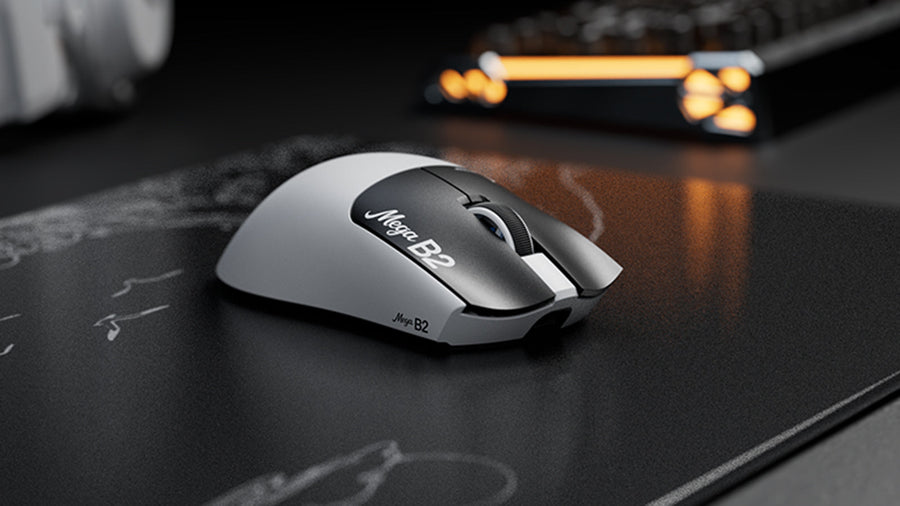
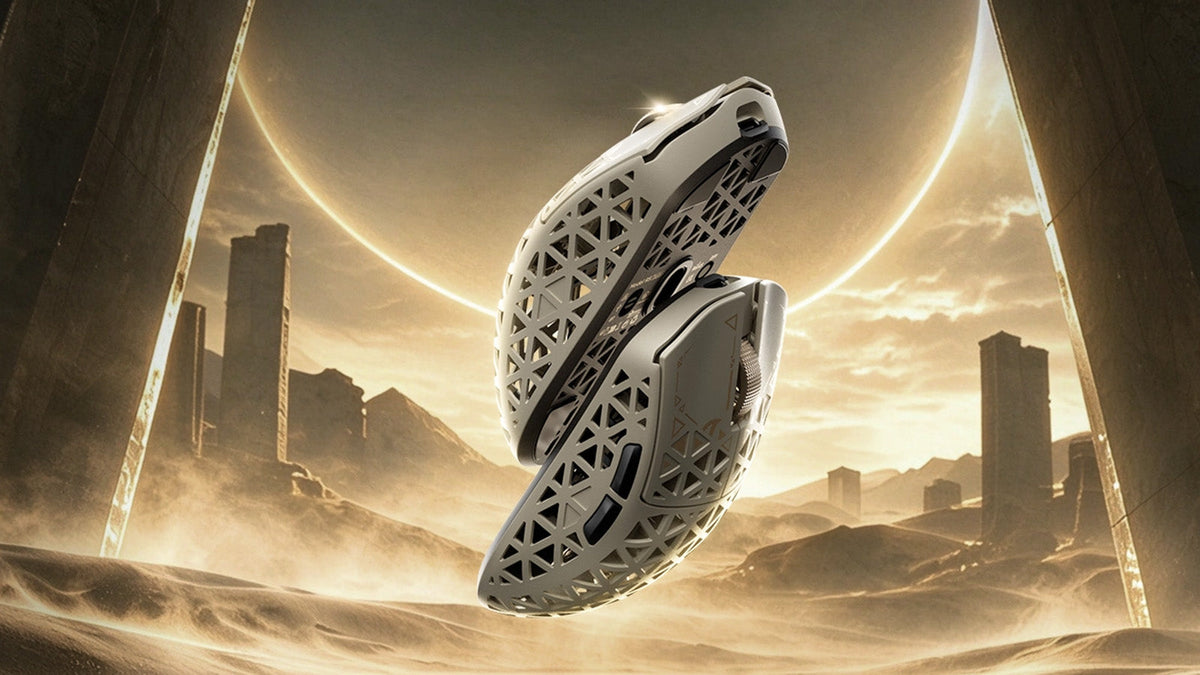
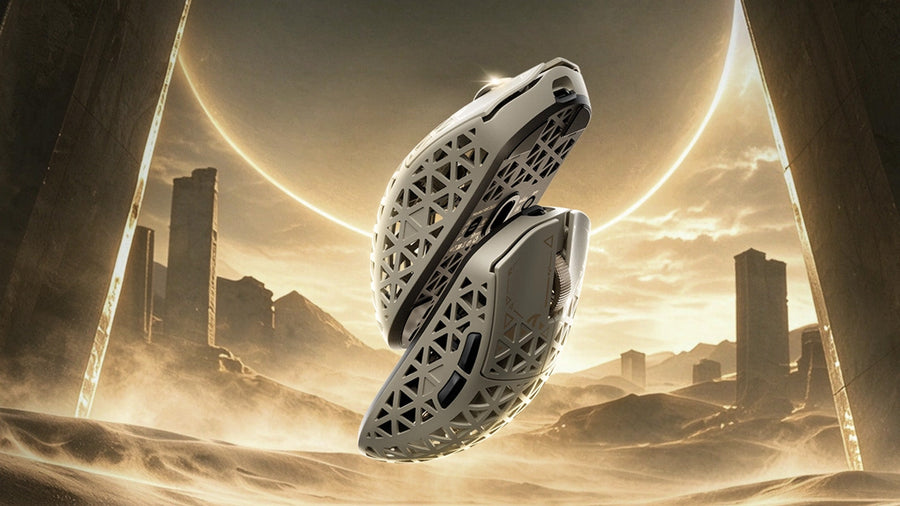
For wide swipes and repeated lifts, the R5 TURBO keeps its weight to 43 ± 3g with an injection-molded carbon-fiber composite shell. The body measures 119.5 × 61 × 36.3mm, so you can compare its length, width, and height with your current mouse.
The ventilated shell features a glass-feel ice coating. Included grip tape lets you add texture where your fingers rest if you prefer a more textured hold.
Separate Control Over Sensitivity and Lift-Off
The PAW3950MAX sensor supports 50 DPI adjustment steps, giving you smaller increments when a larger DPI jump feels like too much. Three LOD presets of 0.7, 1.0, and 2.0mm let you adjust the tracking cutoff around your pad and how you lift the mouse.
Dual 8K Connectivity With Useful Status Indicators
The R5 TURBO pairs a Nordic 54LM20 MCU with support for up to 8,000Hz polling over both wired and 2.4GHz connections. The shark-fin receiver’s indicators show connection status, polling rate, and battery status, so you can check them before loading into a match.
The main buttons use OMRON optical switches rated for more than 100 million clicks, while the scroll wheel uses a TTC Gold encoder. Bluetooth provides another connection option for compatible devices, and the mouse charges over USB-C.
FAQs
Q1. Does the R5 TURBO Support 8K Polling Over Bluetooth?
The R5 TURBO supports up to 8,000Hz polling through wired and 2.4GHz wireless connections. Bluetooth is a separate connection option and does not provide 8K polling.
Q2. Is Its 300-Hour Battery Rating Measured at 8K?
The up-to-300-hour battery rating was measured at 1,000Hz under controlled test conditions. Actual runtime varies with usage, settings, and operating environment.
Q3. Can I Customize the R5 TURBO Without Installing Software?
Yes. The web-based driver gives you access to supported settings without installing desktop software. A downloadable PC driver is also available.
Pre-Order the R5 TURBO and Get US$25 Off
Ready for a lighter mouse? Pre-order the ATTACK SHARK R5 TURBO in Dune, Black, or White. Reserve yours for US$1 and get a US$25 discount code to use toward your mouse purchase.
Note: Sales open on November 6, 2026, and shipping begins November 7. The US$1 reservation fee is nonrefundable.