


Choosing gaming peripherals gets easier when you follow the right order: define your use case, check physical fit, compare only the specs that matter for that use case, confirm connection and software compatibility, test the setup during your return window, and review ownership terms before you make the purchase final. This gaming peripheral buying guide works whether you're building a competitive FPS setup, a casual or mixed-use desk, or a complete mouse-and-keyboard combo. It also helps you avoid paying for a feature you'll never use.

Start With a Use Case, Not a Spec Sheet
Your use case determines which specs are worth comparing, so choose your path first: competitive FPS, casual or mixed-use, or a complete setup where the mouse and keyboard need to work together.
Competitive FPS Path
If you play ranked shooters or other fast-paced competitive games, prioritize control, consistency, and connection reliability over any single headline number. A lightweight mouse or a Hall effect (HE) keyboard with rapid trigger can help, but only if the shape fits your grip and the configuration software supports the games you play. Treat these features as conditional advantages, not guaranteed wins.
Casual or Mixed-Use Path
If you split your time between gaming, browsing, work, or streaming, weigh typing feel, noise, comfort, and setup simplicity as heavily as gaming-specific features. Paying for adjustable actuation or an 8,000 Hz polling rate makes little sense if you won't use the configuration software.
Complete-Setup Path
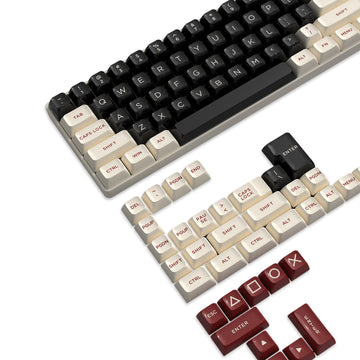
When you're choosing a mouse and keyboard together, check how the pieces interact: desk space, cable routing, connection modes, and whether both devices need separate configuration tools. Evaluate each device's fit on its own first. A good mouse doesn't guarantee a good keyboard pairing. Browsing the gaming mouse collection or the HE keyboard collection makes sense once you know which path applies. The keyboard accessories range covers wrist rests, keycaps, and switches for finishing a setup.
Match Peripheral Fit to Your Hands, Desk, and Games
A peripheral that fits your hand, desk, and games beats one with better numbers on paper. Check fit before comparing specifications, because a wrong shape or layout can't be fixed with a faster sensor.
Mouse Shape, Grip, and Reach
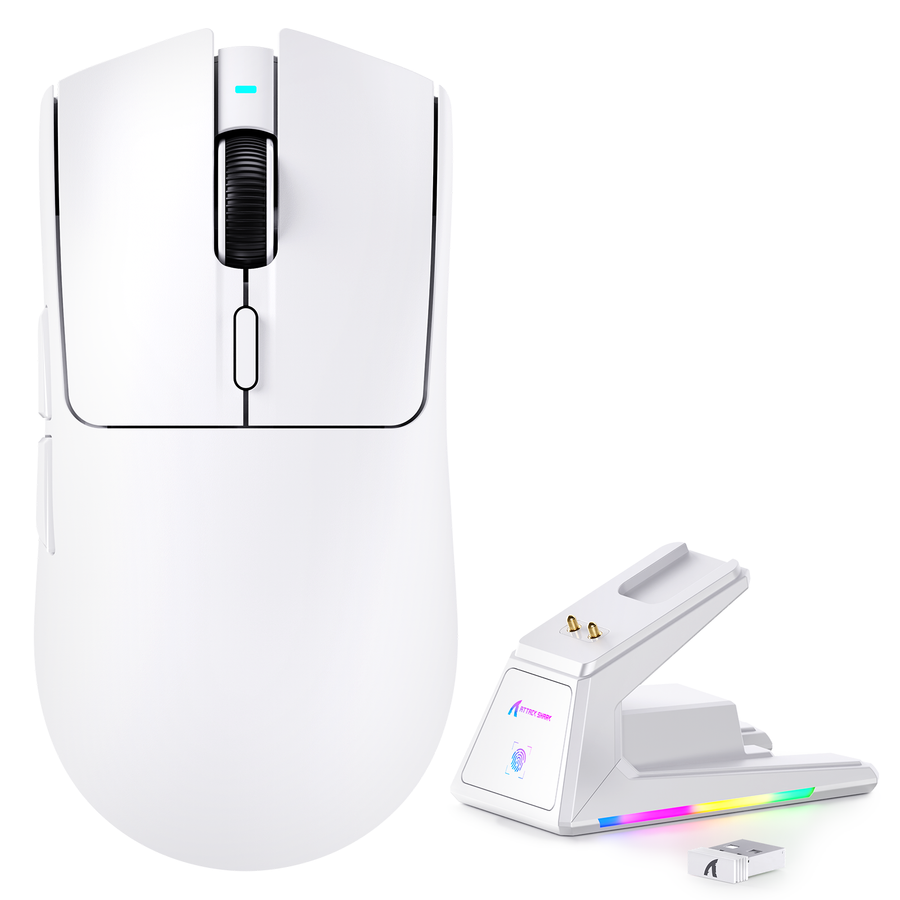
Match the shape and button placement to your grip style, hand size, and available desk space. Weight matters, but only alongside control and comfort. For right-handed players with medium-to-large hands who want a wireless option, our right-handed wireless mouse is built around that ergonomic shape at approximately 2.1 oz ± 0.1 oz, with wired, 2.4G, and Bluetooth 5.2 connection options. If your hand is smaller or you use a left-handed grip, check other shapes first; fit matters more than weight or sensor specifications.
Keyboard Layout, Feel, and Workspace
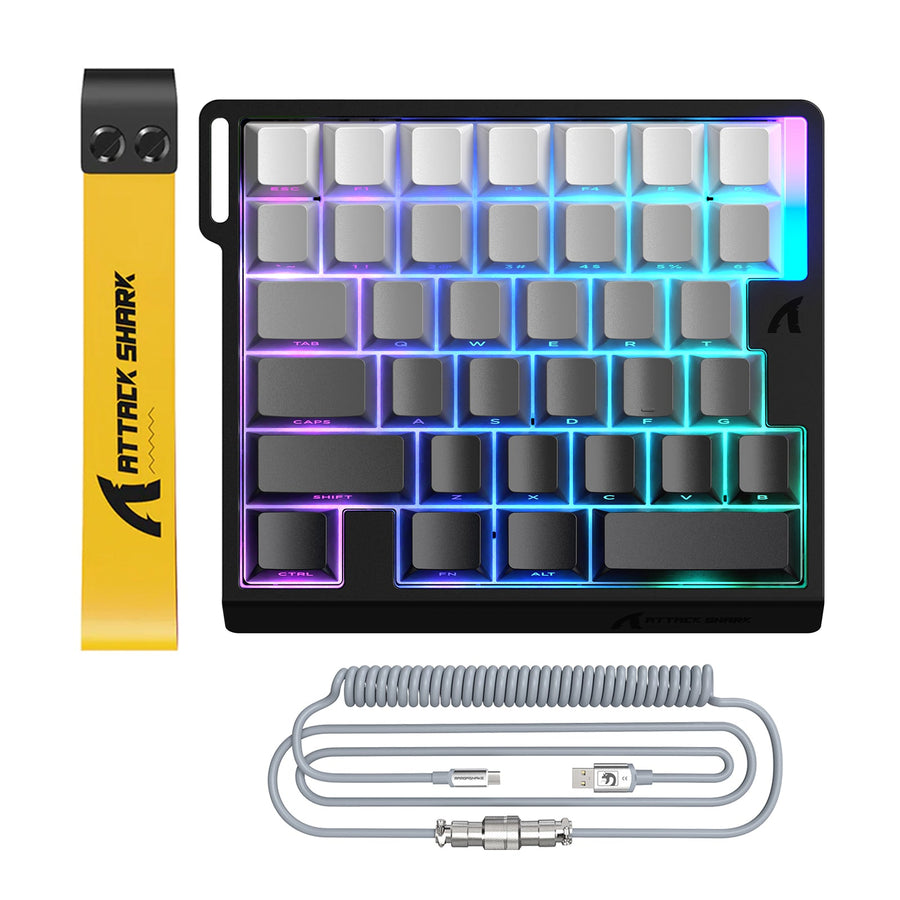
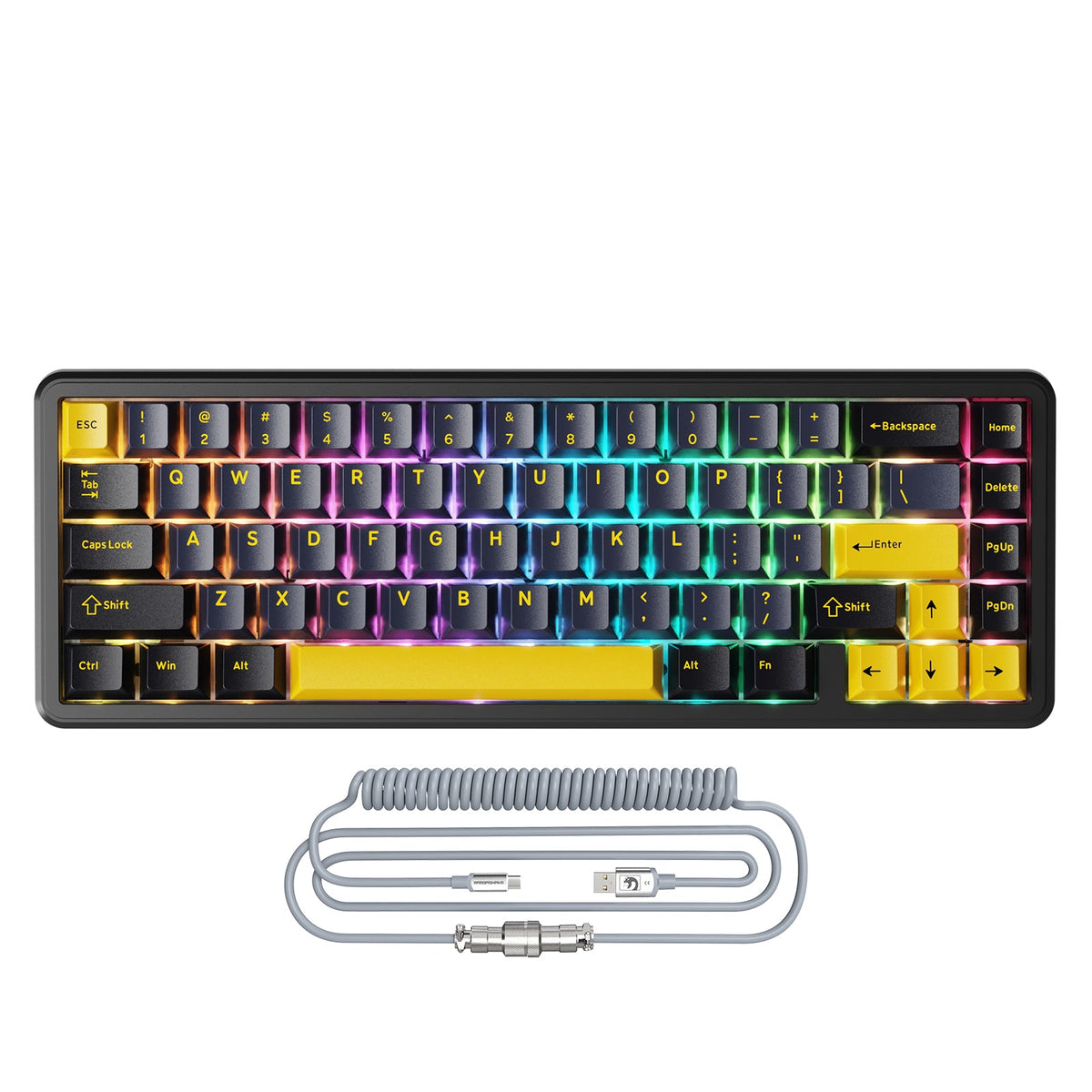
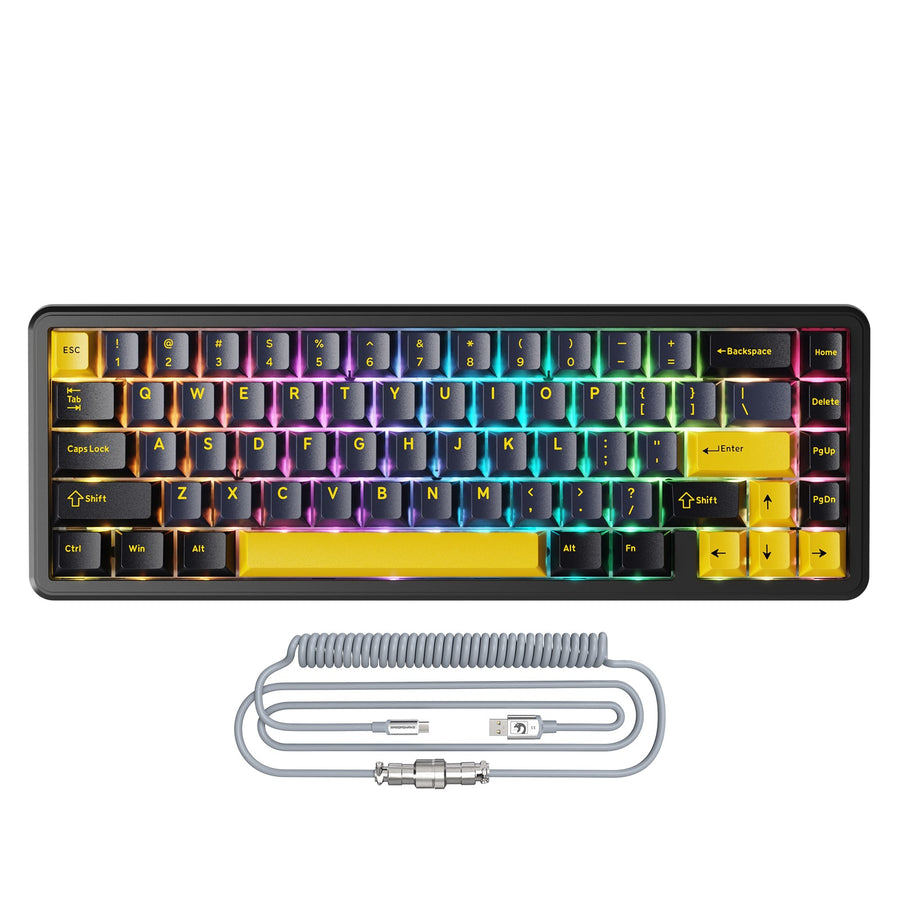
Choose a layout around the keys you actually use and the desk space you have. A 65% layout saves room but omits some keys found on full-size boards, so weigh that trade-off against your typing habits, switch feel, and noise level. Our compact wired keyboard uses a 65% ANSI US layout with 67 keys, magnetic switches, and USB-C wired connectivity. It's suited to players who want a smaller footprint without giving up rapid-trigger features.
The Rest of the Setup
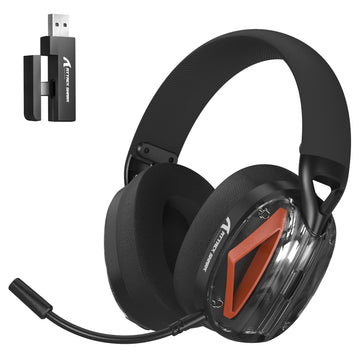
Headset comfort, cable reach, and accessory placement are separate fit questions. A cable that's too short forces awkward routing, while a headset that clamps too tightly can become uncomfortable during long sessions. Don't assume products from different categories were tested together as one ecosystem. Check each piece's stated dimensions and connections on its own. The keyboard accessory range covers wrist support and keycap swaps if comfort is the remaining gap.
Compare Specs That Change the Decision
Specifications matter only when they change what you can do in your actual games. Compare them against your use case instead of ranking products by the biggest number; this is the core of a practical gaming peripheral buying guide.
Mouse Specifications
| Specification | What it tells you | When it changes the choice | What it doesn't prove |
|---|---|---|---|
| Sensor and tracking | Tracking accuracy potential | Matters for fast flicks and low-sensitivity play | A high spec number alone doesn't guarantee consistent aim |
| Weight | How light the body feels | Matters for wrist-heavy or arm-heavy grip styles | Lighter isn't automatically more comfortable or accurate |
| Polling rate | How often the mouse reports its position | Matters for competitive, latency-sensitive titles | Higher polling won't fix a poor shape or grip mismatch |
| Connection | Wired, 2.4 GHz, or Bluetooth | Matters if you need near-zero latency or multi-device switching | Wireless isn't automatically slower for casual play |
| Button behavior | Click consistency and durability rating | Matters for click-heavy or macro-heavy games | Switch counts don't guarantee real-world feel |
Keyboard Specifications
Switch type, actuation range, and rapid trigger determine how a keyboard responds, but they matter only if your games reward fast, adjustable actuation. Layout affects desk space and key access. Polling or scan rate affects how quickly input registers, while keycap material affects feel and durability over time. HE keyboards with adjustable actuation depend on companion software to set that range, so treat software access as part of the decision, not an afterthought. Wired's keyboard buying guide makes a similar point when comparing switch feel and platform compatibility.
Read Numbers as Inputs
Each spec is an input to a fit decision, not a standalone winner. A higher DPI or polling number doesn't guarantee better results if the shape doesn't suit your grip or the software isn't configured. Use the table above to identify which numbers apply to your scenario, then move to connection and compatibility checks.
Check Connection, Features, and Compatibility
Your desk setup and device needs should determine the connection mode, not a blanket wired-versus-wireless rule. Confirm feature and platform support before you commit.
Choose the Connection Mode
Wired connections suit players who want the shortest, most predictable input path and don't mind a cable. 2.4 GHz wireless suits players who want low latency without a cable, provided a USB port is available for the receiver. Bluetooth suits multi-device switching when ultra-low latency matters less. Check which modes a specific product actually supports instead of assuming every product is multi-mode.
Check Feature and Platform Fit
Verify operating system support, available ports, and whether special features such as adjustable actuation or macros require a companion app on your platform. Some competitive events restrict configurable features such as rapid trigger, so check event rules if you play in tournaments.
Make the Devices Work Together
Check desk reach, available ports, cable routing, and whether your mouse and keyboard software conflicts or requires separate installations. If you're pairing a magnetic-switch keyboard with a longer desk setup, our cable reach and compatibility option offers a 63-to-63.8-inch length, an 86.6-inch maximum stretch, and dual Type-C ports built for magnetic mechanical keyboards. If the stated connection, port, or platform doesn't match your setup, stop considering that product even if its other specs look strong.
Review Software Before You Commit
Software is part of fit whenever it controls actuation, profiles, lighting, DPI, or polling rate. Review it before you buy, not after.
Identify the Software Dependency
Find out whether the feature you want needs desktop software, a browser-based tool, or settings stored on the device itself. HE actuation and rapid-trigger adjustments usually depend on companion software unless the listing says the settings are stored onboard.
Check Permissions and Update Hygiene
Confirm that the software comes from the manufacturer's own site, review the permissions it requests, and check whether it is still updated. The Cybersecurity and Infrastructure Security Agency recommends downloading updates only from trusted vendor sources and retiring software that has reached end of life, since unsupported software loses security updates over time. If you can't obtain the required configuration tool from a trusted vendor source, or the device isn't detected during your trial period, stop relying on that feature and use the applicable support or return path instead.
Prepare for Setup, Reset, and Return
Before returning anything, learn how to detect the device, reset profiles to default, and uninstall companion software cleanly. This helps prevent custom settings from being left on a returned unit.
Test the Setup Before You Keep the Peripheral
Test the peripheral during your return window using one compact sequence. Then decide whether to keep it, investigate further, or return it.
- Check physical fit: grip, reach, and layout during a normal session.
- Test every button and key for response and consistency.
- Confirm that the connection mode stays stable during actual gameplay.
- Verify that the software detects the device and saves your configuration.
- Play your usual games or perform your usual tasks, then save your order confirmation and return records before the window closes.
Our mouse and keyboard test tool checks for ghosting, dead keys, and button response. The mouse polling test and keyboard polling test tools check reported polling behavior. If any required input, connection mode, or fit fails this sequence, keep your documentation and act within the return window rather than settling for a mismatch.
Plan Ownership Before You Keep the Peripheral
A peripheral is worth keeping only when its total cost, return terms, support path, and maintenance needs work for you, not just its specs.
Keep the Records and Maintenance Path
Save your order confirmation, receipt, policy text, model or serial information, and any support messages. Note ongoing maintenance, such as firmware updates or occasional cleaning, that affects continued use without assuming a specific durability outcome.
Check Returns, Support, and Warranty
Compare the total cost, shipping charges, return-window length, return-shipping responsibility, and any restocking fees before finalizing a purchase. The Federal Trade Commission advises shoppers to compare full cost, shipping, refund timing, and return responsibility before ordering and to keep detailed purchase records in case a dispute comes up. Warranty and support terms are model- and region-specific, so check the listing or contact support directly instead of assuming a blanket policy.
Make the Keep Decision
Keep the peripheral only if it passed the fit, function, software, and ownership checks from the sections above. If a material condition fails, such as a return window closing soon or a support path that doesn't answer your question, use the documented return or support route instead of rationalizing the purchase.
Choose the Next Detailed AttackShark Guide
Your next step depends on the decision you just made, not on a generic product list. This helps you move from a gaming peripheral buying guide to the most relevant product-specific check.
For a Compact Wired Keyboard
If your path led you to a smaller, wired mechanical layout with rapid trigger, the X65 HE fits readers who confirmed that the 65% layout, USB-C connection, and PC or Mac support match their setup. We built it for players who want magnetic-switch precision without a full-size footprint.
For a Right-Handed Wireless Mouse
If your fit check confirmed a right-handed shape and medium-to-large hand size, and you need wired, 2.4G, or Bluetooth flexibility, the V8 matches those conditions. We don't extend this fit note to other hand sizes or grip styles; check the shape yourself first.
For Cables, Accessories, and Testing
If your remaining question is cable reach or magnetic-keyboard compatibility, the C08 aviation cable is the fit-check destination once you've confirmed the connector type and length against your desk. If your open question is about actual input behavior, the mouse and keyboard polling and response testing tools are the right next stop, not another spec table.
FAQ
How Do I Choose Gaming Peripherals?
Start by defining your games, hand size, desk space, and connection preference. Then check physical fit, compare only the specifications relevant to your use case, confirm software and platform compatibility, test the setup during your return window, and review ownership terms before considering the purchase final.
Which Mouse and Keyboard Specifications Matter Most?
Sensor behavior, mouse weight and shape, keyboard switch and actuation behavior, polling or scan rate, layout, and connection type all matter, but only when they match your intended use. No single number decides the purchase on its own; treat each spec as an input alongside physical fit and software support.
What Should I Test Before Keeping a Gaming Peripheral?
Test physical fit, every button and key, connection stability during actual gameplay, and whether the software detects the device and saves settings correctly. Play your usual games or perform your usual tasks, then keep your order and return records until you're confident in the decision.
How Do I Review Gaming-Peripheral Software Safely?
Download configuration software only from the official vendor source, check the permissions it requests, and confirm that updates are still supported. Verify device detection and profile behavior, and learn how to reset or uninstall the software cleanly in case you need to return the peripheral.