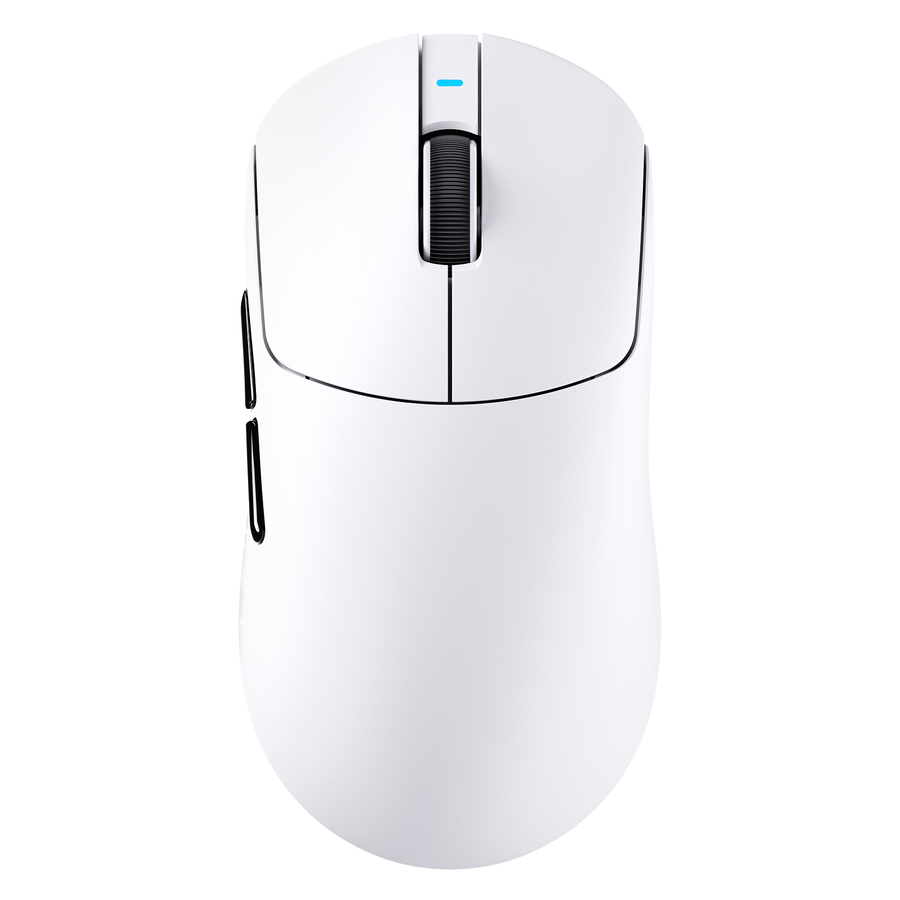





The same mouse can feel different because a mousepad changes two things: the surface detail the sensor reads and the physical resistance between the pad and the mouse feet. Before changing hardware, keep the mouse and settings the same, compare the pad with a clean, plain matte control surface, and note whether gaming mouse tracking skips or only the glide feels different.

Run a Controlled Surface-Swap Test Before Replacing Hardware
Start with a one-variable comparison. If the problem appears on one gaming mousepad but not another, this test can show whether the surface is involved without turning a temporary control into a universal recommendation.
- Lock the variables. Use the same mouse, connection, DPI, sensitivity, polling rate, lift-off settings, and firmware or software settings throughout. Keep your grip and movement pattern the same. Change only the surface.
- Record the starting condition. Before cleaning anything, note whether the sensor opening and known-working pad have visible debris, residue, or wear. Leave the sensor opening and known-working pad as found for the first comparison, and use a clean, stable, plain matte or non-glossy temporary control. After that first pass, clean the sensor opening and both surfaces only according to the mouse and surface maker's care guidance, then repeat the full comparison as a separate standardized retest. Do not introduce a new cleaner, setting, cable, or wireless mode at the same time.
- Test the known-working pad first. Use the surface where the mouse normally behaves well. Move in straight lines and small circles, then try slow movements, faster movements, and controlled lifts.
- Test a plain control surface. Repeat the same movements on a clean, stable, plain matte or non-glossy surface. Official optical-mouse comparison guidance supports using unpolished paper or a suitable optical-mouse surface as a temporary diagnostic control—not as proof that every mouse will work reliably on that material.
- Record two outcomes separately. Note cursor skips, jumps, jitter, and unexpected stops as tracking symptoms. Record drag, speed, and stopping resistance separately as glide feel.
- Repeat the comparison once. A pattern that appears again on the same surface is more useful than a single inconsistent pass. If you cannot reproduce the symptom, record where it happened, how fast you moved, how much pressure you used, and the surface condition instead of drawing a hardware conclusion.
Carry that result into the next section. The key question is whether the tracking symptom follows one surface, follows the mouse across both controls, or disappears while tracking stays stable and only the glide changes.

Why Gaming Mouse Tracking and Glide Can Differ
A mouse can show different gaming mouse tracking behavior on different surfaces because an optical sensor compares changing visual detail to determine movement. The same DPI and sensitivity do not guarantee the same sensor input on every finish or texture. Technical background on how the sensor reads changing surface detail supports this distinction without establishing a universal surface rule for every sensor model.
Physical glide is a separate matter. A pad's texture, finish, contamination, wear, and contact with the mouse feet can change how much resistance you feel when starting, moving, or stopping. Those variables may change speed or hand feel while the cursor remains stable. If the pointer moves consistently but the mouse feels faster, slower, heavier, or less controlled, the issue is glide or contact—not demonstrated sensor failure.
Treat skips, jumps, jitter, and unexpected stops as tracking symptoms. Treat stable cursor movement with changed drag or stopping resistance as a glide-only difference. This distinction keeps a preference for one gaming mousepad surface from becoming an unsupported diagnosis of the mouse.
Which Surfaces Need Extra Verification for an Optical Gaming Mouse?
Glossy, reflective, transparent, and strongly patterned surfaces deserve a direct repeatability check with the specific mouse. Material names alone do not establish compatibility, and a clean matte control is a diagnostic comparison—not a performance recommendation.
Glossy, Reflective, or Transparent Surfaces
Give polished finishes, glossy resin, reflective materials, glass, and transparent surfaces extra testing before relying on them for precision play. Some conventional optical designs may have difficulty finding enough usable surface detail on very smooth or transparent materials, but that does not mean every optical mouse fails on them. Optical-mouse surface guidance specifically identifies transparent, reflective, and complex patterned surfaces as conditions to test carefully.
Compare the specialty surface with the clean matte control using the same movement sequence. If tracking changes repeatedly on the specialty surface, treat that mouse-and-surface pairing as unsuitable for your use unless the mouse maker provides model-specific guidance that resolves the issue. Do not generalize the result to every mouse or glass surface.
Patterned, Dirty, or Worn Surfaces
Inspect the pad for complex graphics, residue, debris, worn areas, coating changes, or a problem that appears only in one region. A localized symptom points to a surface condition worth cleaning or retiring, but it does not prove that texture, wear, or contamination is the sole cause.
Clean only within the material's care limits, then repeat the comparison. If the same region continues to produce skips or jitter while the control remains stable, the surface or its condition is the leading explanation. If the symptom appears across clean controls, move to mouse-side troubleshooting instead of changing general settings first.
Read the Result: Surface-Led, Mouse-Led, or Glide-Only
Interpret the repeatable tracking result, not simply which surface feels faster. A surface-led pattern supports cleaning or replacing the implicated pad; a mouse-led pattern supports inspection and manufacturer troubleshooting; a stable cursor with different resistance points to a glide preference.
| Test result | What it suggests | Next action |
|---|---|---|
| Skips or jitter repeat on one surface, while the clean control works | The surface, its condition, finish, or pairing is the leading explanation | Clean or retire the implicated surface, then retest before replacing the mouse |
| The same tracking symptom repeats across both clean controls | The surface is less likely to be the sole cause; the diagnosis remains provisional | Inspect the sensor opening and mouse feet, verify the connection and unchanged settings, then use manufacturer troubleshooting or support |
| The cursor stays stable but drag, speed, or stopping resistance changes | A glide or contact-feel difference, not demonstrated tracking failure | Choose based on preferred resistance only after tracking remains repeatable |
If the Symptom Stays With One Surface
When the clean control works but one pad repeatedly produces skips or jitter, keep the pad, its condition, finish, or pairing as the leading explanation. Clean and retest first. If the problem remains tied to that surface, changing the pad is more justified than replacing a mouse that works on the control.
If the Symptom Follows the Mouse
When the same tracking failure appears on both clean comparison surfaces, the surface is less likely to be the sole cause. Inspect the sensor opening and mouse feet, confirm the connection, and verify that settings did not change. Then use the mouse maker's troubleshooting or support process. These checks narrow the next action; they do not prove that any one part caused the failure.
If Only the Glide Feel Changes
A stable cursor with different drag, speed, or stopping resistance indicates a changed physical contact experience. Choose the surface that gives you the preferred control or glide feel, but do not label the mouse defective unless tracking also becomes inconsistent.
If the symptom is not repeatable, keep the diagnosis provisional. Record the triggering location, pressure, speed, and surface condition, and look for a pattern before buying hardware.
Take the Next Step When the Pad Is Implicated
Clean the surface when residue, debris, or a worn area plausibly explains a repeatable surface-specific symptom. Replace the pad when the symptom remains tied to it while the mouse works on the clean control. If the symptom follows the mouse across clean controls, inspect the mouse and contact the manufacturer before considering replacement.
For a justified pad change, compare construction details rather than assuming a material will solve a tracking problem. The CM03 surface details list rainbow film technology, a waterproof coated microfiber surface, a non-slip natural rubber base, a 450 × 400 mm size, and 4 mm thickness. Those facts describe construction, not universal sensor compatibility or tracking performance.
The CM04 surface details list genuine dry carbon fiber, a textured water-, oil-, and dust-repellent surface, an anti-slip base, and 2 mm thickness. It is available in Medium at 360 × 280 mm and XL at 490 × 490 mm. The CM05 surface details list 9H tempered glass, nano-micro etching, a stated low-friction surface, a non-slip PU-leather base, and 5 mm thickness, with 450 × 400 mm and 410 × 310 mm sizes.
The CM05's glass construction especially needs a direct test with your mouse because glass and other polished surfaces require model-specific verification. Whichever candidate you consider, repeat the controlled comparison with the same mouse and movements before relying on it for precision play.
If repeatable skips remain across clean, suitable control surfaces after basic inspection, stop relying on the mouse for competitive or precision-critical use. Pursue manufacturer support or replacement rather than masking the problem with settings changes.
Frequently Asked Questions
Why Does My Mouse Skip on My Mousepad?
Skipping can be surface-specific, caused by the surface's condition, or present across multiple controls because of a mouse-side issue. Compare the pad with a clean control and repeat the movement; replace or retire the pad only when the symptom consistently stays with it.
Can a Mousepad Affect Sensor Tracking?
Yes, a surface can affect tracking for some mouse-and-surface combinations because the sensor reads surface detail. A change in friction can also alter how the mouse feels without affecting the cursor, so test the specific pairing and separate tracking symptoms from glide preference.
Do Optical Mice Work on Reflective Surfaces?
There is no universal yes-or-no answer. Glossy, glass, reflective, transparent, and complex patterned surfaces deserve a direct comparison with a clean matte control, followed by model-specific guidance if tracking remains inconsistent.