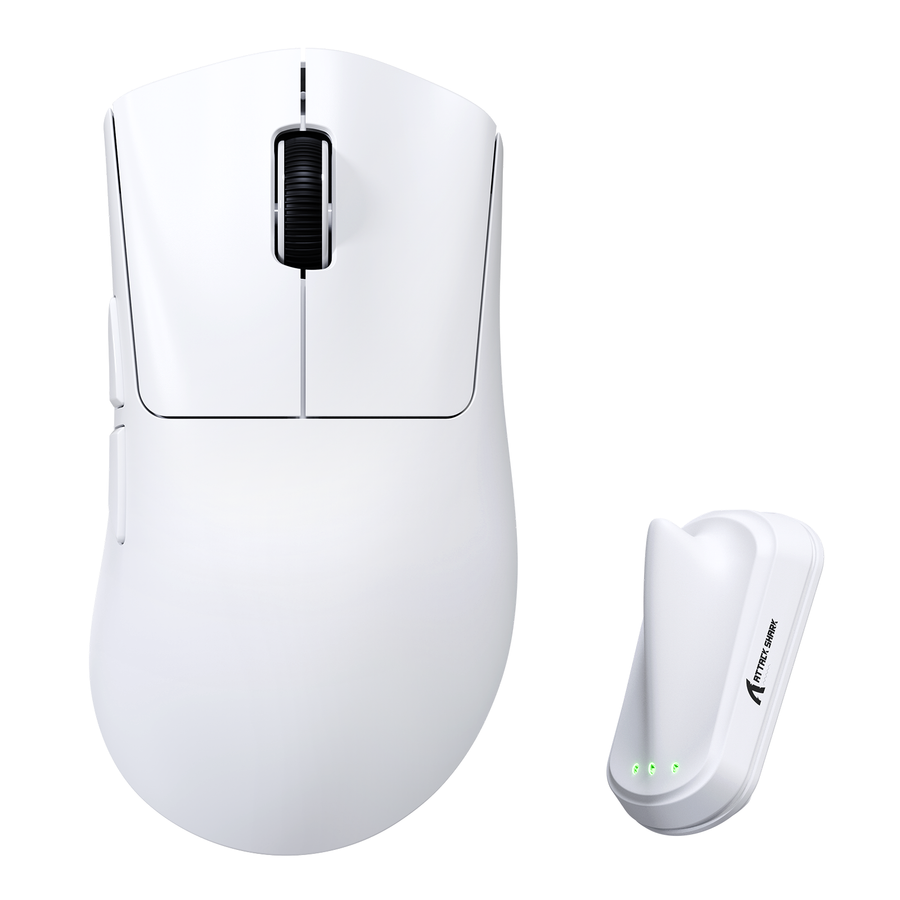



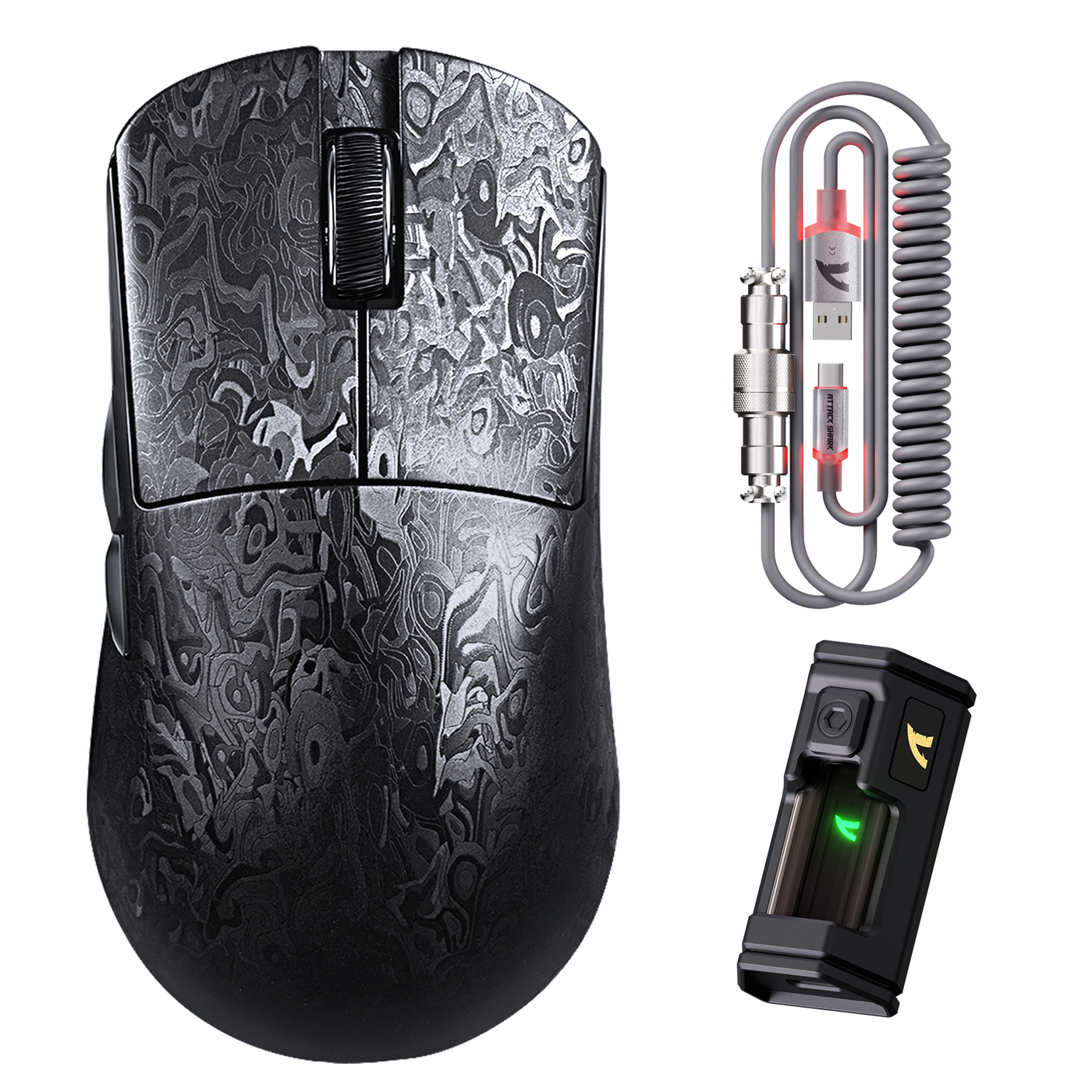
A useful gaming mouse test starts with a controlled record, not an immediate return decision. Write down the surface, connection mode, power or battery state, USB port, relevant settings, and exact symptom. Then test tracking, every button, wireless behavior, and wired mode separately. Mark each row Pass, Investigate, or Fail, and change one major variable at a time to determine whether the issue follows the mouse or the setup.

Set Up Your Gaming Mouse Test and Record Results
Start a first-use record before changing settings or moving the receiver. Use a clean, suitable surface, adequate power, the intended settings, and a direct receiver or cable connection where practical. Check the physical connection, power, cable or battery, port, hub, and sensor as applicable. Microsoft's Windows mouse troubleshooting guidance supports repeating a failed device check on another suitable PC with the correct driver installed.
Record the starting conditions in plain language. Include the surface, connection mode, battery or power state, USB port, receiver location, relevant software or settings, the symptom, and the next variable you plan to change. Treat a single unusual sensation or input event as Investigate until it repeats under the same conditions.
| Test area | Pass signal | Investigate or Fail signal | Next isolation action |
|---|---|---|---|
| Preparation | Conditions are recorded; power, cable or receiver, port, surface, and settings are ready. | A hub, low power, damaged cable, dirty sensor, or unknown setting could explain the symptom. | Connect directly, address the power or cleanliness issue, and record the new condition. |
| Tracking | The same controlled movements produce cursor movement that consistently matches the hand. | Skipping, jumps, spinout, or cursor loss repeats or appears under a specific condition. | Repeat on a second suitable surface while keeping the connection and settings stable. |
| Buttons | Each available button registers deliberate presses and releases consistently. | A button misses, sticks, double-inputs, or activates without the intended press. | Repeat that physical button at deliberate and ordinary speeds, then compare a relevant connection path. |
| Wireless | Intended movement and clicks remain stable during ordinary use. | Dropout, freezing, delayed recovery, or a mode change repeats. | Record the power state and receiver position, then try another suitable direct USB port. |
| Wired mode | The same intended action works consistently in wired mode when supported. | The symptom persists with a direct port and the supplied or a known-good cable. | Keep the cable and mouse in scope, then repeat the failed action on another computer if needed. |
| Repeat confirmation | The failed check no longer occurs after a controlled change, or the original condition explains it. | The same relevant symptom follows the mouse across the applicable comparison. | Update the record and make the final keep, troubleshoot, or support decision. |
For behavior rows, use Pass only when the intended action behaves consistently under the recorded conditions. For Preparation and Repeat confirmation, use the pass signal stated in that row. Use Investigate for an isolated, setup-dependent, or unreproduced symptom, and reserve Fail for a repeatable, relevant problem after the applicable comparison.
Test Sensor Tracking for Skipping and Cursor Loss
A gaming mouse sensor test should show whether the cursor problem changes with the surface, application, settings, connection, or computer. On a clean, suitable surface, repeat the same slow and faster movement pattern at ordinary desktop settings. Watch for skipping, sudden jumps, spinout, unexplained loss of response, or cursor movement that does not match the hand.
Clean the sensor and use a suitable surface before repeating the movement. Dell's mouse-cleaning guidance connects debris on the optical sensor with erratic cursor movement and supports inspecting the sensor and checking the surface.
Repeat the exact movement pattern on a second suitable surface while keeping the connection and settings unchanged. Note the direction, speed, surface, connection mode, application, and whether the symptom repeats. If the issue appears only in one application or after a settings or driver change, investigate that software or configuration first.

If the symptom changes with the surface, application, or setup, correct that variable and repeat the movement. If it repeats across suitable surfaces and relevant connection paths, note the stronger mouse-side pattern without identifying a specific failed sensor. Compare repeated observations with the sensor tracking guide, using the recorded movement conditions—not a graph or number—as the basis for the decision.
Run a Gaming Mouse Click Test on Every Button
A gaming mouse click test should examine each physical button separately, using a consistent input display or simple application. Test the left, right, middle, side, and any other available buttons with deliberate presses, releases, and ordinary-speed repeats. Note the physical button and exact symptom rather than relying on switch feel.
A button passes when the intended input registers consistently, the input ends after release, and there is no unintended activation or unexpected second input. If a button misses, remains active, double-inputs, or activates without the intended press, repeat that button slowly and at ordinary gaming speed.
Then use a second input check if available, or compare the same action on a relevant connection path. Keep the result at Investigate when the symptom occurs once or only in one test page, remapping profile, or computer. A repeatable physical-button symptom across connection paths supports further mouse-side troubleshooting, but it does not identify the exact failed component.
For an additional observation, use a mouse button test tool and compare repeated input results under the same conditions. Use the physical button and repeat pattern, rather than the tool alone, to choose the next action.
Separate Wireless Stability, Receiver, Battery, and Wired Mode
Test each connection path as its own condition. For wireless operation, use adequate power, place the receiver as directed for the mouse, and connect it directly to the computer where practical. Note any repeatable dropout, freezing, delayed recovery, or unexpected mode change during ordinary movement and clicking.
If wireless is unstable, repeat the same movement and button action on another suitable USB port without changing another major variable. Note the receiver location, whether the port is direct, the battery or power state, the connection mode, and the result. If the symptom disappears after the port or receiver condition changes, troubleshoot that setup variable before assigning the issue to the mouse.
When the mouse supports wired mode, compare the same failed action with the supplied or a known-good cable and a direct port. A wired pass narrows the issue toward the wireless path; it does not prove wireless operation is healthy. A wired failure that persists after the direct-port and cable check keeps the mouse or cable in scope.
Use mouse connectivity options only for navigation when comparing connection categories. Follow the product's own support instructions for model-specific pairing, firmware, receiver placement, and software steps.
Repeat the Failed Check on Another Computer
Repeat only the failed tracking, button, or connection check on another suitable computer or a clearly different connection path. Change one major variable: keep the same mouse, test action, surface, and relevant connection mode where practical.
If the same repeatable fault follows the mouse, note a mouse-side result. If the symptom stays with the original computer or connection, investigate that computer's port, settings, drivers, remapping software, or interference. A result that changes on another PC points toward the original setup; a result that remains on both systems supports contacting support, but neither outcome identifies the exact failed component.
If the symptom cannot be reproduced, preserve the original conditions and mark Investigate. Include the original surface, mode, port, power state, application, and action so the comparison can be repeated without changing several variables at once.
Decide Whether to Keep, Troubleshoot, or Escalate the Mouse
Use the completed record to keep the mouse when intended tracking and button checks pass under normal-use conditions and every connection mode you plan to use is stable. Troubleshoot when the result changes with a surface, port, receiver position, battery state, cable, software, setting, or computer. Contact the seller or manufacturer when a relevant fault repeats and follows the mouse after the applicable isolation check.
| Record pattern | Best next action | Preserve or rerun |
|---|---|---|
| Intended checks pass and no unresolved symptom remains. | Keep the mouse. | Keep the recorded conditions for future troubleshooting. |
| The symptom changes after a controlled setup change. | Troubleshoot the setup. | Correct that variable and rerun only the affected check. |
| A relevant fault repeats and follows the mouse across the applicable comparison. | Contact the seller or manufacturer. | Send the symptom, mode, port or surface, power state, repeat result, and reproducible evidence. |
| The symptom cannot be reproduced. | Leave the result at Investigate. | Preserve the original conditions and watch for a repeatable pattern. |
Before contacting support, follow the product's instructions and retain relevant packaging or identifiers as appropriate. Send the record with the symptom, connection mode, port or surface, power state, repeat result, and any reproducible evidence. It supports the request but does not guarantee a return, warranty, replacement, or other support outcome.
Gaming Mouse Test FAQ
These quick answers apply the same controlled-comparison rule to common first-use questions. Use the documented result and its conditions when choosing the next action.
How do I test a new gaming mouse?
Start a Pass, Investigate, or Fail record with the surface, connection mode, power state, port, settings, and symptom. Test tracking and every button, then compare wireless and wired paths when available. Repeat only a failed check before keeping the mouse, troubleshooting, or contacting support.
How can I test a gaming mouse sensor for skipping?
Repeat the same slow and faster movements on a clean, suitable second surface while keeping the connection and settings stable. If the symptom changes with the surface or setup, troubleshoot that variable; if it repeats across suitable surfaces and relevant paths, record the result and consider support.
How do I know if a mouse switch is faulty?
Test every button in a consistent input display or simple application, then repeat any missed, stuck, double, or unintended input at deliberate and ordinary speeds. A repeatable symptom that follows the mouse supports escalation; a single or page-specific event stays Investigate.
How do I test wireless mouse connection stability?
Check power, connect the receiver directly where practical, note its location and port, and repeat ordinary movement and clicks. Compare another suitable port or wired mode when supported. A setup-dependent result calls for troubleshooting; a repeatable fault that follows the mouse supports contacting support.