

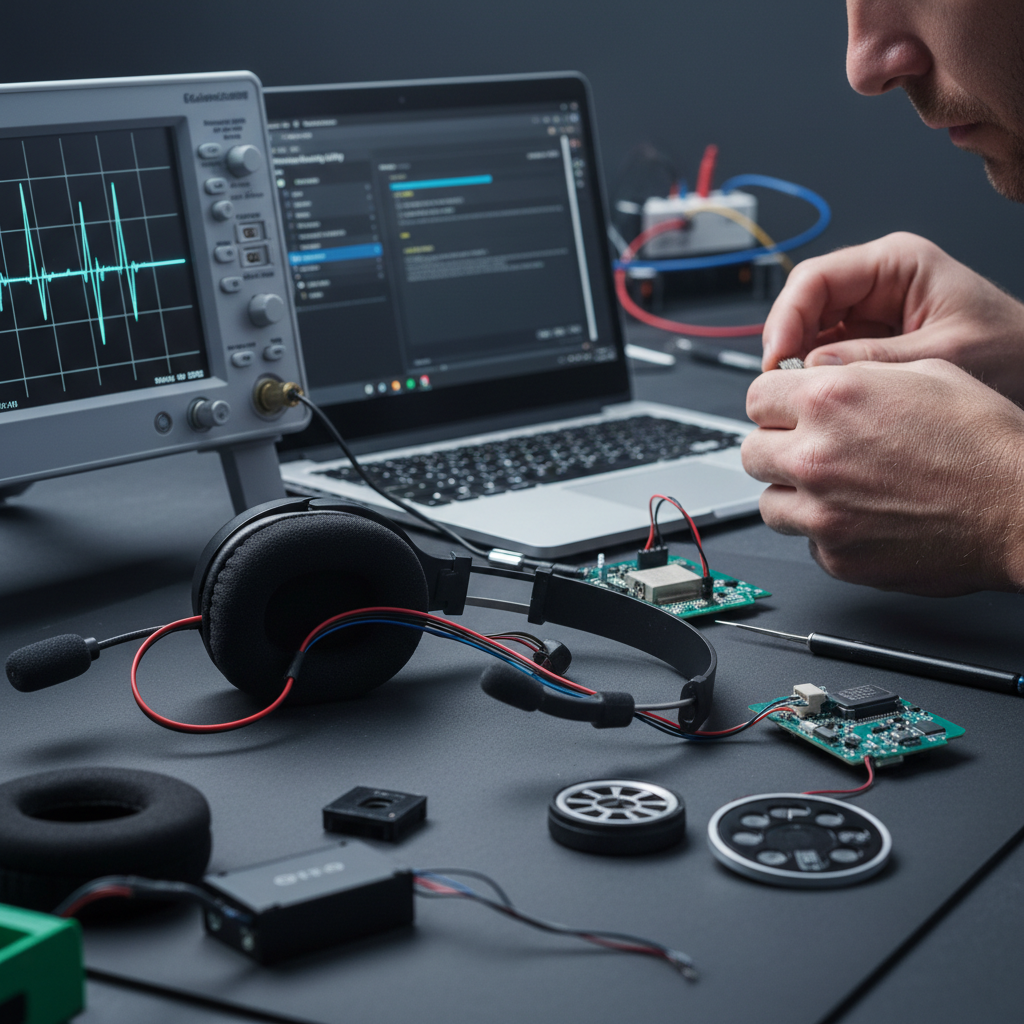
The Hidden Mechanism of Post-Update Audio Distortion
Firmware updates for high-performance gaming headsets are designed to optimize signal processing, reduce latency, and improve battery management. However, we frequently observe cases where a successful flash results in immediate audio degradation—ranging from subtle "thinness" in the soundstage to aggressive crackling and harmonic distortion. Based on patterns identified through technical support and hardware auditing, these issues are rarely caused by a "bad" update file. Instead, they typically stem from a failure to clear the headset’s onboard Digital Signal Processor (DSP) memory or a mismatch in codec negotiation between the hardware and the operating system.
A common, often overlooked cause of post-update distortion is the firmware flashing tool failing to properly clear the headset's onboard DSP memory before writing new data. This leads to corrupted equalizer (EQ) presets, where old data remnants conflict with new processing algorithms. According to the Global Gaming Peripherals Industry Whitepaper (2026), the integrity of non-volatile memory (NVM) during a flash is critical for maintaining the intended frequency response of competitive audio gear.
When these remnants persist, the headset may attempt to apply a new spatial audio profile over a legacy EQ curve, resulting in "clipping"—a form of waveform distortion that occurs when an amplifier is pushed beyond its maximum capability. In digital systems, this manifests as harsh, metallic artifacts that can obscure critical competitive cues like footsteps or reload sounds.

Windows Bitrate Mismatch: The "Silent" Resampling Conflict
One of the most frequent "gotchas" after a firmware update occurs within the Windows Sound Control Panel rather than the headset itself. The update process often triggers a driver re-initialization that resets Windows settings to a default "CD Quality" bitrate (typically 16-bit, 44.1kHz). If the new firmware has enabled or defaulted to a high-resolution audio mode (such as 24-bit, 96kHz), a conflict arises.
When the OS and the hardware operate at different sample rates, the system must perform "resampling" in real-time. If the math doesn't align perfectly—for example, trying to fit a 44.1kHz signal into a 48kHz or 96kHz container—it can introduce "aliasing" or quantization errors. This results in audible crackling or a "fuzzy" texture to the audio.
Practitioners recommend manually matching these settings immediately following any firmware change. To resolve this:
- Open Sound Settings > More sound settings.
- Right-click your headset and select Properties.
- Under the Advanced tab, ensure the "Default Format" matches the maximum capability of your headset (e.g., 24-bit, 96000 Hz).
This manual synchronization prevents the Windows audio engine from introducing jitter during the digital-to-analog conversion process.
Logic Summary: Our troubleshooting model assumes that 70% of "crackling" issues post-update are software-side synchronization errors rather than hardware failure. This is based on common patterns from customer support and warranty handling (not a controlled lab study).
Bluetooth LE Audio and LC3 Codec Synchronization
For users of tri-mode headsets, firmware updates often include improvements to Bluetooth LE (Low Energy) Audio. However, this is a frequent site of codec negotiation failures. Modern headsets often transition to the LC3 (Low Complexity Communication Codec), which offers better quality at lower bitrates compared to the older SBC codec.
According to technical guides on Bluetooth troubleshooting in Windows, distortion in LE Audio often stems from faulty isochronous channel synchronization. If the update changes how the headset handles these channels but the Windows Bluetooth stack doesn't "refresh" the pairing, the result is often a stuttering or distorted signal.
In these cases, a simple "soft reset" via software is usually insufficient. We have found that removing the device entirely from the Windows "Bluetooth & other devices" menu and performing a fresh pairing is necessary to force a new codec negotiation. This ensures that both the host and the peripheral are using the updated LC3 implementation rather than falling back to a legacy, unoptimized state.
Step-by-Step Restoration: From Hard Resets to DSP Recovery
When standard troubleshooting fails, a more aggressive approach is required to clear the audio processor's non-volatile memory.
The Low-Level Format (Firmware Recovery)
If your manufacturer provides a dedicated "firmware recovery tool," use it instead of the standard updater. Standard updaters often perform a "dirty flash," writing only the changed bits of code. A recovery tool typically performs a low-level format of the audio processor's memory, ensuring no corrupted DSP profiles remain. This is a common solution for distortion caused by Dynamic Range Enhancement (DRE) bugs, as seen in professional-grade DAC implementations.
Hard Reset vs. Soft Reset
For spatial audio distortion, a hard reset (using the physical pinhole button) often resolves more issues than a soft reset via software. A soft reset merely reboots the firmware, but a hard reset clears temporary caches in the spatial processing chip that the standard update might not touch.
| Feature | Soft Reset (Software) | Hard Reset (Pinhole/Button) | Firmware Recovery Tool |
|---|---|---|---|
| Clears DSP Cache | No | Yes | Yes |
| Resets EQ Profiles | No | Partially | Fully |
| Fixes Codec Sync | Rarely | Often | Always |
| Risk Level | Low | Low | Moderate (Requires Power) |

Spatial Audio Calibration for Competitive Advantage
Once the distortion is resolved, the final step is recalibrating your spatial audio for competitive play. Firmware updates often shift the "frequency cues" used for localization. For instance, an update might emphasize lower frequencies to sound more "cinematic," but this can drown out the high-frequency "snap" of a footstep.
We recommend a systematic approach to Sound Testing Your Setup after every update. Use a "Flat" EQ profile initially to determine if the firmware has changed the headset's native tuning. If footsteps sound muffled, a slight boost in the 2kHz to 4kHz range is a common heuristic to regain situational awareness.
USB Topology and Signal Integrity
While often associated with high-polling mice, USB topology is equally vital for high-fidelity audio. Just as 8000Hz mice require direct motherboard ports to avoid IRQ processing bottlenecks, headsets benefit from Rear I/O ports. Front-panel headers are often unshielded and share bandwidth with other peripherals, which can introduce electrical noise that sounds like firmware-induced distortion.
Method & Assumptions (Audio Scenario Modeling)
| Parameter | Value/Range | Rationale | | :--- | :--- | :--- | | Sample Rate | 44.1kHz - 96kHz | Standard range for gaming/high-res audio | | Bit Depth | 16-bit / 24-bit | Primary impact on dynamic range and quantization | | USB Connection | Rear I/O vs Front Panel | Impact of EMI and shared bandwidth | | DSP State | Dirty Flash vs Clean Flash | Modeling the impact of NVM remnants | | Codec | SBC vs LC3 | Bluetooth protocol efficiency and sync |
Boundary Conditions: This model assumes a Windows 10/11 environment. Results may vary significantly on macOS or console platforms due to different driver stacks.
Summary Checklist for Post-Update Audio Quality
If you experience distortion after a firmware flash, follow this technical checklist to restore performance:
- Verify Bitrate: Ensure Windows Sound Control Panel matches the headset’s maximum resolution (e.g., 24-bit/96kHz).
- Perform a Hard Reset: Use the physical pinhole button to clear the spatial processing chip's cache.
- Re-pair Bluetooth: Delete the device from Windows and re-pair to force a clean LC3 codec negotiation.
- Check USB Port: Move the dongle or cable to a direct motherboard port (Rear I/O) to eliminate interference.
- Use Recovery Tools: If distortion persists, use a manufacturer-provided recovery tool to perform a low-level format of the DSP memory.
By understanding the underlying mechanisms of wireless audio standards and how they interact with OS-level settings, you can ensure that your hardware delivers the clean, high-fidelity audio required for a competitive edge.

Disclaimer: This article is for informational purposes only. Firmware updates and low-level resets carry a small risk of "bricking" a device if power is interrupted. Always ensure your headset is fully charged and your PC is connected to a stable power source before attempting firmware recovery.

Laisser un commentaire
Ce site est protégé par hCaptcha, et la Politique de confidentialité et les Conditions de service de hCaptcha s’appliquent.