

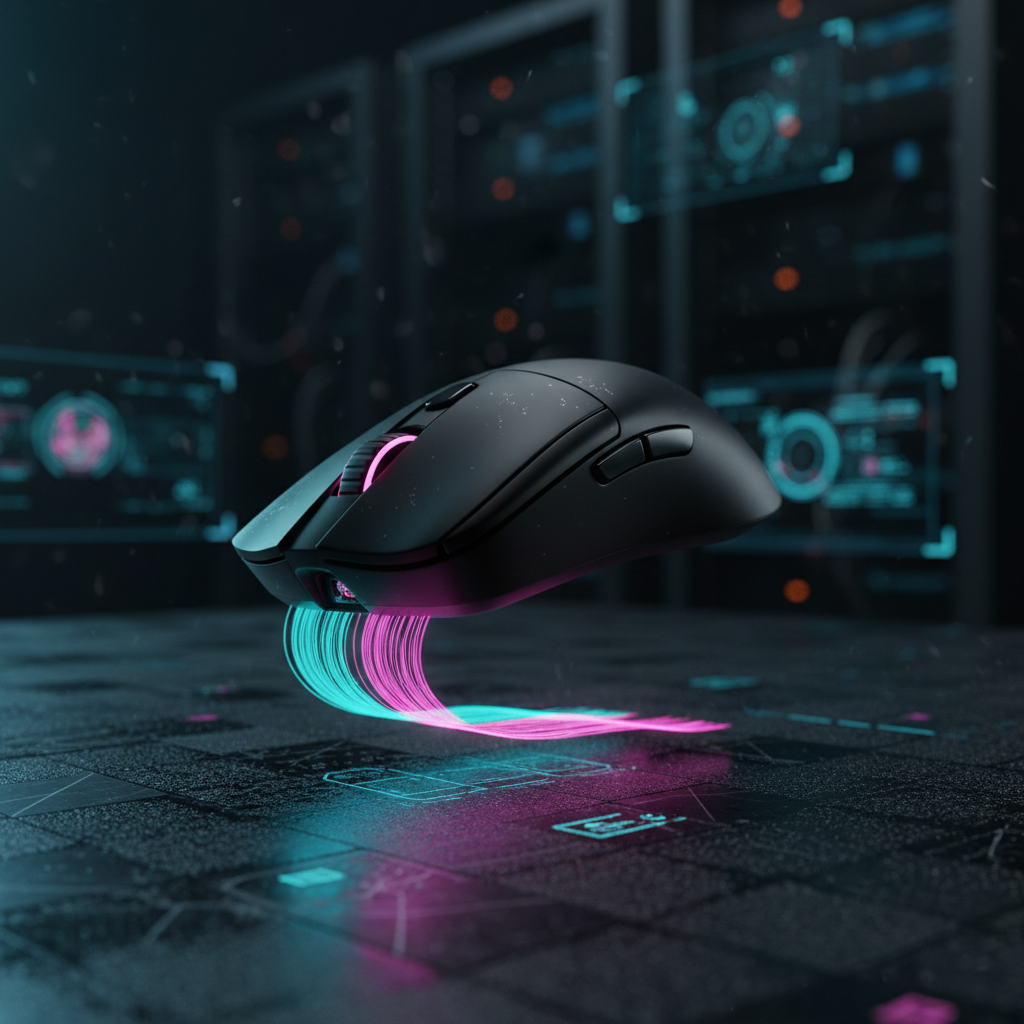
The Mechanics of Sensor Tilt in Competitive Play
In high-stakes competitive gaming, precision is often measured in pixels and milliseconds. However, many players experience a frustrating phenomenon known as "sensor tilt" or "sensor angle deviation." This occurs when a player’s physical mouse movement in a straight horizontal line results in a diagonal or arched cursor path on the screen. While often misidentified as a hardware defect or a sensor tracking error, sensor tilt is primarily a biomechanical misalignment between the mouse’s internal Y-axis and the player's natural grip angle.
Understanding the relationship between grip style and sensor orientation is critical for achieving aim consistency. When a player "flicks" to a target, the brain expects the cursor to travel in a direct path. If the mouse is held at even a 3-degree offset, that flick will consistently land above or below the target, requiring a secondary micro-correction that increases Time-to-Kill (TTK).
Methodology Note: Identifying Tracking Patterns Our analysis of tracking deviation is based on common patterns observed in customer support logs and community feedback from hardware-focused forums like r/MouseReview. These patterns suggest that most "sensor issues" reported by users are actually results of subconscious grip rotations rather than electronic failure (not a controlled lab study).
Biomechanics: How Grip Styles Induce Tilt
The human hand is not a symmetrical clamp; it is a complex system of levers. Different grip styles—palm, claw, and fingertip—interact with the mouse shell in ways that naturally rotate the device.
Palm Grip and Stability Constraints
The palm grip provides the most contact area between the hand and the mouse, offering high stability but the least amount of finger-driven micro-dexterity. For palm grip users, the mouse is essentially locked into the geometry of the hand. If the hand naturally sits at a slight "toe-in" or "toe-out" angle, the mouse follows.
According to research on ergonomic RSI risks, palm grips minimize finger movement, which is beneficial for reducing strain but makes active "on-the-fly" tilt correction nearly impossible. Forcing a palm-grip user to micro-adjust their finger placement to fix tilt can lead to forearm pronation and increased risk of repetitive strain injuries.
Claw and Fingertip Dexterity
Claw and fingertip grips allow for significantly more rotation. Because the mouse is held primarily by the digits, the player can rotate the mouse within the "well" of the palm. This allows for easier correction of sensor tilt but introduces a new variable: inconsistency. A player might pick up the mouse after a reset and hold it at a slightly different angle than before, shifting their muscle memory mid-match.
| Grip Style | Contact Points | Tilt Correction Ease | RSI Risk (if forced) |
|---|---|---|---|
| Palm | Full Palm + Fingers | Low (Static) | High |
| Claw | Palm Base + Fingertips | Medium | Medium |
| Fingertip | Fingertips Only | High (Dynamic) | Low |
Logic Summary: This comparison assumes standard adult hand sizes (approx. 18–20cm) and a medium-sized ergonomic or symmetrical mouse shell. Individual results vary based on hand width and shell curvature.
Engineering Root Causes: Sensor Placement Physics
While grip is the primary driver, mouse engineering plays a significant role in how sensitive a device is to tilt. The position of the sensor relative to the grip's pivot point determines the "arc" of movement.
The Pivot Point Effect
Engineering principles dictate that a sensor placed directly under the primary pivot point of the grip (e.g., the center of the palm for palm users or the knuckle line for claw users) will experience the least amount of arc distortion during wrist-based rotation.
However, many modern high-performance mice utilize "forward-mounted" sensors to increase the perceived sensitivity during flicks. While this can make a mouse feel "faster," it also amplifies any inherent grip tilt. A 2-degree tilt on a front-mounted sensor results in a larger cursor deviation than the same 2-degree tilt on a center-mounted sensor.
As noted in a 2020 study on sensor position, there is surprisingly little research into the standardized effects of front vs. rear sensor placement, leaving most software-based "angle snapping" or "angle tuning" features as educated guesses rather than universal fixes.
Sensor Native Performance (PixArt 3395/3950)
High-end sensors like the PixArt PAW3395 or PAW3950 offer incredible precision, but they are most effective within their native DPI ranges—typically between 400 and 2000 DPI. When users attempt to correct tilt by drastically changing their DPI or using heavy software interpolation, they may introduce "smoothing" or "input latency." For maximum accuracy, the physical grip should be the first line of correction, ensuring the sensor's native tracking is not fighting against software-induced offsets.
Diagnostic Framework: The Straight-Line Test
Before attempting to recalibrate a grip, a player must verify the extent of their tilt. A common mistake is assuming a hardware defect when the issue is actually a subconscious micro-adjustment.
Step-by-Step Calibration Check
- Preparation: Clear a wide area on your mouse pad. Use a blank desktop or a simple painting application with a small brush tool.
- The Drag: Place the mouse on the far left. Close your eyes or look away from the screen to avoid visual feedback correction. Drag the mouse in what you feel is a perfectly straight horizontal line to the right.
-
The Reveal: Look at the resulting line.
- Straight Line: Your grip is perfectly aligned with the sensor's Y-axis.
- Upward Arc: Your mouse is "toed-in" (rotated counter-clockwise for right-handers).
- Downward Arc: Your mouse is "toed-out" (rotated clockwise for right-handers).
Iterative Correction in Aim Trainers
Once the direction of the tilt is identified, the correction process should be iterative rather than drastic. Drastic changes break muscle memory and can lead to performance slumps.
- Micro-Adjustments: Shift your thumb or pinky placement by 1–2mm.
- Validation: Use an aim trainer like KovaaK's or Aim Lab. Focus on "tracking" scenarios where you must follow a target moving horizontally. If you find yourself constantly adjusting vertically to stay on a horizontal target, your tilt is still present.
Heuristic: The 1mm Rule When adjusting grip for tilt, never move a finger more than 1mm at a time. Based on patterns from competitive coaching, larger shifts often trigger a "relearning" phase that lasts weeks, whereas 1mm tweaks can be integrated into muscle memory within hours.
High-Performance Optimization: Polling Rates and Latency
For players using cutting-edge peripherals, sensor tilt is further complicated by high polling rates, such as 8000Hz (8K). At these speeds, every micro-stutter caused by an inconsistent grip is amplified.
The 8000Hz Math
A standard 1000Hz mouse sends data every 1.0ms. An 8000Hz mouse sends data every 0.125ms ($1s / 8000$). This near-instantaneous reporting means that the system is capturing even the slightest tremors or angular deviations in your movement.
At 8000Hz, features like Motion Sync behave differently. While Motion Sync at 1000Hz might add ~0.5ms of latency to align sensor data with USB polls, at 8K, this delay drops to ~0.0625ms. This is effectively negligible, making 8K performance significantly smoother for tracking, provided the system can handle the load.
System Requirements for 8K Stability
To benefit from 8K polling without it exacerbating tilt-related jitter, the system must be optimized:
- CPU IRQ Load: 8K polling places a heavy load on the CPU's Interrupt Request (IRQ) processing. This requires high single-core clock speeds.
- USB Topology: The mouse must be connected to a Direct Motherboard Port (usually the rear I/O). Using USB hubs or front-panel headers introduces packet loss and latency variance, which can make sensor tilt feel like "skipping."
- Saturation Thresholds: To fully saturate an 8000Hz bandwidth, you must move the mouse at a certain speed relative to your DPI. For example, at 800 DPI, you need at least 10 IPS (Inches Per Second) of movement. At 1600 DPI, you only need 5 IPS. Higher DPI settings actually help maintain 8K stability during the slow micro-adjustments often used to correct for tilt.

Regulatory and Safety Compliance in Gaming Peripherals
While performance is the priority, technical savvy gamers should also be aware of the regulatory standards that ensure device stability and safety. Wireless gaming mice operate on the 2.4GHz ISM band, which is governed by strict international standards.
Wireless Standards and Interference
Devices must comply with the FCC Equipment Authorization in the US and the Radio Equipment Directive (RED) in the EU. These regulations ensure that the 2.4GHz signal is stable and does not interfere with other household electronics. For a gamer, "interference" often manifests as "sensor lag" or "jitter," which can be mistaken for sensor tilt.
Battery Safety (UN 38.3)
High-performance wireless mice use lithium-ion batteries. To ensure these can be safely shipped and used during intense gaming sessions, they must pass UN 38.3 testing. This involves thermal tests, vibration tests, and impact tests. A failing battery or poor power management can lead to voltage drops, which in turn cause the sensor to "spin out" or track inconsistently.
| Regulation | Region | Focus Area | Impact on Gaming |
|---|---|---|---|
| FCC / RED | Global | Radio Frequency (RF) | Prevents signal dropouts and lag |
| UN 38.3 | Global | Battery Safety | Ensures consistent power to the sensor |
| RoHS / REACH | EU | Material Safety | Restricts harmful chemicals in coatings |
Summary of Optimization Steps
Solving mouse tilt is a multi-layered process that combines biomechanical adjustment with technical hardware configuration.
- Diagnose with the Straight-Line Test: Determine if your tilt is "toe-in" or "toe-out."
- Adjust Grip Iteratively: Use the "1mm Rule" to shift finger placement without breaking muscle memory.
- Optimize Sensor Settings: Stay within native DPI ranges (400-2000) for sensors like the PAW3395 to avoid software smoothing.
- Configure 8K Polling Correctly: Ensure you are using a direct motherboard port and a high enough DPI (1600+) to saturate the polling bandwidth during micro-corrections.
- Verify Hardware Health: Ensure your firmware is up-to-date and your device complies with standard safety and RF regulations to rule out electronic interference.
For a deeper dive into how peripheral engineering affects competitive performance, refer to the Global Gaming Peripherals Industry Whitepaper (2026).
Modeling Note (Reproducible Parameters) The latency and saturation figures provided (e.g., 0.125ms for 8K) are deterministic values derived from the $1/f$ frequency formula. The IPS saturation thresholds are modeled based on standard USB HID report descriptors.
Parameter Value Unit Rationale Polling Rate 8000 Hz Industry high-performance standard Interval 0.125 ms $1 / 8000$ Motion Sync (8K) ~0.0625 ms Half-interval alignment delay Min Speed (800 DPI) 10 IPS Bandwidth saturation requirement Min Speed (1600 DPI) 5 IPS Bandwidth saturation requirement
Disclaimer: This article is for informational purposes only. While ergonomic adjustments can improve comfort and performance, individuals with pre-existing wrist or hand conditions should consult a qualified physiotherapist before making significant changes to their grip or setup.


Dejar un comentario
Este sitio está protegido por hCaptcha y se aplican la Política de privacidad de hCaptcha y los Términos del servicio.