


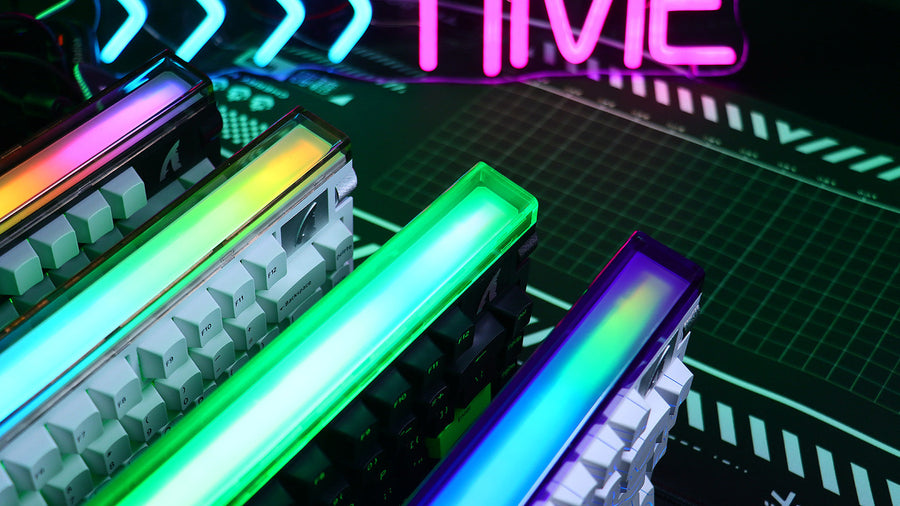

Switching from console to PC gaming does not require replacing every device you already own. A desktop needs a display, keyboard, and mouse, while your current controller, headset, or TV may still work. Start by checking compatibility, available ports, and desk space. Then choose new gear around the games you play and the controls you prefer. This checklist separates day-one essentials from upgrades that can wait until you understand your new setup.
What Do You Need for PC Gaming on Day One?
A gaming laptop already includes a screen and keyboard, although most games are easier to control with an external mouse. A desktop requires more separate equipment.
| Peripheral | Priority | What to Check |
|---|---|---|
| Monitor or TV | Essential for a desktop | Resolution, refresh rate, HDMI or DisplayPort support |
| Keyboard | Essential | Layout, desk width, connection type |
| Mouse | Essential | Shape, size, weight, buttons |
| Mouse pad | Strongly recommended | Movement area, surface speed, base stability |
| Headset, headphones, or speakers | Needed for audio | USB, 3.5 mm, Bluetooth, or 2.4 GHz compatibility |
| Controller | Optional | Game support, connection method, supported features |
| Separate microphone | Optional | Needed only if your audio device lacks a suitable mic |
| Monitor arm or wrist rest | Later upgrade | Add when the setup reveals a specific comfort problem |
Before buying anything, count the available USB ports and check whether the PC supports Bluetooth. Confirm which display cable comes with the monitor as well.
Keep the Controller or Switch to Keyboard and Mouse?
Moving to PC does not mean abandoning your controller. Racing, platform, fighting, sports, and many third-person action games remain comfortable with a gamepad. Keyboard and mouse controls often suit shooters, strategy games, and titles with numerous commands.
Xbox controllers generally work with Windows through USB, Bluetooth, or Xbox Wireless, depending on the controller and PC hardware. A DualSense controller can also connect to a Windows PC through USB-C or Bluetooth. However, haptic feedback, adaptive triggers, controller audio, and button prompts depend on the game and connection.
Steam lets you filter games by controller support, including Xbox, DualShock, and DualSense controllers. Check the store page before assuming that every feature will work.
Many players use both input methods. Match gamepad or keyboard-and-mouse controls to each genre instead of forcing one option across the entire game library. You can keep familiar controls for racing games while learning keyboard and mouse in shooters.
Choose a Keyboard That Fits Your Desk and Games
Keyboard size determines how many keys remain available and how much room is left for the mouse. A wide keyboard can push the mouse arm outward, especially on a compact desk.
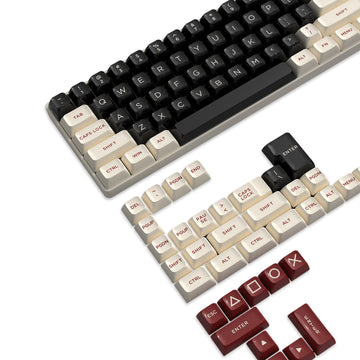
For most new PC players, 75% and TKL layouts offer a practical starting point:
- A 75% keyboard keeps the function row and arrow keys in a compressed layout.
- A TKL keyboard removes the number pad while retaining the function row and navigation cluster.
- A full-size keyboard suits users who regularly need the number pad for work, simulations, or shortcuts.
- A 65% keyboard saves more space but moves the function row and several commands onto secondary layers.
Check the games you play before choosing a very compact layout. MMOs, strategy games, simulators, and applications with many shortcuts may benefit from additional keys.
Do You Need a Mechanical Keyboard?
A mechanical keyboard is optional. Switch feel, layout, rollover, and connection stability matter more than the keyboard category alone.
Linear switches move smoothly without a tactile bump and often suit repeated inputs. Tactile switches provide physical feedback around the actuation point. Clicky switches add audible feedback but may be distracting in shared rooms or voice chat.
Wired and 2.4 GHz connections are practical for a dedicated gaming desk. Bluetooth is convenient for switching between devices, although latency and polling behavior vary between products.

Choose the Mouse and Pad as One Setup
Prioritize shape, size, and button placement before maximum DPI. The mouse should support your natural grip, keep its side buttons within reach, and remain secure when you lift and recenter it.
Hand measurements help narrow the options, but grip style changes how the same shell feels. Shell height, hump position, and contact points determine how well a mouse supports palm, claw, or fingertip grip. A long, high-backed mouse may support a palm grip while restricting a fingertip user.
Weight preference also depends on the game. A lighter mouse can be easier to reposition in shooters. A fuller or somewhat heavier design may feel steadier during general gaming. Extra side buttons become more useful in MMOs, MOBAs, and games with frequent abilities.
Start with 800 or 1600 DPI, then adjust the in-game sensitivity. These values provide repeatable starting points rather than universal targets. If the mouse offers several polling rates, begin with 1000 Hz. Higher rates require suitable hardware and do not automatically improve control.
The mouse pad should provide enough space for a normal turn and the corrections that follow it. Cloth pads usually offer more friction and stopping control. Hard surfaces, including glass, typically provide faster glide and make mouse-skate condition more noticeable. When comparing cloth and hard mouse pads, choose according to the speed and stopping resistance you prefer.
Match the Monitor to Your PC’s Performance
A monitor cannot fully show every unique frame produced above its refresh rate, although a higher frame rate may still reduce input latency. Choose the display around the games you play and the performance your PC can sustain.
A 60 or 75 Hz display remains usable for slower games and general computing. A 120, 144, or 165 Hz monitor can provide smoother motion in shooters, racing games, and other fast-moving titles. Resolution also affects performance, so a higher-resolution monitor may require more graphics power to maintain the same frame rate.
Confirm that the selected cable and port support the intended resolution and refresh rate. On a desktop with a discrete graphics card, the monitor should usually connect to the graphics card rather than the motherboard video output.
After connecting the display, open Settings > System > Display > Advanced Display and select a supported refresh rate. Windows may otherwise leave a high-refresh monitor at a lower default setting.
Check Whether Your Existing Headset Will Work
Console headsets may work on PC, but compatibility depends on the connection.
A USB headset needs Windows support for that model. A 3.5 mm headset can connect directly when the PC has a combined headset jack. Computers with separate headphone and microphone sockets may require a splitter for a four-pole headset plug.
Bluetooth audio requires built-in Bluetooth or an adapter. A console-specific wireless headset may depend on a proprietary transmitter that lacks PC support. Check the headset model and transmitter rather than assuming that all wireless devices are cross-platform.
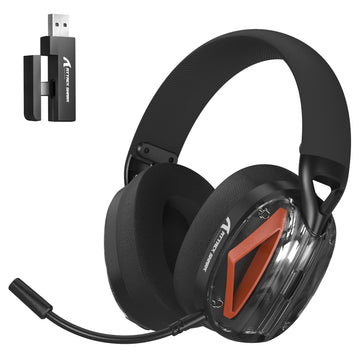
When buying new audio equipment, consider connection stability, microphone clarity, clamp force, weight, and heat buildup. A gaming headset with a microphone can handle game audio and voice chat without taking up additional desk space.

Set Up the Peripherals Before Changing Advanced Settings
Complete the basic setup before experimenting with sensitivity, rapid trigger, debounce, equalizer settings, or lighting profiles:
- Connect the monitor to the correct graphics output.
- Select the intended resolution and refresh rate in Windows.
- Run Windows Update and install the current graphics driver.
- Connect the keyboard, mouse, audio device, and controller.
- Install only the utilities needed for your models from our driver and software library.
- Set one mouse DPI and adjust sensitivity inside each game.
- Remap only the commands that feel difficult to reach.
- Confirm that Windows and the game use the correct audio input and output.
- Save a working profile before testing advanced settings.
Keep the setup stable for several sessions. Changing the DPI, mouse pad, grip, keybinds, and keyboard position together makes it difficult to identify what helped.
Desk position also affects control. Keep the monitor centered and place its upper area around eye level or slightly below. Adjust the chair so your shoulders stay relaxed and your wrists do not bend sharply upward. Play several sessions before buying ergonomic accessories so you can identify whether keyboard width, monitor height, or chair position is causing discomfort.
Build Your PC Gaming Setup in Stages
Start with a suitable display, keyboard, mouse, mouse pad, and audio solution. Continue using your controller in games where it feels comfortable.
Upgrade only when a device creates a clear limitation. That could be a keyboard blocking mouse movement, a headset with an unreliable microphone, or a monitor that cannot display the frame rate your PC produces. This approach gives each purchase a practical reason and keeps the initial setup focused on compatibility and comfort.
FAQs
Q1. Can I Use a TV Instead of a Gaming Monitor?
Yes. Connect the PC through a suitable HDMI port and enable the TV’s Game Mode when available. Check the supported resolution, refresh rate, and input latency. A TV may suit controller gaming, while a monitor generally fits a close-range keyboard-and-mouse desk more easily.
Q2. Will My Console Save Data Transfer to PC?
It depends on the game. Cross-progression may transfer saves, characters, or purchased content through a publisher account. Other games maintain separate console and PC progress. Check the game’s cross-progression policy before buying the PC version.
Q3. Why Does a Game Show Xbox Buttons With a PlayStation Controller?
Some PC games use Xbox-style prompts even when a PlayStation controller works. Native PlayStation button icons depend on the game. Steam Input or other controller translation can also change how the controller is identified.
Q4. How Many USB Ports Does a Basic PC Gaming Setup Need?
A basic setup usually needs two to four USB ports for the keyboard, mouse, headset, and controller or charging cable. Wireless receivers, webcams, microphones, and other accessories can raise the requirement to five or six. Keep one accessible port free for updates or temporary devices.
Q5. Can Wireless Gaming Receivers Interfere With Each Other?
Yes. Several 2.4 GHz receivers placed close together may experience interference, especially near other wireless devices or metal surfaces. Separate the receivers when possible, use front-facing ports or extension cables, and avoid hiding every dongle directly behind the PC case.