






Attack Shark Mouse Polling Test
How To Use
1. Start Testing
Click the START button to begin. This will activate the full-screen tracking mode. The button will become disabled while the test is running.
2. Move Your Mouse
Move your mouse continuously in circles or side-to-side. The faster and more consistent your movement, the more accurate the polling rate reading will be.
3. Analyze Graph
The blue line represents your real-time polling rate (Hz). A flat, stable line indicates a consistent sensor performance. Drops indicate instability.
4. Scale & Controls
Use the dropdown to set the Max Hz (e.g., 1000Hz or 4000Hz). Use PAUSE to freeze the data or RESET to clear all history.
FAQ & Knowledge
Featured collection
Blog posts

Keyboard Plate Materials Explained: Aluminum vs. Polycarbonate (PC) vs. FR4
Aluminum, PC, or FR4? Learn how different plate materials alter your keyboard’s acoustics and flexibility. Master the science of choosing the right foundation for your switches and typing style.

Glass Mouse Skates vs. PTFE: Which Gives You the Ultimate Glide
Transform your gaming performance with the right mouse feet. See why pro players choose virgin-grade PTFE for control or tempered glass for maximum speed.
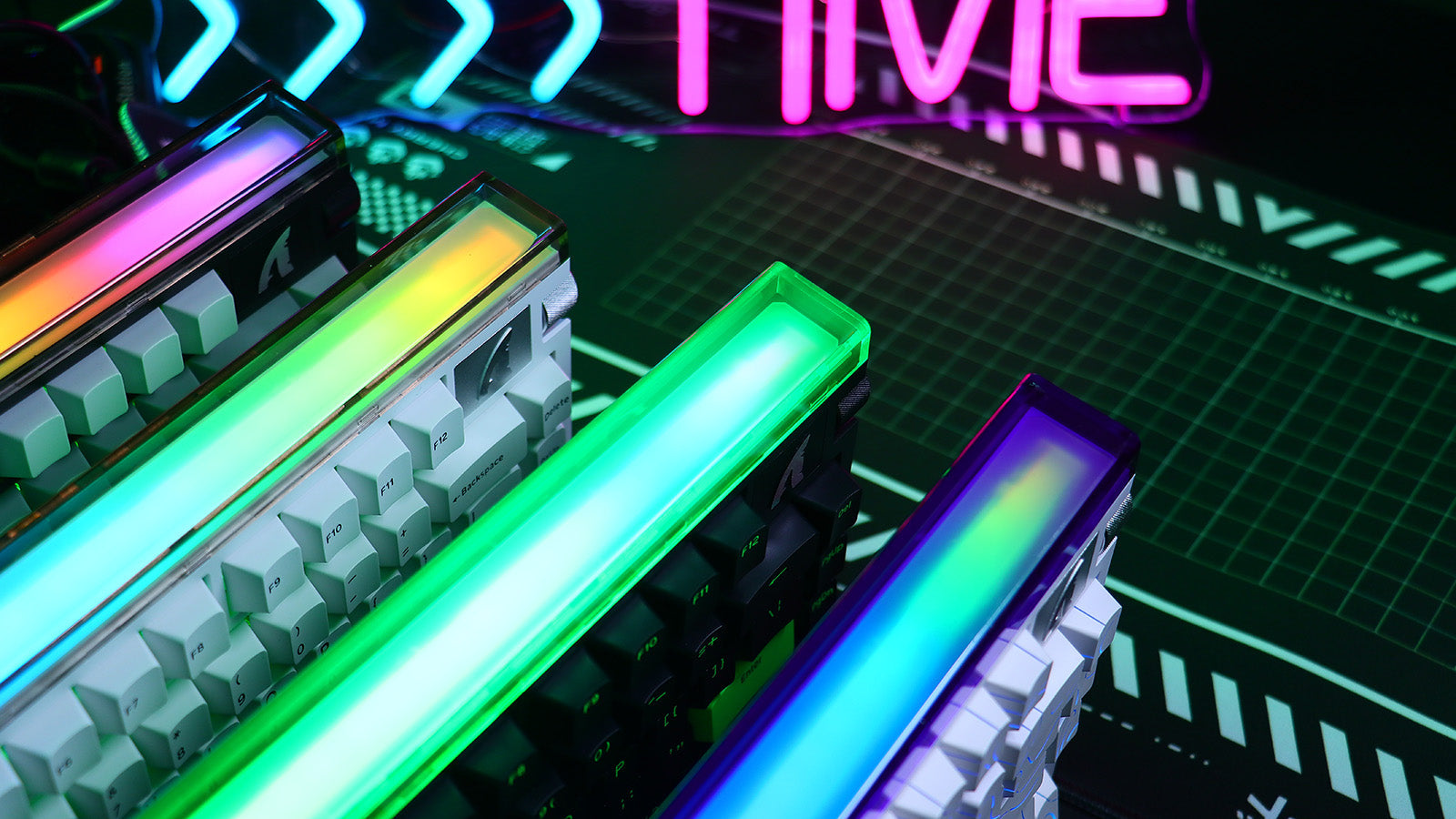
Monitor Light Bars vs. Desk Lamps: Reducing Eye Strain During Late-Night Gaming
Fix eye strain today. Learn how light bars eliminate glare, save desk space, and create balanced lighting for long gaming sessions.