ATTACK SHARK mouse button test

Total Clicks
0
Session Accumulation
Latency / Interval
0 ms
Event Log
Waiting for input...
ATTACK SHARK
Sensor Check: Active
Left Click
0
Right Click
0
Middle Click
0
Side Button 4 (Back)
0
Side Button 5 (Fwd)
0
Scroll Up
0
Scroll Down
0
PRO TIP

Lower click latency (interval) indicates faster switch rebound performance. Mechanical switches typically range from 30-70ms rapid clicking.

Quick Start Guide

1
Click Testing Press Left, Middle, and Right mouse buttons to verify switch actuation and responsiveness.
2
Scroll Test Rotate wheel up/down. Blue arrows will appear to confirm encoder step registration.
3
Latency Check "Interval" shows ms delay between clicks. Lower is better (30-70ms is typical for rapid fire).
4
Reset Data Use the RESET button in the Event Log section to clear the current session history.

Frequently Asked Questions

What is the Attack Shark Mouse Tester used for?
This tool is designed to test the functionality of your gaming mouse, including left/right/middle buttons, scroll wheel encoder steps, and click latency consistency. It helps gamers identify double-clicking issues or switch failures.
How do I check for double-clicking issues?
Click the mouse button once firmly. If the "Total Clicks" counter increases by more than 1, or if you see multiple entries in the Event Log with extremely low intervals (e.g., < 20ms) for a single physical press, your switch may be faulty.
What is a good click latency interval?
For rapid clicking in gaming, intervals typically range from 40ms to 90ms. An interval lower than 10ms usually indicates a mechanical switch bounce error (double click), unless you are using specialized techniques like drag clicking.
Does this tool support 4KHz or 8KHz polling rate mice?
Yes, the tool captures browser-level events. However, browser limitations (typically locked to monitor refresh rate or OS interrupt handling) may smooth out extremely high polling rate data. It is perfect for checking functional integrity.
Can I test side buttons?
Yes! We have updated the tool to support Side Button 4 (Browser Back) and Side Button 5 (Browser Forward). This is essential for e-sports mice. The tool will prevent the browser from navigating away during the test.
Does browser performance affect the test results?
Yes. Since this is a web-based tool, high CPU usage from other tabs or extensions can impact the recorded latency intervals. For the most accurate consistency check, we recommend closing other active windows.

Blog posts

View all
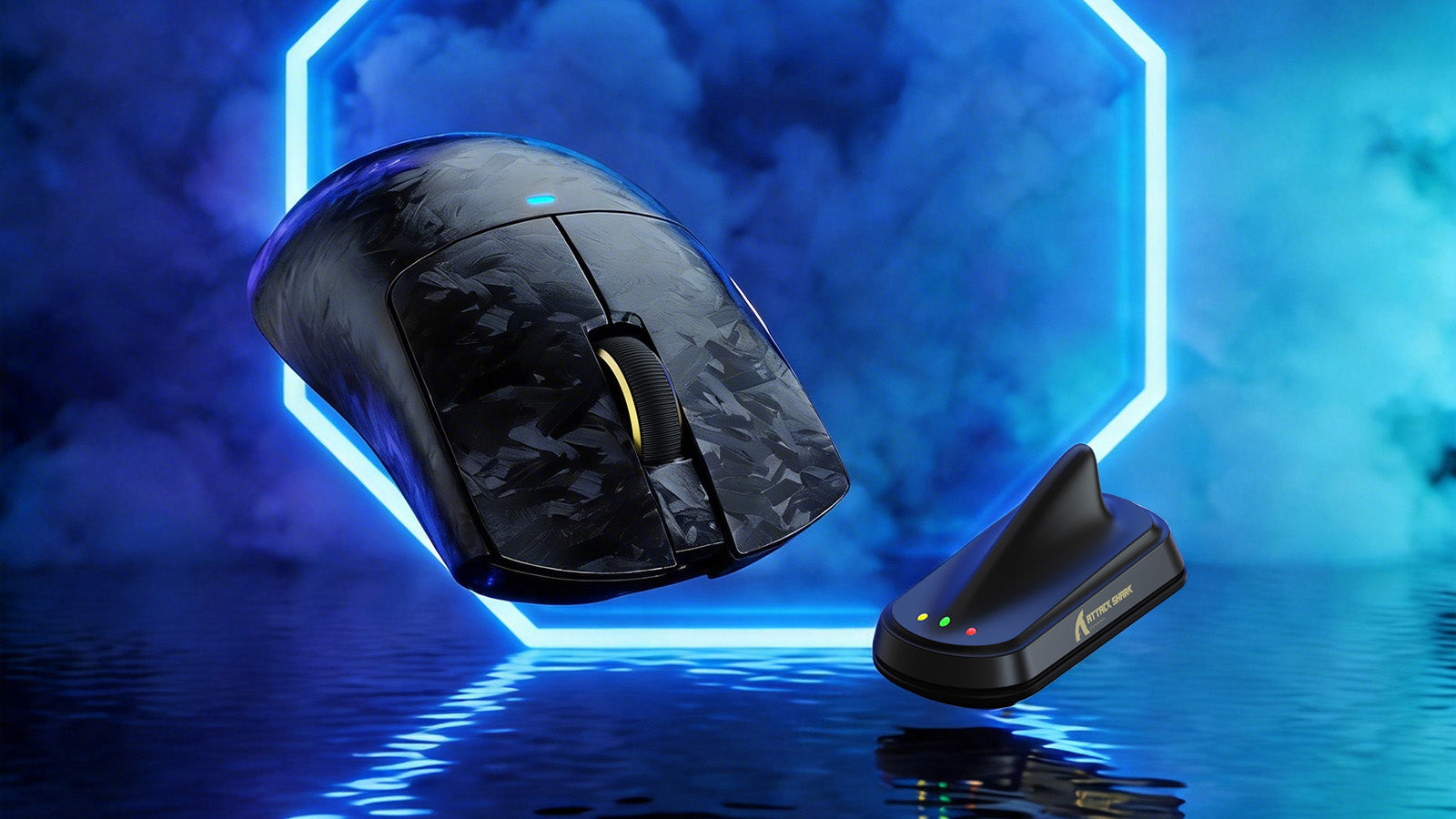
Carbon fiber patterned gaming mouse and its wireless receiver against a neon blue background.

How to Travel with Your Gaming Setup

Protect your gear on the road: tips for traveling with gaming gear—use 60% keyboards, hard-shell cases, and carry-on packing to avoid broken switches.
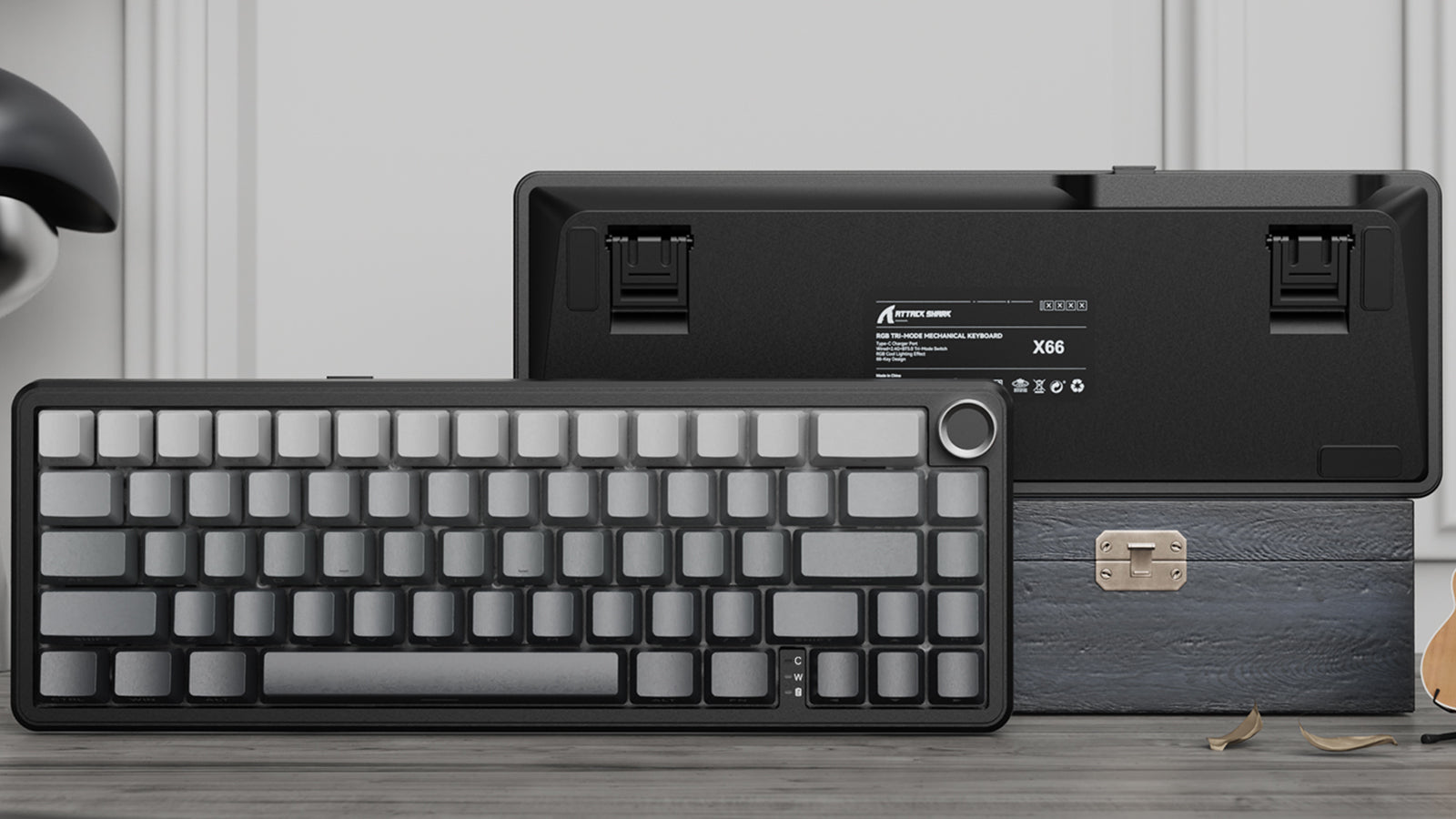
Front and back view of a grey mechanical keyboard with a knob, resting against a textured box.

How to Live Without Dedicated Arrow Keys on a 60% Keyboard

Your arrow keys aren't gone — they're hidden. Master Fn layers, tap mode, and QMK remapping to navigate faster on a 60% keyboard than ever before.
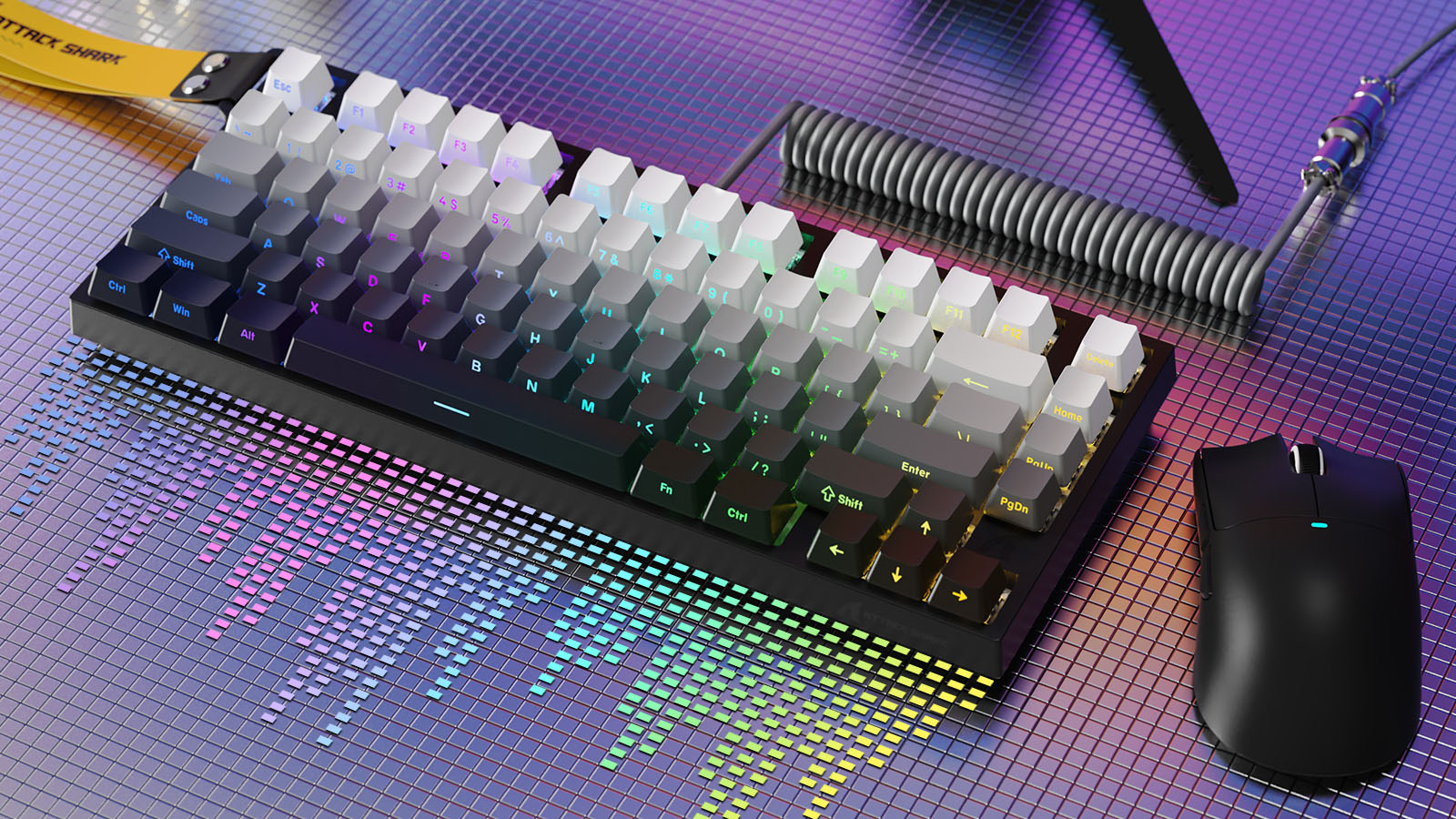
Compact mechanical keyboard with gradient keycaps, coiled cable, and black gaming mouse.

How to Build the Ultimate Gaming Room: A Step-by-Step Guide

Get the ultimate gaming room setup right the first time — desk, chair, peripherals, lighting, and cable management, all in one complete step-by-step guide.