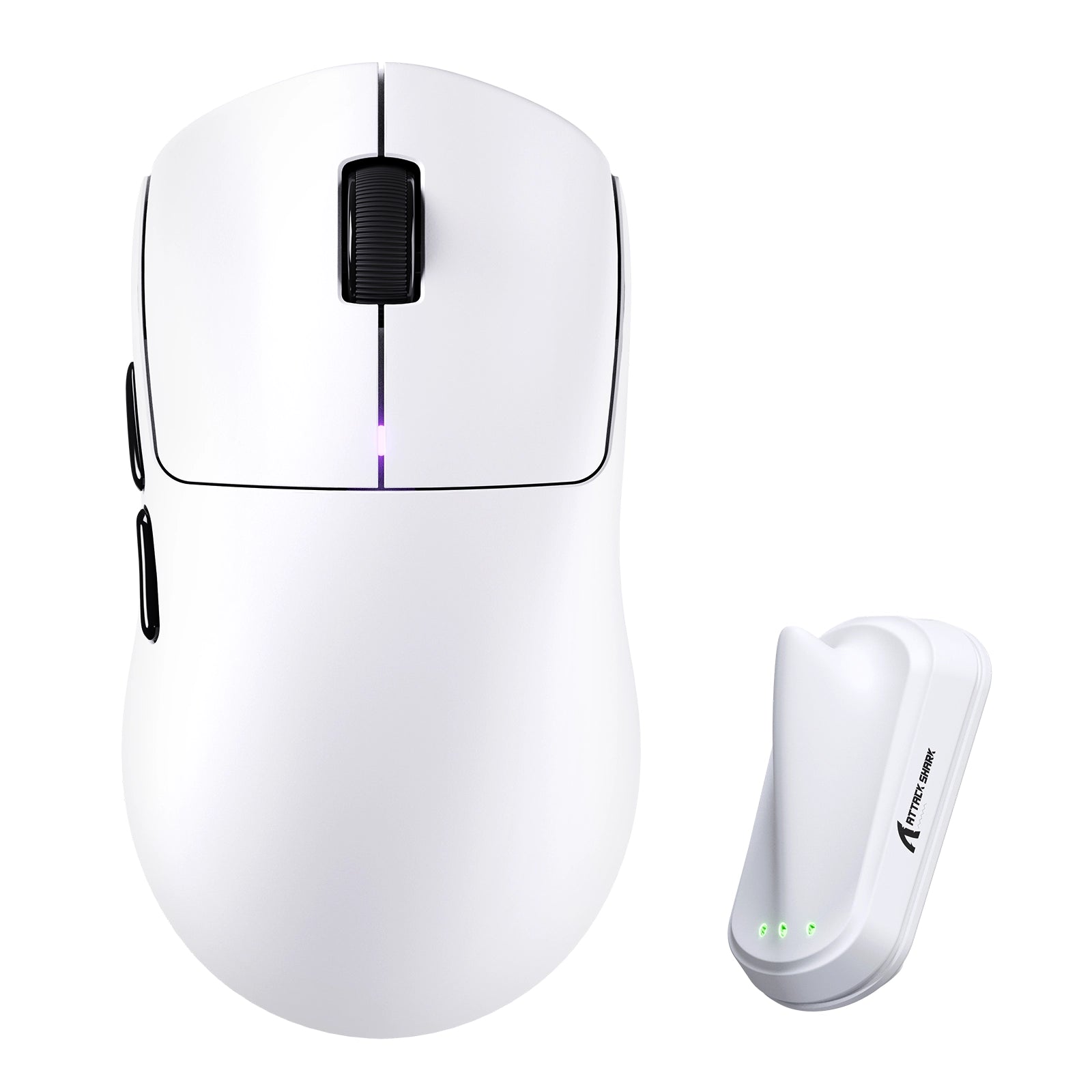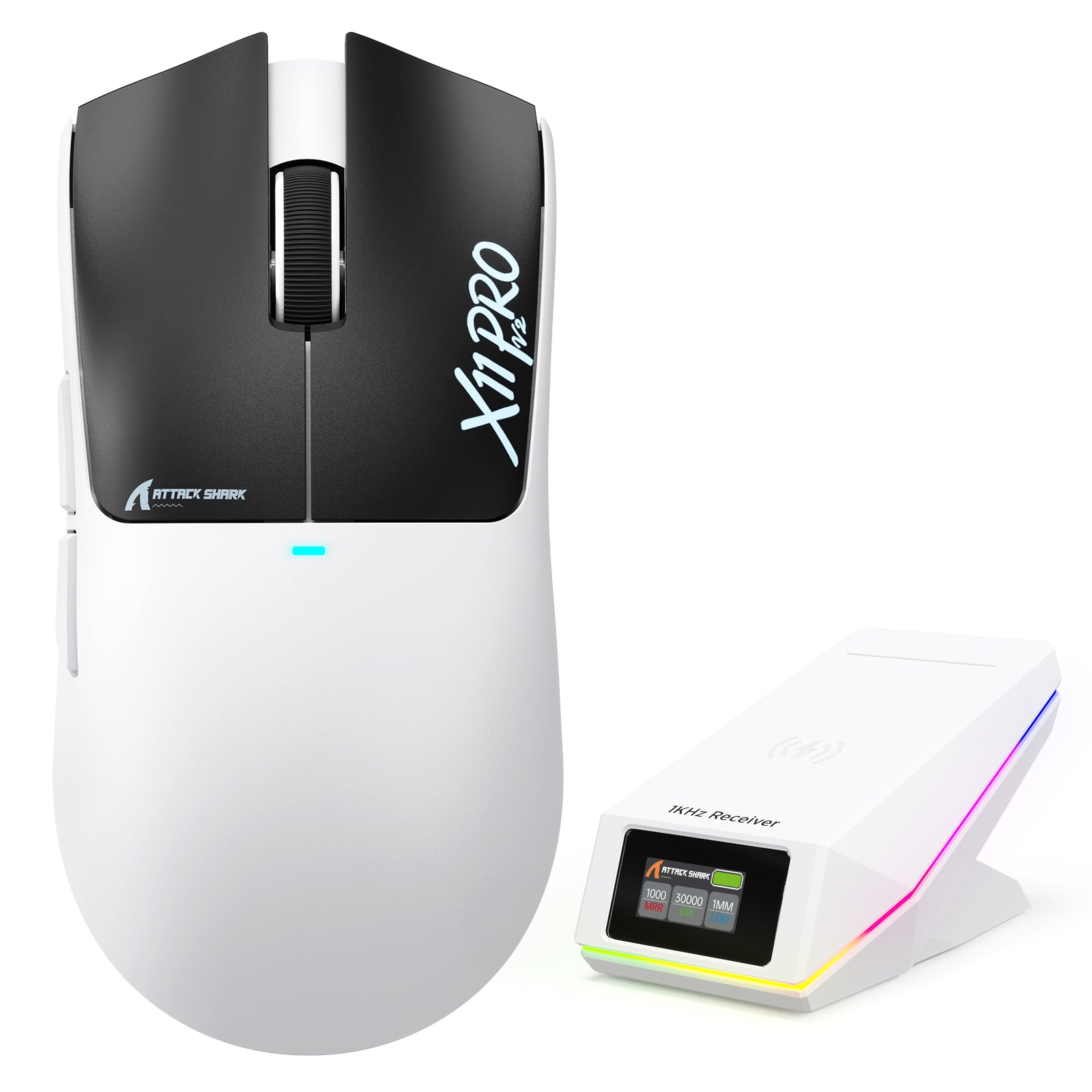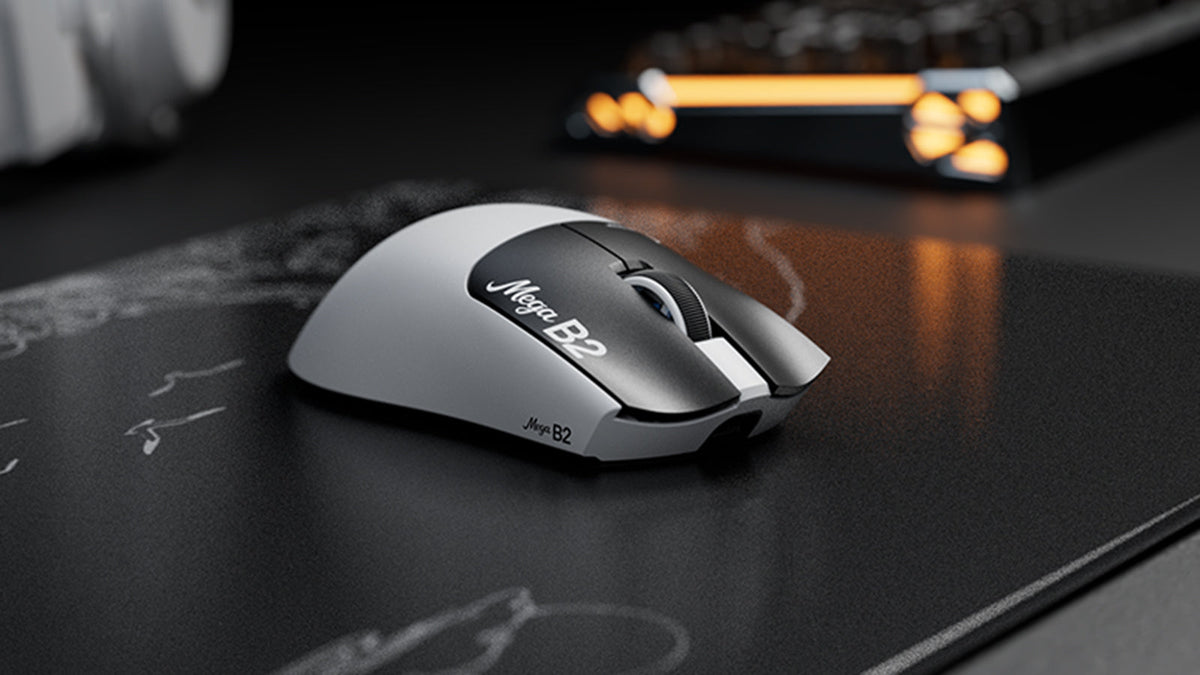

ATTACK SHARK mouse button test

Total Clicks
0
Session Accumulation
Latency / Interval
0 ms
Event Log
Waiting for input...
ATTACK SHARK
Sensor Check: Active
Left Click
0
Right Click
0
Middle Click
0
Side Button 4 (Back)
0
Side Button 5 (Fwd)
0
Scroll Up
0
Scroll Down
0
PRO TIP

Lower click latency (interval) indicates faster switch rebound performance. Mechanical switches typically range from 30-70ms rapid clicking.

Quick Start Guide

1
Click Testing Press Left, Middle, and Right mouse buttons to verify switch actuation and responsiveness.
2
Scroll Test Rotate wheel up/down. Blue arrows will appear to confirm encoder step registration.
3
Latency Check "Interval" shows ms delay between clicks. Lower is better (30-70ms is typical for rapid fire).
4
Reset Data Use the RESET button in the Event Log section to clear the current session history.

Frequently Asked Questions

What is the Attack Shark Mouse Tester used for?
This tool is designed to test the functionality of your gaming mouse, including left/right/middle buttons, scroll wheel encoder steps, and click latency consistency. It helps gamers identify double-clicking issues or switch failures.
How do I check for double-clicking issues?
Click the mouse button once firmly. If the "Total Clicks" counter increases by more than 1, or if you see multiple entries in the Event Log with extremely low intervals (e.g., < 20ms) for a single physical press, your switch may be faulty.
What is a good click latency interval?
For rapid clicking in gaming, intervals typically range from 40ms to 90ms. An interval lower than 10ms usually indicates a mechanical switch bounce error (double click), unless you are using specialized techniques like drag clicking.
Does this tool support 4KHz or 8KHz polling rate mice?
Yes, the tool captures browser-level events. However, browser limitations (typically locked to monitor refresh rate or OS interrupt handling) may smooth out extremely high polling rate data. It is perfect for checking functional integrity.
Can I test side buttons?
Yes! We have updated the tool to support Side Button 4 (Browser Back) and Side Button 5 (Browser Forward). This is essential for e-sports mice. The tool will prevent the browser from navigating away during the test.
Does browser performance affect the test results?
Yes. Since this is a web-based tool, high CPU usage from other tabs or extensions can impact the recorded latency intervals. For the most accurate consistency check, we recommend closing other active windows.

Post del blog

Visualizza tutto
White ATTACK SHARK R5 Ultra gaming mouse with a lattice carbon shell shown next to its wireless receiver

Recensione di Attack Shark R5 Ultra: leggero, veloce, ma non impeccabile

Guscio rigido in carbonio, wireless tri-mode 8K e un corpo davvero leggero: il rivestimento scivoloso e i piccoli incavi per gli skate, però, fanno sì che questo mouse ultraleggero premi i giocator...

A white translucent RGB keyboard standing on a desk beside a gaming monitor and illuminated PC case

Recensione di ATTACK SHARK R98 HE: il Rapid Trigger è troppo veloce?

Il Rapid Trigger sembra veloce, ma sono le impostazioni a determinare se è davvero utile. Ecco come funzionano su una vera scrivania il layout Hall Effect a 98 tasti, il display rotativo e il drive...

ATTACK SHARK R86 HE 81-key 80% magnetic gaming keyboard with glowing amber side RGB strip, forged carbon fiber top case, floating on golden desert dunes

Come ATTACK SHARK R86 HE risolve i comuni compromessi delle tastiere da gioco magnetiche

Scopri come la tastiera magnetica ATTACK SHARK R86 HE bilancia un formato compatto all’80%, la precisione Hall Effect, la velocità di 8000 Hz, il trattamento acustico e la praticità quotidiana.