



Start with keyboard shortcuts for copying, finding text, undoing changes and switching apps. Add browser and editing commands as you need them. The tables below separate Windows and Mac combinations, with practical instructions for compact keyboards and shortcuts that do not work as expected.
Essential Keyboard Shortcuts at a Glance
To use a shortcut, hold the modifier key, press the other key, then release both. For Ctrl + C, hold Ctrl and tap C. The plus sign means the keys work together; you do not type it.
These combinations work in many everyday apps, although individual programs can assign their own commands.
| Action | Windows | Mac |
|---|---|---|
| Copy selected text | Ctrl + C | Command + C |
| Cut selected text | Ctrl + X | Command + X |
| Paste | Ctrl + V | Command + V |
| Undo | Ctrl + Z | Command + Z |
| Redo | Ctrl + Y in many apps | Command + Shift + Z in many apps |
| Select all | Ctrl + A | Command + A |
| Find text | Ctrl + F | Command + F |
| Save the current document | Ctrl + S | Command + S |
On a Mac, Command may appear as Cmd or ⌘, and Option as ⌥. Many everyday Mac keyboard shortcuts use Command where Windows apps use Ctrl. Navigation and system commands often differ, so check the combination rather than swapping modifier keys automatically.

Keyboard Shortcuts for Editing and Selecting Text
Use the keyboard to reach the word or line you want to change. The following combinations are common in text editors; web apps and specialist software may handle them differently.
| Editing Task | Windows | Mac |
|---|---|---|
| Move by word | Ctrl + Left/Right Arrow | Option + Left/Right Arrow |
| Select by word | Ctrl + Shift + Left/Right Arrow | Option + Shift + Left/Right Arrow |
| Move to the start/end of a line | Home/End | Command + Left/Right Arrow |
| Select to the start/end of a line | Shift + Home/End | Command + Shift + Left/Right Arrow |
| Delete the word to the left | Ctrl + Backspace | Option + Delete |
| Delete the character to the right | Delete | Fn + Delete on Apple keyboards without Forward Delete |
On an Apple keyboard, Delete normally removes the character to the left. This matches Backspace on a typical Windows keyboard. An external keyboard may have both Backspace and a separate forward Delete key.
To replace a word you just typed, place the cursor at its end. Press Ctrl + Shift + Left Arrow on Windows, or Option + Shift + Left Arrow on Mac, then type the replacement. Check the selection before typing, since spaces and punctuation can affect its boundaries.
When copying text between websites and documents, choose Paste as Plain Text or Paste and Match Style if you want to avoid importing the original formatting. The command and shortcut depend on the receiving app, so check its Edit menu.
Browser Shortcuts for Tabs, Search, and Navigation
Browser shortcuts are useful when researching, shopping or moving between several pages. These Chrome keyboard shortcuts work on Windows and Mac; other browsers may differ.
| Browser Action | Windows | Mac |
|---|---|---|
| Open a new tab | Ctrl + T | Command + T |
| Close the current tab | Ctrl + W | Command + W |
| Reopen a recently closed tab | Ctrl + Shift + T | Command + Shift + T |
| Select the address bar | Ctrl + L | Command + L |
| Find text on the page | Ctrl + F | Command + F |
| Reload the page | Ctrl + R | Command + R |
| Zoom in/out | Ctrl + Plus/Minus | Command + Plus/Minus |
| Reset page zoom | Ctrl + 0 | Command + 0 |
For a new search, select the address bar, type your query and press Enter. To locate a product name or phrase on a long page, use Find instead. Use Ctrl/Command + L to navigate, and Ctrl/Command + F to search within the current page.
Shortcuts for Switching Apps, Screenshots, and Screen Locking
System shortcuts help when you need to move between a browser and a document or capture something on screen.
| Task | Windows | Mac |
|---|---|---|
| Switch between open windows/apps | Alt + Tab | Command + Tab switches apps |
| Start a selected-area screenshot | Windows + Shift + S | Command + Shift + 4 |
| Lock the screen | Windows + L | Control + Command + Q |
For app switching, hold Alt or Command and tap Tab until the app or window you want is selected, then release. On Windows, Alt + Tab switches windows; on a Mac, Command + Tab changes apps rather than cycling through every window within one app.
After pressing the screenshot combination, drag to select the area you need. On Windows, the capture is copied to the clipboard, so you can paste it into a message or document with Ctrl + V. Snipping Tool may also save a file automatically, depending on its version and settings. On Mac, screenshots normally save to the desktop unless you have changed the destination.
Check the clipboard or screenshot folder before taking the same capture again. Lock the screen before stepping away from your desk.
How to Use Function Keys on a Compact Keyboard
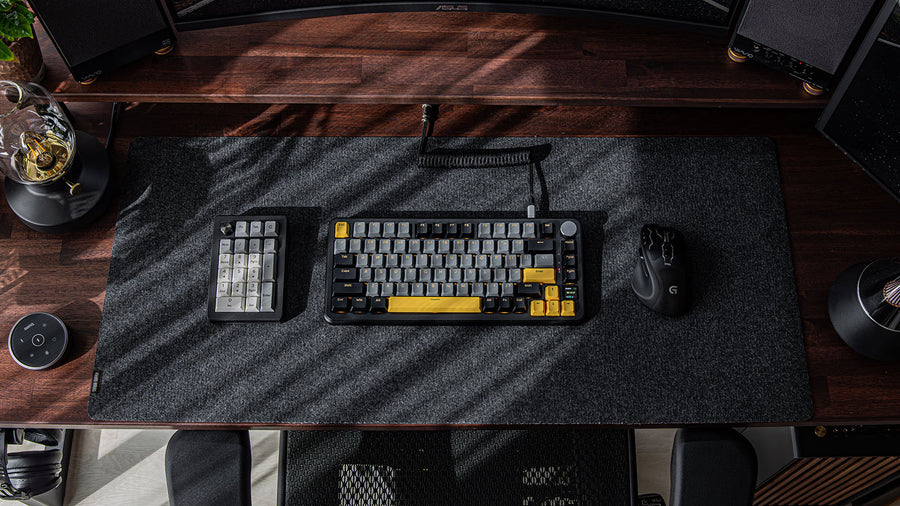
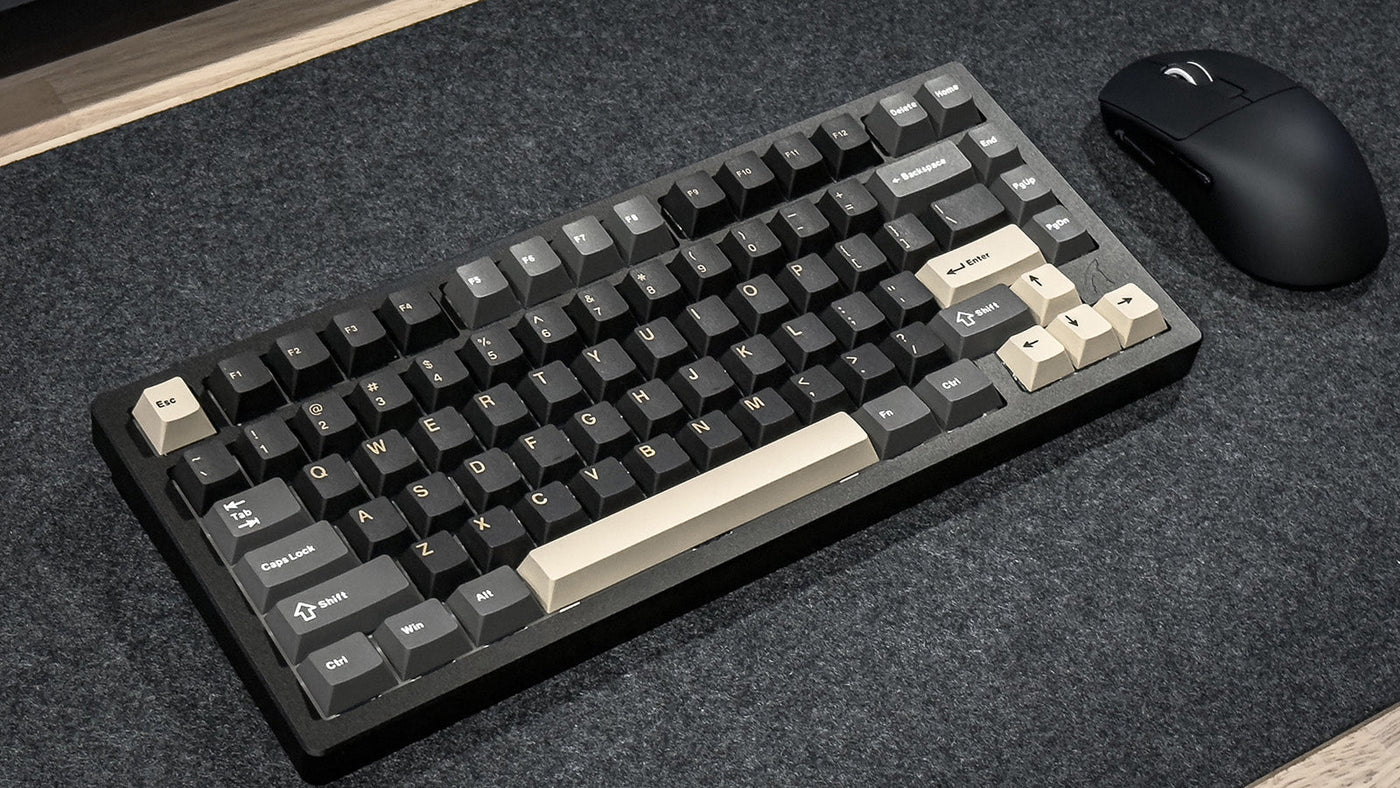
A compact keyboard may put F1–F12, navigation commands or media controls on a secondary layer. Hold Fn and press the assigned key to access that layer. The exact Fn combination depends on the keyboard model. For example, on our X68 HE, Fn + Esc sends the decimal-point (.) key input found on a full-size keyboard’s numeric keypad, rather than toggling Fn Lock. Check your model’s manual before using Fn + Esc as a function-lock shortcut.
Check the keycap legends and the model’s manual to identify the function you need. If a shortcut requires F5 but that key position changes the volume, find the documented way to send F5. A function key’s action also depends on the app: F2 can rename a selected file in Windows File Explorer, while F5 reloads a page in many browsers.
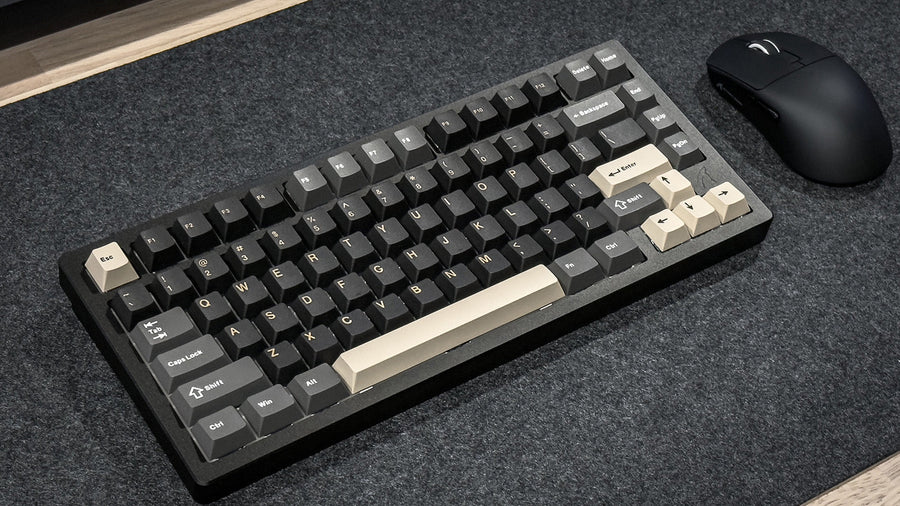
If you use function keys and arrows throughout the day, a layout with dedicated access can reduce layer changes. Our 75% keyboards are an option to compare when you want a compact layout with those keys; check the exact key arrangement before choosing.
What to Check When a Keyboard Shortcut Does Not Work
Work through these checks in order before changing settings:
- Activate the right area. Click inside the document, search box or app you want to control. A shortcut acts on the area that currently has keyboard focus.
- Confirm the app’s command. Open its Edit, File or View menu and look for the shortcut beside the action. Use that combination if it differs from a general reference.
- Check the keyboard mode. If your keyboard supports Windows and Mac modes, select the mode for your computer. Incorrectly assigned modifier keys can make familiar combinations behave differently.
- Check Fn layers and key locks. If F5 changes the volume, confirm how your model sends a standard F5 input. If Ctrl + C works but Windows + L does not, press the Windows key alone. If Start also fails to open, check the model’s Windows-key lock setting before changing app shortcuts.
- Review custom mappings. Temporarily disable a relevant custom assignment or profile and retest. Change one setting at a time so you can identify the cause.
For an ATTACK SHARK keyboard, enter the exact model when selecting keyboard software and manuals. Confirm mode changes and Fn combinations in the manual, and use compatible software if your model supports remapping. Standard copy-and-paste shortcuts generally work without additional manufacturer software.
If Command and Option behave unexpectedly on a Mac, check the selected keyboard’s modifier key assignments under System Settings > Keyboard > Keyboard Shortcuts > Modifier Keys.
FAQs
Q1. Do I Need a Mechanical Keyboard to Use Shortcuts?
No. Standard operating-system and app shortcuts work with compatible laptop, membrane and mechanical keyboards. Layout matters more when a command needs a key your keyboard places on a secondary layer. Choose dedicated keys based on how often you use them.
Q2. How Can I Reuse Something I Copied Earlier in Windows?
Press Windows + V to open clipboard history. If it is disabled, select Turn on to begin saving supported copied items. Enabling clipboard history helps with future copies; it does not recover items copied before the feature was active.
Q3. Why Does Ctrl + X Not Move Files in Mac Finder?
Finder uses a different sequence for moving files. Select the file and press Command + C, open the destination folder, then press Command + Option + V. This moves the copied file to the destination rather than leaving a duplicate in both locations.
Q4. What Is the Difference Between a Shortcut and a Macro?
A shortcut invokes a command through a key combination. A macro stores a sequence of inputs or actions for playback. For example, Copy is a shortcut command; an automation that copies, switches apps and pastes performs several steps. Macro support depends on the app or keyboard software.
Q5. Can I Use Shortcuts Without Holding Several Keys Together?
Yes. Sticky Keys can let you enter supported modifier combinations one key at a time. Enable it in your operating system’s accessibility keyboard settings. It can help with Ctrl, Shift, Alt or Command combinations; a keyboard’s hardware Fn layer may behave differently.
Make Three Shortcuts Part of Your Daily Routine
Choose three commands that replace actions you repeat every day. Keep a short reminder beside your screen and use each command during normal work. Add another when the first three feel familiar. A small set you use consistently is more useful than a long list you keep forgetting.