


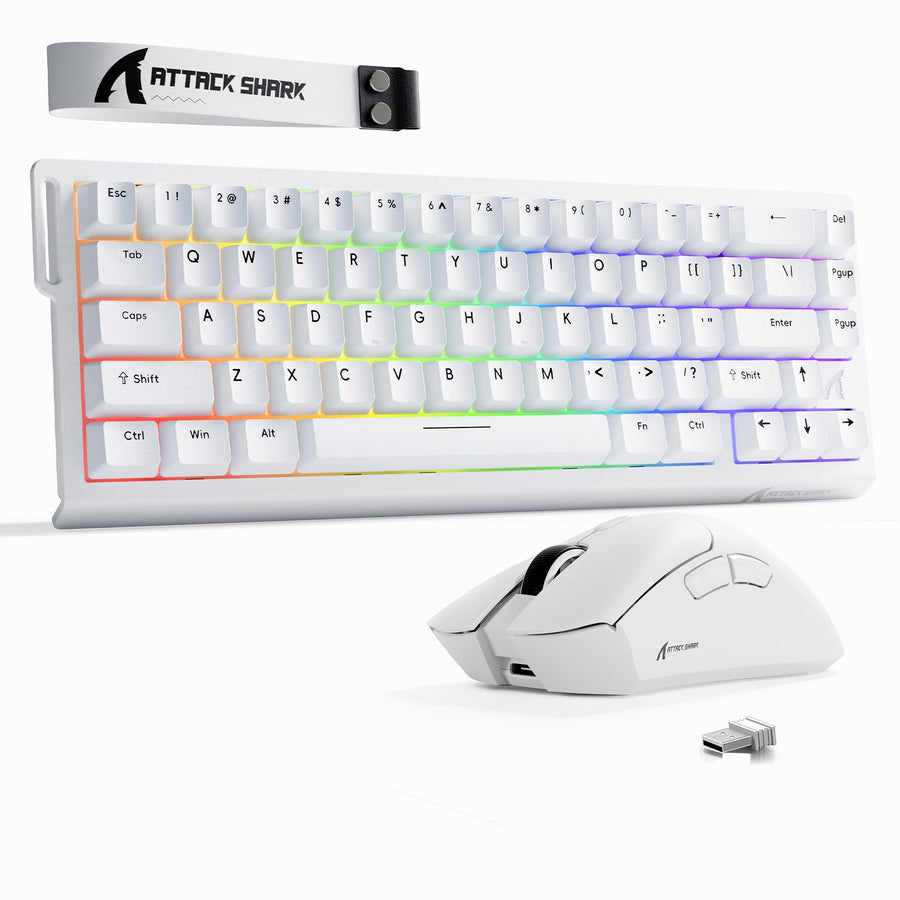
One wireless keyboard and mouse receiver can work with both devices only when the receiver and both peripherals explicitly support shared pairing. A bundle, matching brand, similar-looking dongle, or tri-mode label does not prove that capability. If shared pairing is not documented, plan for separate 2.4GHz receivers, or use Bluetooth only when the computer, keyboard, and mouse all support Bluetooth pairing.

Can One Wireless Keyboard and Mouse Receiver Run Both Devices?
Yes, but only when the specific receiver is designed to pair with both peripherals. Otherwise, use separate 2.4GHz receivers or Bluetooth when the computer, keyboard, and mouse all support Bluetooth pairing.
| Connection setup | What happens | What to confirm |
|---|---|---|
| Documented shared receiver | One receiver pairs with both the keyboard and mouse. | The listing, manual, or pairing instructions explicitly state that the receiver supports both devices. |
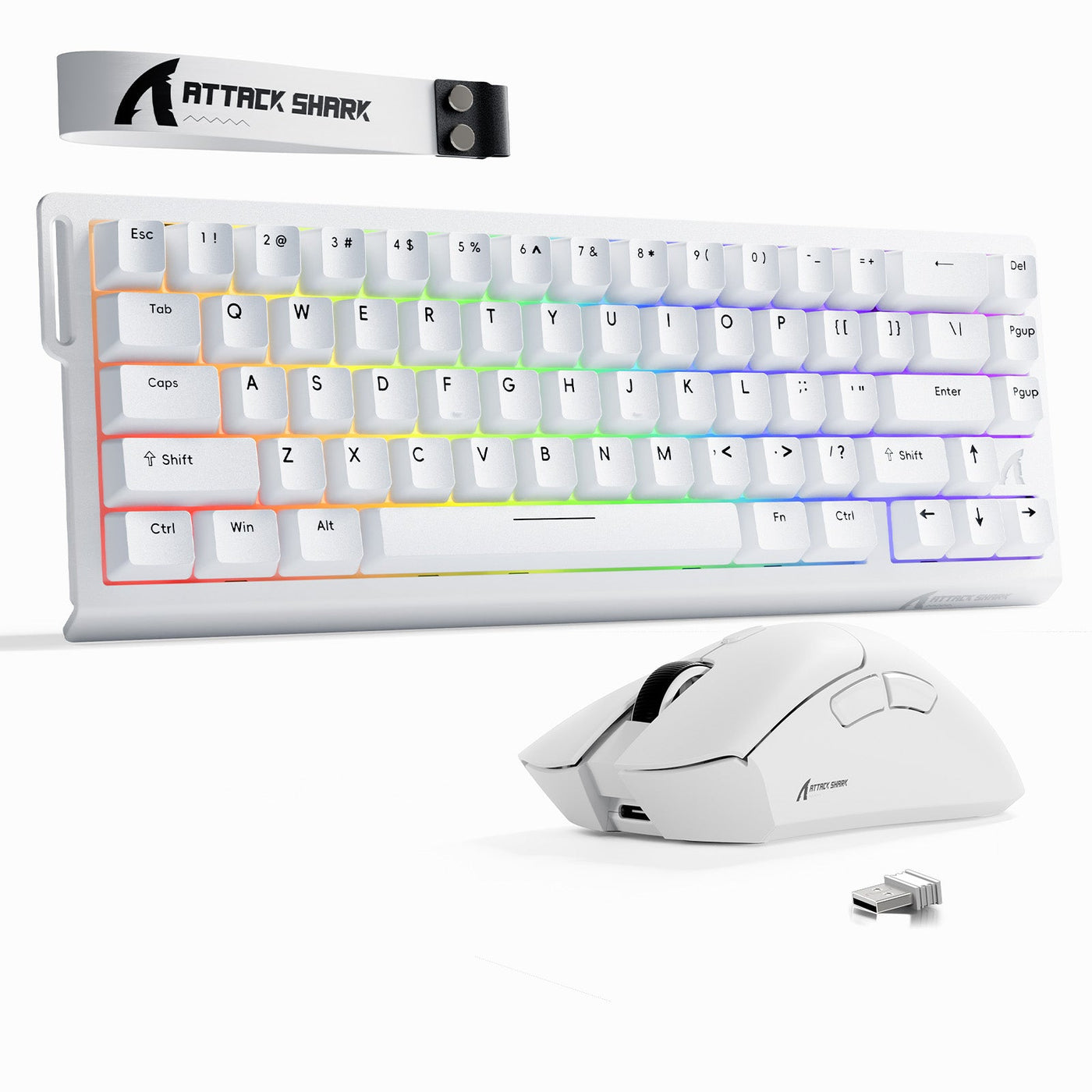
| Separate 2.4GHz receivers | The keyboard and mouse connect through their own receivers, so the setup normally needs two receiver connections. | Check the package contents and receiver count. Do not assume one receiver can be repurposed. |
| Bluetooth | The keyboard and mouse connect through Bluetooth instead of USB receivers. | Confirm Bluetooth support on the computer and both peripherals before choosing this option. |
For a wireless keyboard and mouse receiver setup, the product's pairing instructions determine the connection method. If the product page lists one receiver for each device or says nothing about shared pairing, plan for separate connections.

How Can You Tell If the Devices Use a Shared or Separate Receiver?
Check the product page, package contents, and manual before buying or discarding hardware. The receiver count shows the intended setup, while the pairing instructions show whether both peripherals can use the same receiver.
Use this sequence:
- Count the receivers. Note the number of included wireless receivers and each connector type. Compare that count with the stated pairing method.
- Look for shared-pairing language. Find wording that says one receiver supports both the keyboard and mouse, or a setup process that names both peripherals together.
- Follow the pairing instructions. Note any pairing button, software, or setup sequence for both peripherals. Instructions covering only one device do not establish a shared setup.
- Read the operating-system information. Use the product listing or manual to identify supported operating systems, especially when pairing requires software.
- Check the computer's connections. Count the available USB ports and confirm whether they accept the receiver's connector directly. If the computer has only USB-C ports, treat the connector question separately from pairing.
- Keep the original receiver during replacement. Retain it until the replacement device works with the existing setup. A spare or similar-looking dongle is not a substitute for compatibility information.
When each device is listed with its own 2.4GHz receiver, plan for separate connections unless the same instructions describe a shared mode. For separately purchased devices, compare the exact model and receiver references; matching connectors, radio labels, or brand names do not establish cross-pairing.
Can Bluetooth or a USB-C Adapter Avoid a Separate Receiver?
Bluetooth may eliminate the need for USB receivers, but only when the computer and both peripherals support Bluetooth pairing. A USB-C-to-USB-A adapter solves a physical connector mismatch for a compatible receiver; it does not add Bluetooth or create shared pairing.
Separate the two setup questions on a laptop. First, identify how the keyboard and mouse communicate: through a shared receiver, separate 2.4GHz receivers, or Bluetooth. Then identify how that connection reaches the computer: through an available port, a compatible adapter, or the computer's Bluetooth capability. A connector conversion cannot substitute for missing protocol support.
Choose among the options this way:
- Choose a shared receiver when the exact product instructions say one receiver pairs with both devices and freeing up a USB port matters.
- Plan for separate receivers when each device is listed with its own 2.4GHz receiver or shared pairing is not stated. The computer needs enough compatible connection access.
- Choose Bluetooth when the computer, keyboard, and mouse all support Bluetooth pairing and avoiding receiver ports is the priority.
For a USB-C-only computer, identify the receiver's connector before adding an adapter to your cart. The adapter may provide physical access for a USB-A receiver, but it cannot turn two separate wireless connections into one. A single replacement receiver is suitable only when the manufacturer identifies it as compatible with both specific device models.
Before checkout, match the connection setup to the computer's available ports or Bluetooth capability. Then use the receiver count and connector type to finalize your setup.
Frequently Asked Questions
These answers cover receiver count and no-dongle setups for wireless keyboards and mice.
Can a wireless keyboard connect without a dongle?
A keyboard can connect without a dongle when it supports Bluetooth pairing and the computer supports Bluetooth too. A 2.4GHz-only keyboard still needs its compatible receiver, so use the keyboard's listed connection modes as your guide.
Can a wireless keyboard and mouse use one dongle?
One dongle works for both only in a shared-receiver design that names the keyboard and mouse in its pairing instructions. If each device has its own 2.4GHz receiver, use both; Bluetooth is a separate option when all three devices support it.
Do I need two USB receivers for a wireless keyboard and mouse?
Use two when the keyboard and mouse each use a separate 2.4GHz receiver. Use one with shared-receiver support, or use no receiver connections when the computer and both peripherals support Bluetooth pairing.