






Attack Shark Mouse Polling Test
How To Use
1. Start Testing
Click the START button to begin. This will activate the full-screen tracking mode. The button will become disabled while the test is running.
2. Move Your Mouse
Move your mouse continuously in circles or side-to-side. The faster and more consistent your movement, the more accurate the polling rate reading will be.
3. Analyze Graph
The blue line represents your real-time polling rate (Hz). A flat, stable line indicates a consistent sensor performance. Drops indicate instability.
4. Scale & Controls
Use the dropdown to set the Max Hz (e.g., 1000Hz or 4000Hz). Use PAUSE to freeze the data or RESET to clear all history.
FAQ & Knowledge
Featured collection
Blog posts
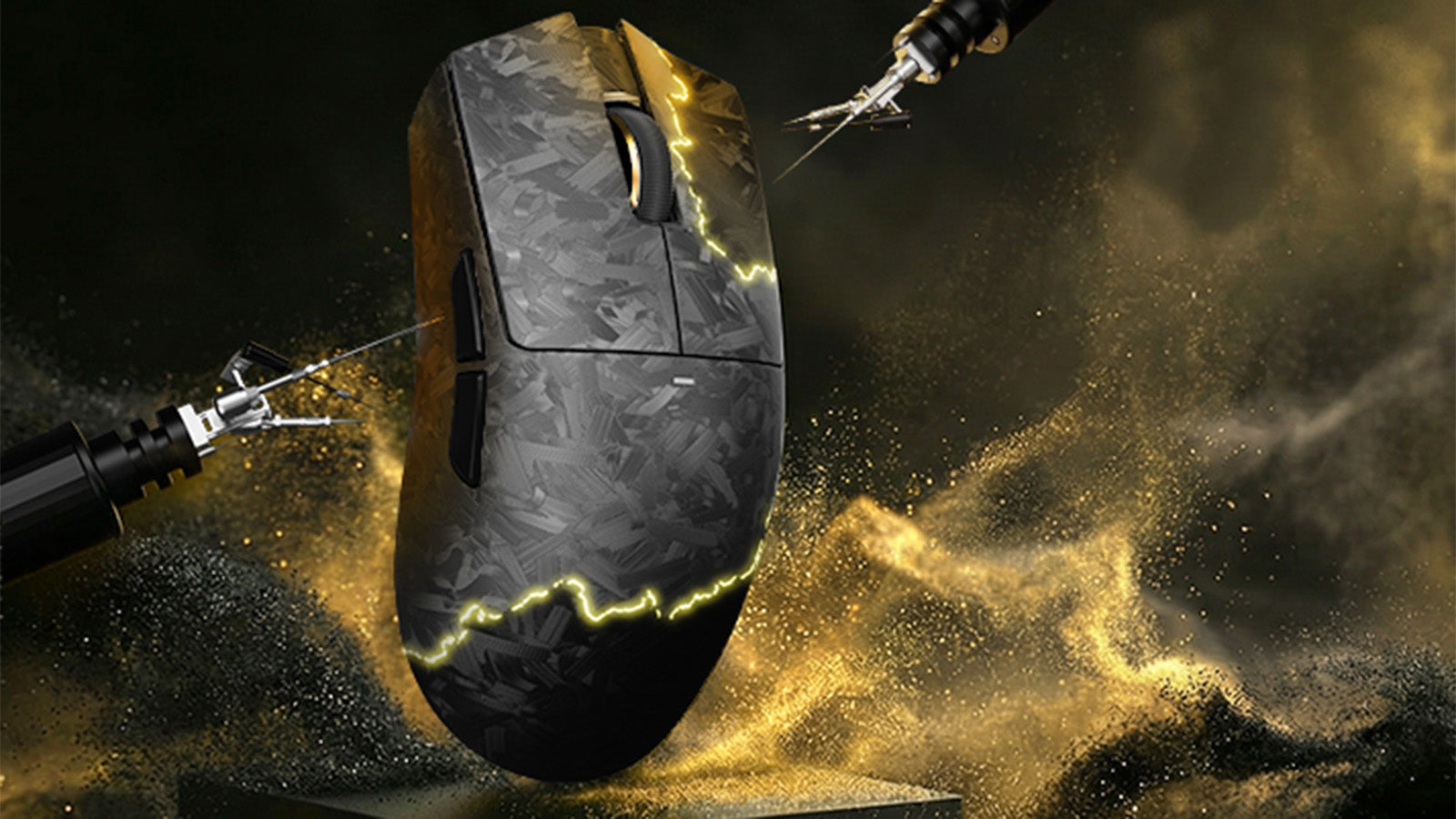
Does Mouse Sensor Position Actually Affect Your Muscle Memory and Aim?
Stronger FPS aim starts with matching mouse sensor position to grip styles, hand size, wrist movement, and competitive tracking needs.
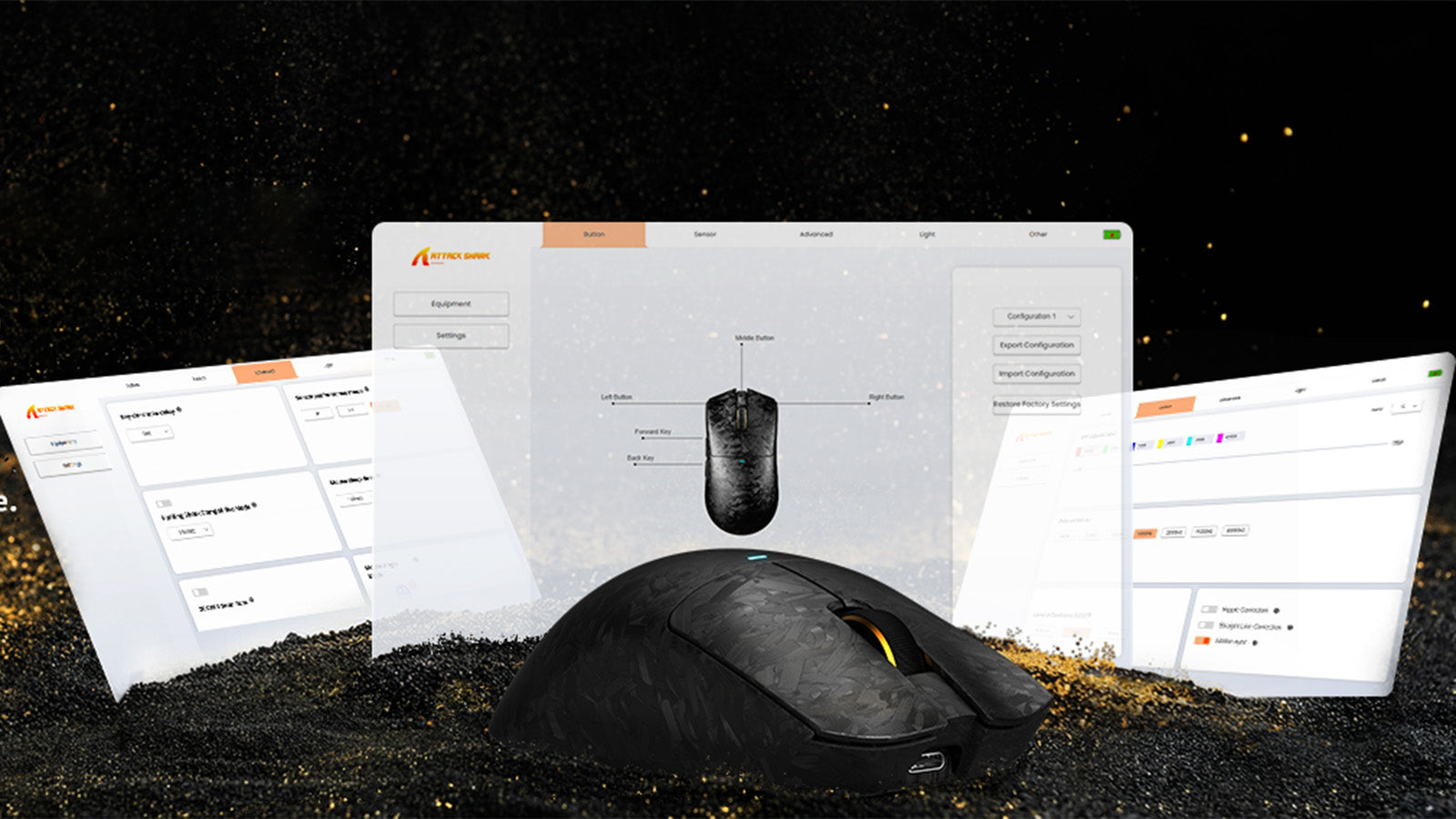
Updating Peripheral Firmware: Why It Matters and How to Do It Safely
Safe firmware updates help gaming peripherals fix input lag, improve mouse drivers, refresh keyboard drivers, and prevent bricked devices.

Championship Gaming Festival: Celebrate the World Cup Season with ATTACK SHARK
Huge World Cup gaming deals include up to 50% off, combo bundles, giveaways, plushie rewards, and double points during the festival.