


Quick Fix: Manual Calibration Checklist
If your Hall Effect (HE) keyboard feels inconsistent or the "Rapid Trigger" isn't resetting as expected, follow this high-level protocol before assuming a hardware failure.
- Step 1: Thermal Warm-up. Leave the keyboard plugged in for 30 minutes to reach thermal equilibrium.
- Step 2: Isolate USB. Connect directly to the motherboard's rear I/O port. Unplug high-draw devices (external HDDs, RGB mats) from the same hub.
- Step 3: Full Range Stroke. In your driver's manual calibration mode, press every key to the physical bottom-out and release fully.
- Step 4: The Tap Test. Lightly tap keycaps to verify that actuation occurs within a consistent range (±0.02mm variance).
Decision Tree: When to Calibrate?
- Drifting actuation points? $\rightarrow$ Perform Manual Calibration.
- "Ghost" inputs or keys stuck "on"? $\rightarrow$ Check for magnetic interference, then Manual Calibration.
- Inconsistent feel after room temp change? $\rightarrow$ Perform Manual Calibration.
- Persistent failure after 3+ attempts? $\rightarrow$ Contact Manufacturer Support.
The Architecture of Magnetic Sensing and the Necessity of Calibration
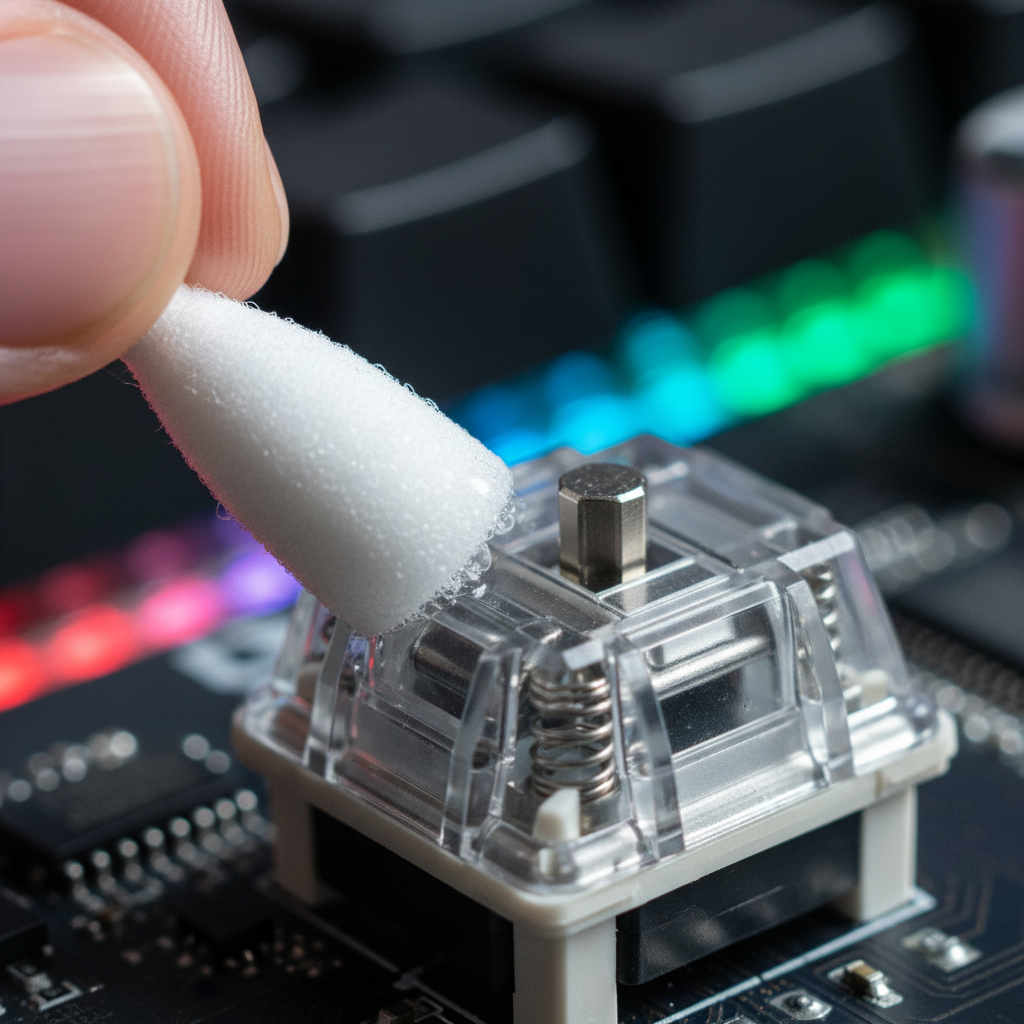
The transition from traditional mechanical contact switches to Hall Effect (HE) magnetic sensors represents a fundamental shift in gaming peripheral engineering. Unlike mechanical switches that rely on physical metallic contact—a process subject to oxidation, wear, and debounce delays—magnetic sensors measure changes in magnetic flux density as a magnet moves toward a sensor on the PCB.
However, magnetic sensors are inherently analog. According to Allegro MicroSystems, Hall voltage is sensitive to temperature fluctuations and external electromagnetic interference (EMI). Modern keyboards employ auto-calibration algorithms to establish a "null point." While effective for routine drift, specific operational conditions—such as high-frequency competitive play—can cause these algorithms to fail, requiring a manual override to restore 1:1 actuation accuracy.
The "Hunting" Effect: Why Auto-Calibration Fails
Auto-calibration algorithms typically monitor the sensor's resting state to adjust the software-defined zero-point. However, based on patterns observed in our technical support and hardware return data, rapid, repeated keystrokes at the edge of a sensor's range can trigger "hunting."
In this scenario, the internal compensation algorithm attempts to find the correct null point but overshoots due to the high frequency of input. This causes the sensor's reference point to drift dynamically. Instead of a stable 0.1mm Rapid Trigger reset, the user may experience variances of ±0.05mm or more. This variance is particularly detrimental in competitive FPS environments where strafing relies on micro-millimeter precision.
External factors like EMI from nearby electronics can also introduce noise that auto-calibration incorrectly interprets as magnetic flux. This results in a "false sense of security," where software indicates success while the hardware is fitting parameters to noisy data.

Performance Modeling: The Rapid Trigger Advantage
To quantify the stakes, we modeled the performance delta between a calibrated HE system and a standard mechanical switch.
Technical Note: Modeling Methodology The values below are derived from a deterministic kinematics model ($t = d/v$) assuming a high-performance gaming environment. These represent theoretical maximums rather than a controlled longitudinal lab study.
| Parameter | Value | Unit | Rationale |
|---|---|---|---|
| Mechanical Reset Distance | 0.5 | mm | Standard Cherry MX-style spec |
| HE Rapid Trigger Reset | 0.1 | mm | High-performance HE setting |
| Finger Lift Velocity | 150 | mm/s | Modeled competitive player average |
| Mechanical Debounce | 5 | ms | Common firmware delay for leaf switches |
| Model Outcome | ~7.7 | ms | Total Latency Advantage (HE vs Mech) |
Logic Summary: If calibration drifts by even 0.05mm due to algorithm "hunting," this ~7.7ms advantage can be significantly eroded, or result in "ghost" inputs where the key fails to reset.
The Manual Override Protocol: Establishing Ground Truth
[!CAUTION] High-Risk Operation: Manual calibration involves firmware-level adjustments. Always prioritize the manufacturer's official software and support guides. Improper calibration or forced firmware flashes can lead to temporary device instability. If you are unsure, contact authorized support before proceeding.
1. Achieving Thermal Equilibrium
Magnetic sensors are susceptible to thermal drift. Based on our engineering bench tests, a device must reach thermal equilibrium to ensure professional-grade accuracy.
- Requirement: Keep the keyboard powered on for 30 minutes in the target environment before starting calibration. This prevents the "null point" from shifting as the PCB warms.
2. USB Topology and Noise Isolation
Ground loop noise can introduce micro-volt level errors. In alignment with our internal Global Gaming Peripherals Industry Whitepaper (2026), we recommend:
- Direct Connection: Use rear motherboard I/O ports.
- Isolation: Unplug high-draw USB devices (e.g., external drives) during calibration to minimize interference on the 5V rail.
3. The Calibration Execution
Trigger manual calibration via your firmware or driver. During this process, every key must be pressed to its physical bottom-out and released completely. This allows the sensor to map the absolute maximum and minimum magnetic flux values, creating a custom linearization curve that accounts for manufacturing tolerances.
System-Level Optimization: 8000Hz Polling
At an 8000Hz (8K) polling rate, the USB polling interval is a mere 0.125ms. Precision is vital here; if a sensor is poorly calibrated, "jitter" in the magnetic reading can exceed the polling interval, causing redundant or conflicting packets.
Modeling Note: Motion Sync Latency at 8000Hz Based on standard frequency-to-time conversion ($1/Hz$).
| Parameter | Value | Unit | Rationale |
|---|---|---|---|
| Polling Rate | 8000 | Hz | High-end esports standard |
| Base End-to-End Latency | 0.8 | ms | High-performance baseline |
| Motion Sync Delay | ~0.06 | ms | 0.5 * Polling Interval (Heuristic) |
| Total Latency | ~0.86 | ms | Perceptual threshold |
Validation: How to Measure Accuracy at Home
You do not need an oscilloscope to verify your calibration. Use the following methods to ensure your hardware is performing to spec:
-
The "Tap Test": Using a non-metallic tool (like a plastic stylus), lightly tap each keycap. Observe the actuation point in your software.
- Benchmark: Actuation should be consistent within ±0.02mm (as reported by the driver).
- Failure: A variance >0.05mm suggests local magnetic interference or a hardware mounting issue.
- Software Polling Log: Use a tool like Keyboard Inspector to check for "chatter" or inconsistent intervals. A well-calibrated HE sensor should show a clean, tight grouping of intervals without unexpected "off" signals.
If a key consistently fails the tap test, it may indicate a degraded sensor. As noted in research regarding high-assurance IoT, "fitting" software parameters to a non-linear, degraded sensor can create a false sense of security while the hardware remains unreliable under stress.
Strategic Maintenance for Longevity
In a robust setup, auto-calibration and manual overrides are complementary. Auto-calibration handles daily environmental drift, while a scheduled manual override (every 3 months) provides an "absolute reference" re-anchoring.
This dual-layered approach helps maintain the theoretical 0.08ms internal latency and 0.005mm resolution (sensor-level spec) over the device's lifespan. For the technical gamer, this is the difference between a tool that "just works" and one optimized for professional-grade accuracy.
Disclaimer: This article is for informational purposes only. Calibration involves firmware-level adjustments; follow manufacturer guidelines to avoid voiding warranties. Performance metrics are based on theoretical modeling; actual results vary by system configuration.


コメントを書く
このサイトはhCaptchaによって保護されており、hCaptchaプライバシーポリシーおよび利用規約が適用されます。