


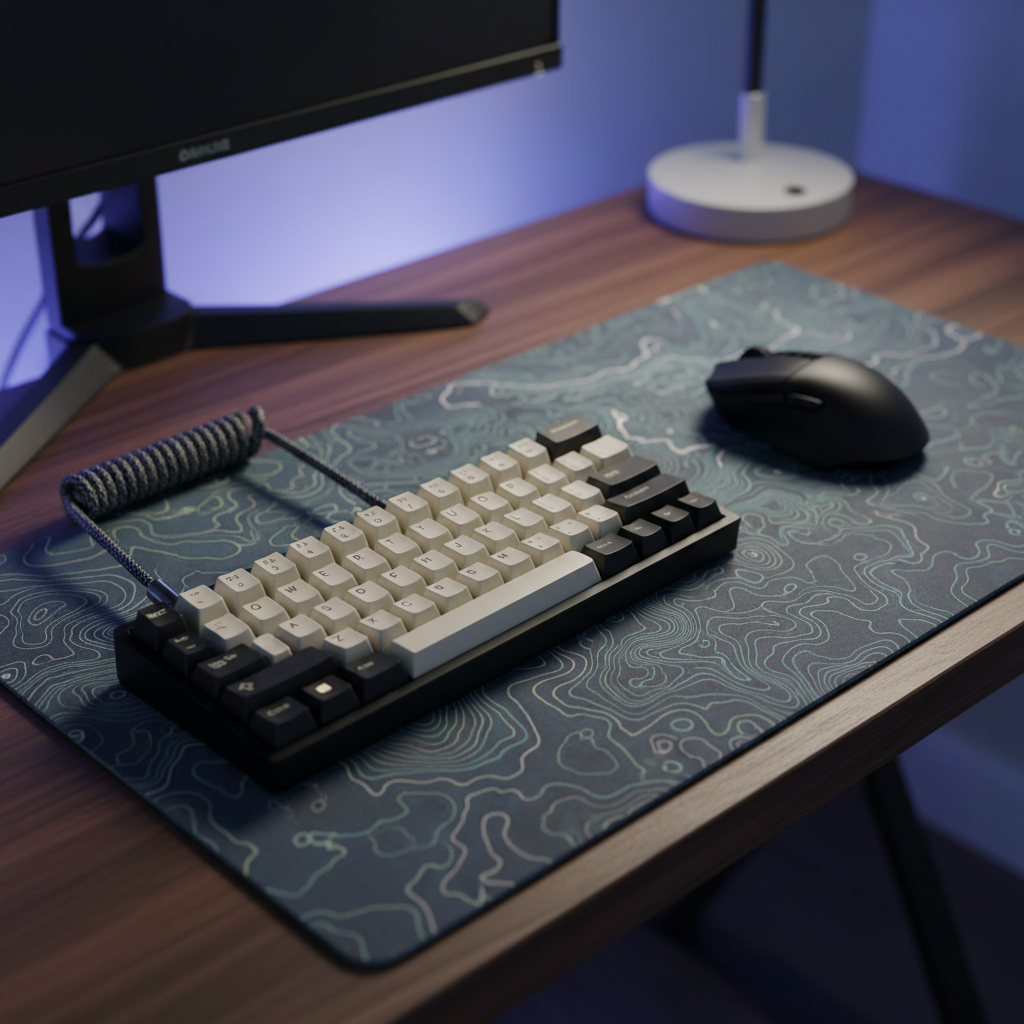
The Mechanics of the Gamer Tilt: Optimizing Desk Real Estate for Competitive Play
In the high-stakes environment of competitive first-person shooters (FPS), the physical layout of a desk is often the silent arbiter of performance. Many players find themselves constrained by the "clash of peripherals"—the moment a high-velocity mouse flick is interrupted by the hard plastic edge of a keyboard. This physical interference is not merely an annoyance; it is a mechanical bottleneck that limits effective aiming range.
The "Keyboard Tilt," or the practice of rotating the keyboard anywhere from 20 to 90 degrees, has transitioned from a niche pro-player quirk to a standard optimization strategy for value-oriented gamers. By repositioning the board, players can reclaim significant portions of their mousepad, allowing for the low-sensitivity settings required for precision aiming. However, executing this rotation without compromising long-term musculoskeletal health requires an understanding of ergonomics, spatial math, and hardware constraints.
Spatial ROI: Calculating the Gain in Usable Surface Area
The primary driver for keyboard rotation is the non-linear gain in mouse travel distance. For gamers operating on desks with a total width of less than 80cm, a standard full-size or even a Tenkeyless (TKL) keyboard can consume over 60% of the available horizontal plane. According to data insights on gaming desk optimization from Dako Home, achieving the recommended 40cm+ of horizontal mouse travel for low-sensitivity play often necessitates a structural change in peripheral orientation.
When a keyboard is rotated, it effectively converts a rectangular footprint into a diagonal one. In our scenario modeling, rotating a standard board by 30 degrees typically frees a triangular area of approximately 80 to 100 square inches. This gain is most impactful for "arm-aimers" who utilize large, sweeping motions.
Modeling Note: Spatial Optimization Logic
Logic Summary: This model assumes a standard TKL keyboard footprint (~360mm width) on a 900x400mm desk mat. The "Effective Gain" refers to the additional horizontal clearance provided for the mouse-side edge of the keyboard.
Parameter Value/Range Unit Rationale Rotation Angle 25–30 Degrees Ergonomic "Sweet Spot" Footprint Width 360 mm Standard TKL Width Horizontal Clearance Gain ~70–90 mm Measured at the bottom-right corner Usable Area Increase 80–100 sq. in. Triangular area reclaimed Desk Width Limit <80 cm Threshold for "Required" tilt

The Ergonomic Threshold: Finding the 25-30 Degree Sweet Spot
A common pitfall in the gaming community is the "aggressive tilt"—rotating the board 45 degrees or more. While this maximizes space, it often introduces ulnar deviation, where the wrist bends outward toward the pinky finger. Prolonged sessions in this posture can lead to strain in the carpal tunnel.
However, ergonomic literature, such as research published in The Split Keyboard: An Ergonomics Success Story, suggests that a 10-20 degree deviation can actually be a "neutral" zone for some users. In practice, a 25-30 degree tilt is identified by ergonomic assessors as the optimal balance. This angle aligns the keyboard's function row with the natural arc of the left arm, which can actually reduce shoulder protraction and abduction compared to a squared-off board.
By centering the mousepad and bringing the keyboard closer to the body's midline, the player reduces the need to "wing out" their arms. This posture shifts the mechanical load from the smaller wrist muscles to the larger shoulder and back muscles, which are better suited for sustained activity.
Hardware Synergy: Cables, Keycaps, and Wrist Support
Successful rotation isn't just about moving the board; it’s about ensuring the hardware doesn't resist the new orientation. One of the most overlooked components in this setup is the cable. Standard straight cables often act as an "anchor," creating tension that pulls the keyboard back toward a parallel position.
To solve this, many enthusiasts utilize a ATTACK SHARK C01PRO COILED CABLE. The professional reversed coiling process creates a 25mm "springy" coil that provides the necessary slack and flexibility for angled placement without cluttering the desk. For those looking for a premium aesthetic, the ATTACK SHARK C03 COILED CABLE features 24K gold-plated aviator connectors, ensuring a stable, interference-resistant connection even when the cable is stretched at an angle.
The Role of Wrist Elevation
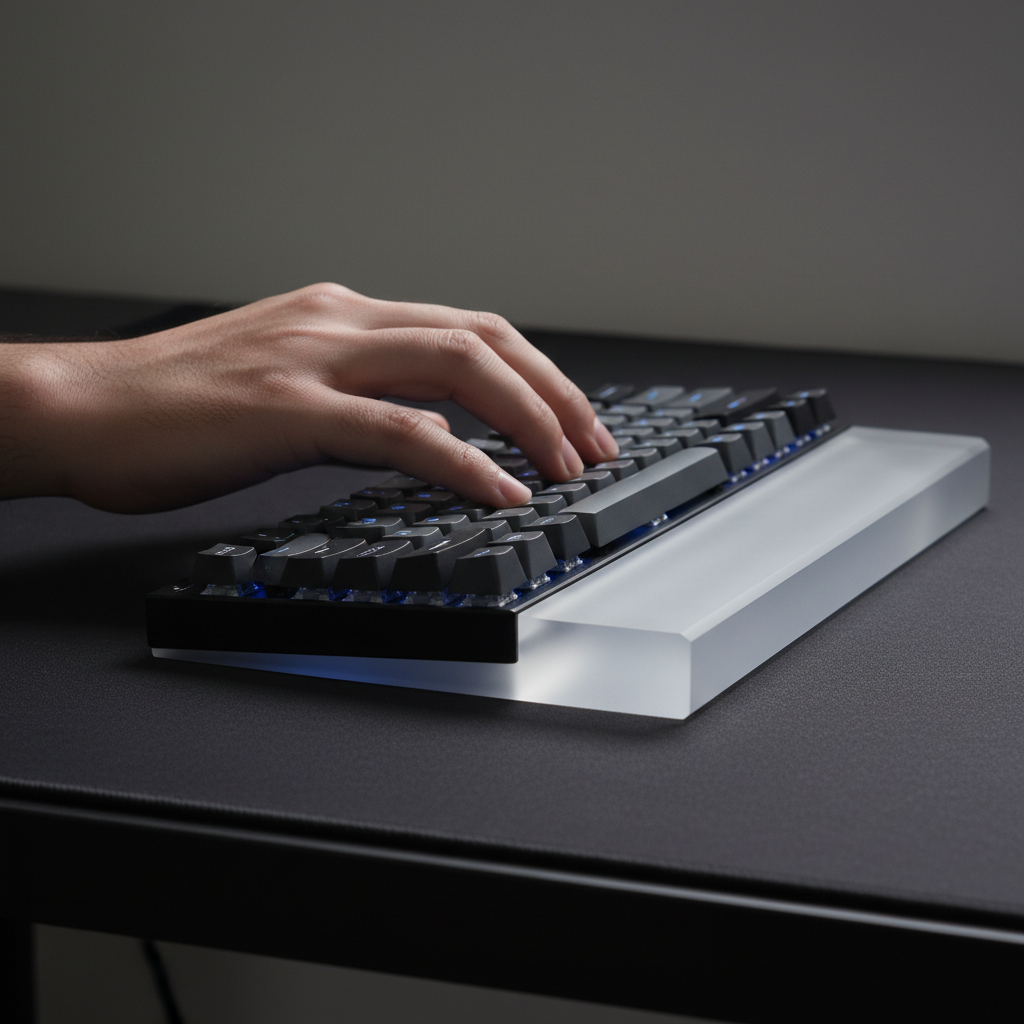
When a keyboard is tilted, the angle of the wrist changes. A standard flat wrist rest may no longer provide uniform support. The ATTACK SHARK ACRYLIC WRIST REST is particularly effective here because its frosted surface and various size options (from 61-key to full-size) allow it to be positioned independently of the board. This modularity is crucial for maintaining a neutral wrist height while the keyboard is angled.
Furthermore, changing the board's orientation can change how your fingers strike the keys. Upgrading to ATTACK SHARK Custom OEM Profile PBT Colored Keycaps can provide a more tactile, matte grip. The OEM profile's specific height and angle slope are designed to reduce fatigue during long typing or gaming sessions, which is amplified when the board is not in a traditional position.
Advanced Setup: The "Diamond" Mousepad Orientation
For players who require the absolute maximum amount of vertical and horizontal travel, rotating the keyboard is only half the battle. A high-level technique involves rotating a large, square mousepad by 45 degrees to create a Diamond Orientation.
This setup places the corner of the mousepad between the keyboard and the monitor. This creates a continuous, low-friction surface that extends from the keyboard's edge to the very top of the desk. When paired with a tilted keyboard, this layout minimizes the "dead zones" where a mouse might hit the edge of the pad.
Implementation Checklist
- Clear the Path: Ensure your coiled cable has enough lead to allow for a 30-degree rotation without tension.
- Find the Arc: Place your left hand on the WASD keys and rotate the board until your forearm feels relaxed and your shoulder is not "hunched" forward.
- Secure the Base: Ensure your keyboard has high-quality rubber feet or is placed on a high-friction desk mat to prevent "creep" during intense movements.
- Monitor Alignment: Ensure your primary monitor is still centered to your vision, even if your peripherals are skewed.
Technical Synergy: Polling Rates and System Latency
While the keyboard tilt optimizes physical space, it must be paired with high-performance internals to translate that physical freedom into in-game precision. As discussed in the Global Gaming Peripherals Industry Whitepaper (2026), the industry is moving toward 8000Hz (8K) polling rates as a benchmark for competitive gear.
When using an 8000Hz mouse, the polling interval is reduced to 0.125ms. This near-instant response time ensures that every millimeter of the extra space reclaimed by your keyboard tilt is captured with perfect accuracy. However, users should be aware that 8K polling requires significant CPU resources and should always be connected via Direct Motherboard Ports (Rear I/O) to avoid the packet loss associated with USB hubs or front-panel headers.
To saturate the 8000Hz bandwidth effectively, movement speed and DPI must be considered. For instance, at 1600 DPI, a user only needs to move at 5 IPS (inches per second) to maintain a stable 8K data stream. This synergy between physical space optimization and high-frequency data transmission is what defines a modern "pro-grade" setup.
Scenario Analysis: Small Desk vs. Pro Environment
To demonstrate how these principles apply in different contexts, we have modeled two distinct user scenarios based on common patterns from customer support and community feedback.
Scenario A: The Collegiate/Dorm Setup (Limited Space)
- Constraint: Desk width <70cm.
- Problem: Mouse constantly hits the keyboard during 180-degree turns.
- Solution: A 45-degree "Tactical Tilt" combined with a 60% compact keyboard layout.
- Result: Reclaims enough space to allow for a 400mm mousepad, enabling a drop in DPI from 1600 to 800 for better precision.
Scenario B: The Dedicated Esports Station (Performance Focus)
- Constraint: Large 120cm+ desk, but high-sensitivity "Arm Aiming" style.
- Problem: Shoulder fatigue and "winging" of the right arm.
- Solution: A 20-25 degree "Ergonomic Tilt" to bring the mousepad closer to the body's center line.
- Result: Reduces shoulder abduction, allowing for longer practice sessions with less trapezius strain.
Addressing Common Pitfalls
Through our analysis of pattern recognition in setup troubleshooting, we have identified several "gotchas" that can undermine the benefits of a tilted board:
- The Cable Anchor: Using a stiff, non-detachable cable that forces the keyboard to "bounce back" to a straight position.
- Static Posture: Keeping the wrist in a hard outward bend (ulnar deviation) without moving the elbow to compensate.
- Monitor Misalignment: Rotating the keyboard but also inadvertently shifting the monitor to the side, causing neck strain.
By utilizing a modular approach—using a coiled cable for flexibility and an acrylic wrist rest for independent support—gamers can solve the spatial problem of the "keyboard clash" while maintaining the ergonomic integrity of their setup.
Summary of Best Practices
Optimizing your desk space is a balance of physics and physiology. While the "gamer tilt" is a powerful tool for reclaiming mousepad real estate, it must be implemented with care.
- Prioritize the 25-30 degree range to avoid carpal tunnel risks associated with extreme ulnar deviation.
- Use flexible hardware like coiled cables to ensure the board stays in its intended position.
- Match your layout to your desk size, opting for TKL or 60% boards if horizontal space is under 80cm.
- Monitor your body's signals. If you feel a burning sensation in your forearm or trapezius, your tilt may be too aggressive or your monitor height may be incorrect.
For further reading on how peripheral dimensions impact your aim, see our deep dive on Keyboard Width and Aim: How Form Factor Affects Ergonomics.
Disclaimer: This article is for informational purposes only and does not constitute professional medical or ergonomic advice. If you experience persistent wrist, arm, or shoulder pain, please consult a qualified physical therapist or ergonomics specialist.

コメントを書く
このサイトはhCaptchaによって保護されており、hCaptchaプライバシーポリシーおよび利用規約が適用されます。