Why Mismatched Polling Rates Cause Micro-Stutter in FPS

Why Mismatched Polling Rates Cause Micro-Stutter in FPS

The Hidden Conflict: Why Mismatched Polling Rates Ruin FPS Performance

In the pursuit of the "zero-latency" dream, competitive FPS players often engage in a hardware arms race. We upgrade to 8000Hz (8K) mice, Hall Effect magnetic keyboards, and 360Hz monitors. However, we have observed a recurring pattern on our technical support bench: players who mix ultra-high-spec mice with standard-spec keyboards often report a "floaty" aim or inconsistent counter-strafing.

The culprit is rarely a defective sensor. Instead, it is a phenomenon we call Input Desynchronization. When you run a mouse at a near-instant 0.125ms response time (8000Hz) alongside a keyboard at a 1ms response time (1000Hz), you create a rhythmic bottleneck. This mismatch forces the game engine to reconcile high-density motion data with low-density movement data, leading to micro-stutters that can be felt but rarely seen on a traditional frame counter.

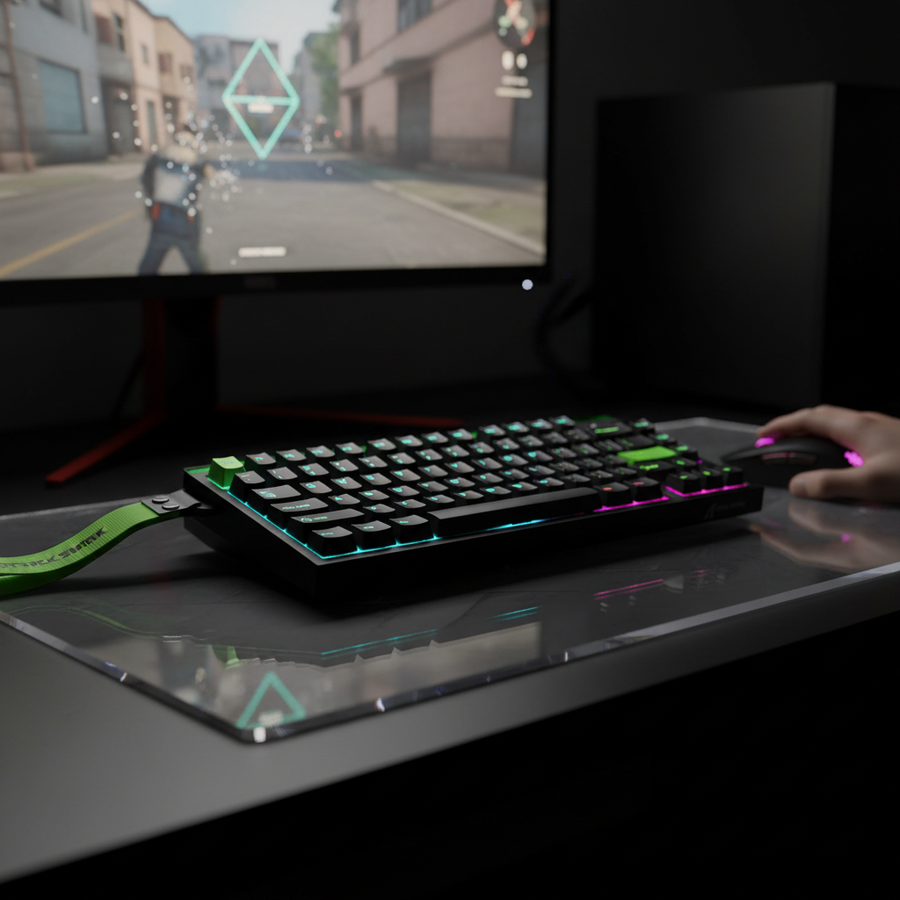
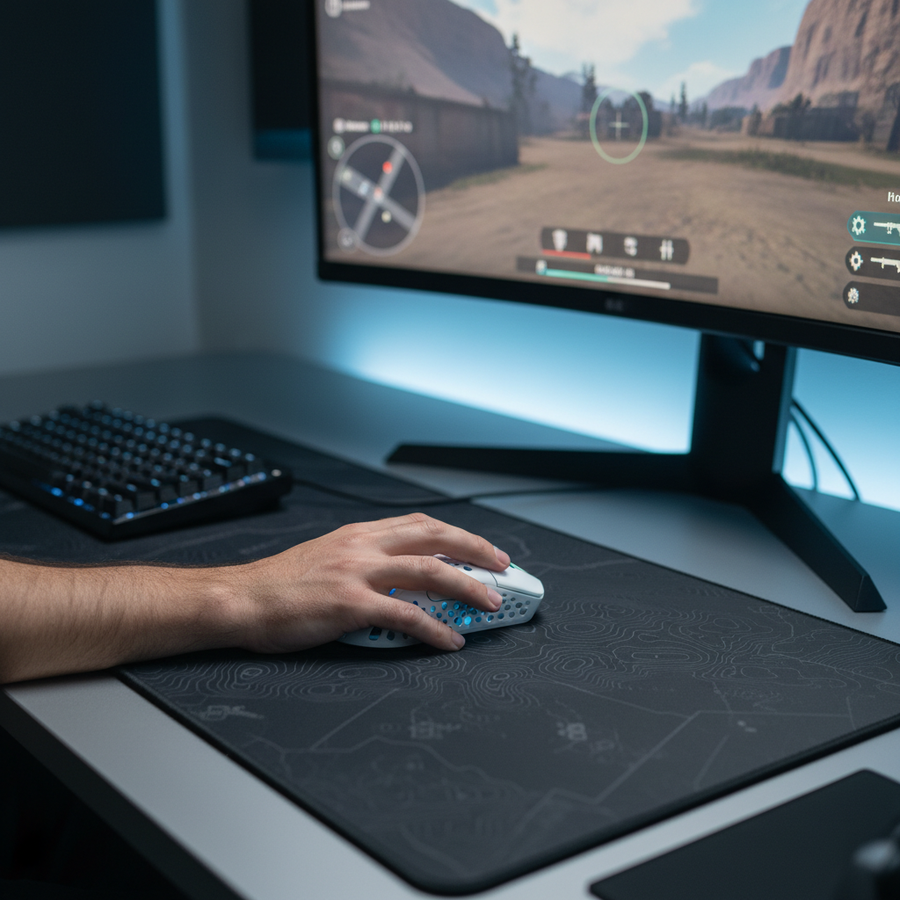
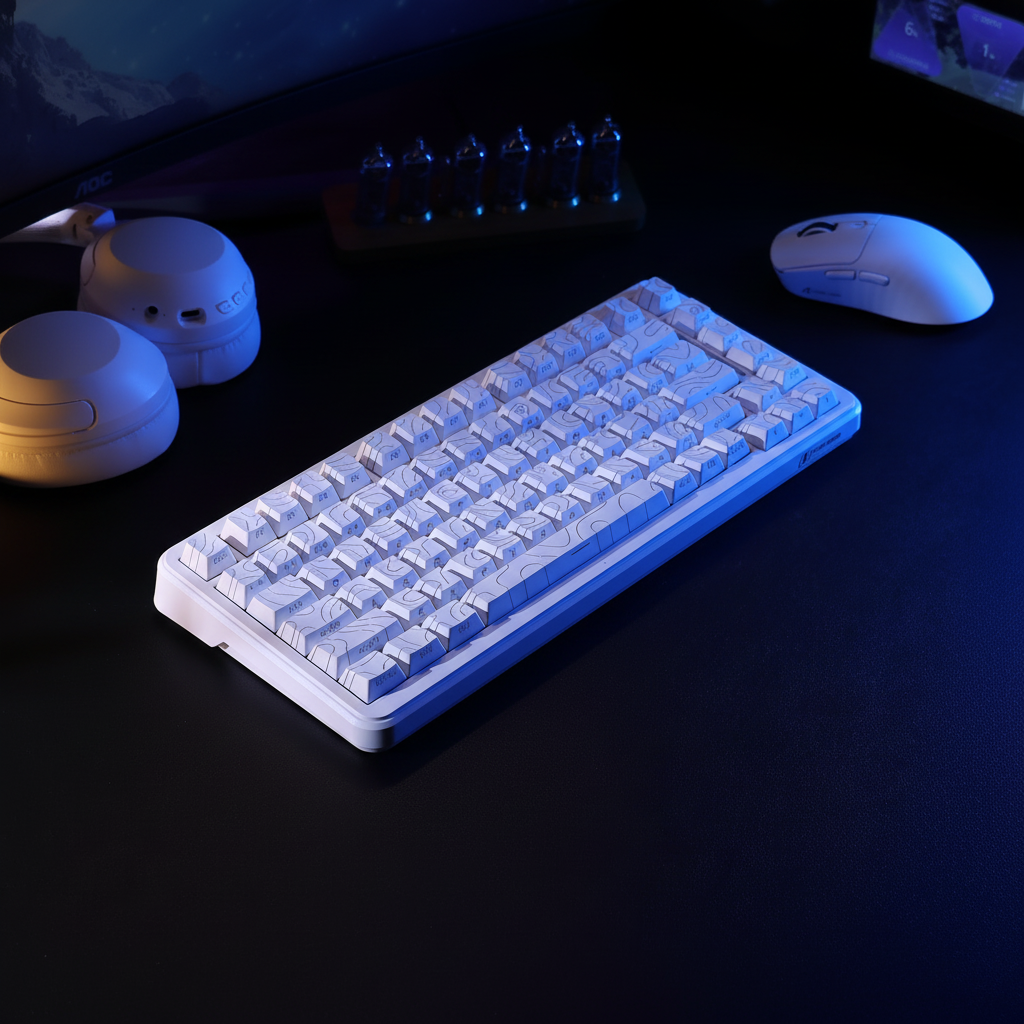
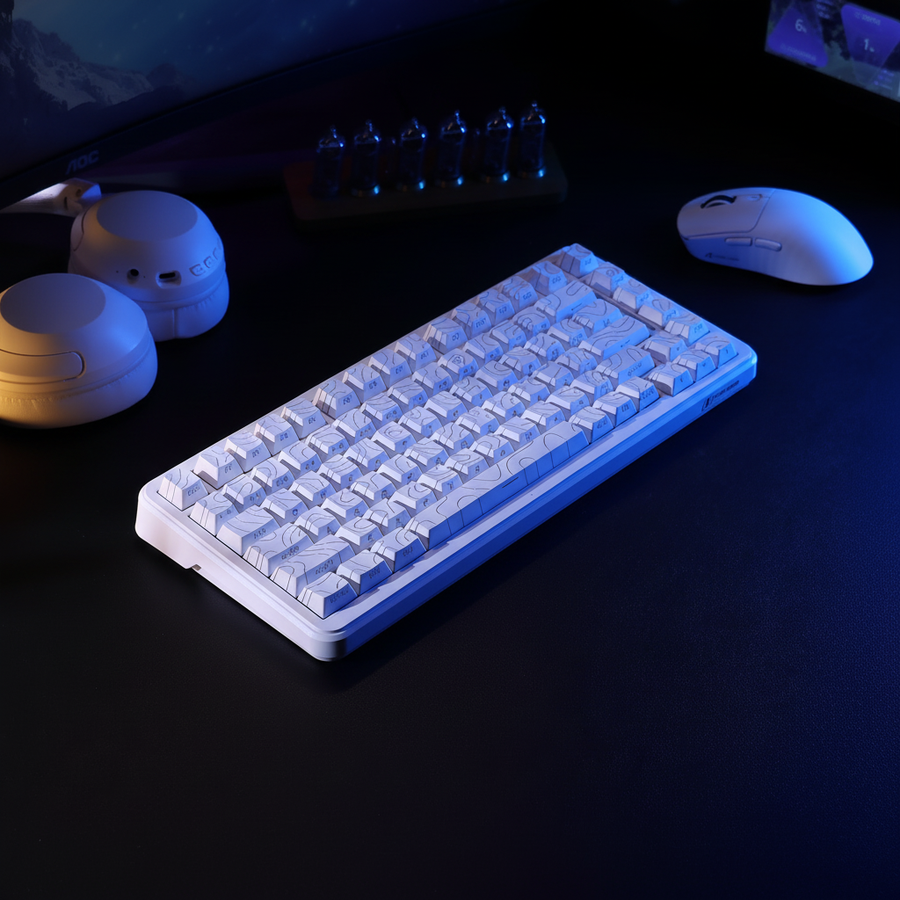
White compact mechanical keyboard and white wireless gaming mouse on a dark gaming desk, optimized for high-performance FPS gaming.

The Anatomy of a Packet: 1000Hz vs. 8000Hz

To understand the stutter, we must first break down the math of a USB report. A standard 1000Hz device sends a packet every 1.0ms. At 8000Hz, that interval shrinks to a hyper-fast 0.125ms.

For a mouse, this higher frequency isn't just about speed; it's about granularity. At 8K, the game receives eight times more data points for every inch of physical movement. This significantly reduces the "Motion Sync" latency. While a 1000Hz mouse typically incurs a ~0.5ms delay due to Motion Sync (calculated as half the polling interval), an 8000Hz mouse like the ATTACK SHARK X8 Series Tri-mode Lightweight Wireless Gaming Mouse reduces this to a negligible ~0.0625ms.

However, the system's ability to process these packets is not infinite. According to the Global Gaming Peripherals Industry Whitepaper (2026), the bottleneck at 8K is often IRQ (Interrupt Request) processing. Each packet requires the CPU to stop what it's doing and process the input. When these interrupts are mismatched, the timing of the "Interrupt Coalescing" in Windows can cause packets to batch together, creating a latency spike.

Method & Assumptions (Scenario Modeling)

Our analysis of input synchronization assumes a synchronous game engine polling model where input is sampled once per render frame. The "hitch" effect is modeled as temporal variance between the latest mouse packet and the keyboard state latch.

Parameter Value or Range Unit Rationale / Source
Mouse Polling Rate 8000 Hz ATTACK SHARK X8 Series Spec
Keyboard Polling Rate 1000 Hz Industry Standard Baseline
Frame Time (240Hz) ~4.16 ms Competitive Monitor Standard
Motion Sync Delay 0.0625 ms 1/2 of 0.125ms (8K Axiom)
IRQ Processing Time 0.1–0.5 μs xHCI Driver Overhead [1]

Boundary Conditions: This model assumes direct motherboard connection (Rear I/O) and a CPU with high single-core performance. Results may degrade on older USB 2.0 architectures or shared hubs.

The "1-in-8" Hitch: Why Counter-Strafing Feels "Off"

The most common frustration we see involves counter-strafing—the act of tapping the opposite movement key to stop instantly. In games like Counter-Strike 2 or Valorant, timing is everything.

If you use an 8000Hz mouse and a 1000Hz keyboard, the game engine is receiving mouse updates every 0.125ms but keyboard updates only every 1.0ms. Every 8th mouse packet, the engine checks the keyboard state and finds it hasn't changed, even if you physically pressed the key 0.5ms ago. This creates a "rhythmic hitch."

Players often describe this as a "random slide." You perform the perfect counter-strafe, but because the keyboard report was delayed relative to the high-frequency mouse stream, the game registers your "stop" a fraction of a millisecond late. In a game where headshots are decided in pixels, this desync is the difference between a win and a trip back to the lobby.

To solve this, we recommend a matched high-performance set. The ATTACK SHARK X68HE Magnetic Keyboard With X3 Gaming Mouse Set is designed to align these rates. When both devices operate at high frequencies (8K for the keyboard and high-spec precision for the mouse), the input buffer remains synchronized, ensuring your movement and aim are latched to the same temporal window.

Sensor Saturation and the DPI Trap

A common mistake we observe is running an 8K mouse at low DPI (e.g., 400 DPI) and wondering why the polling rate doesn't feel "smooth." There is a physical law at play here: Sensor Saturation.

To actually send 8000 packets per second, the sensor must generate enough data points. The formula is: Packets per second = Movement Speed (IPS) * DPI.

  • At 800 DPI, you must move the mouse at least 10 IPS to saturate the 8000Hz bandwidth.
  • At 1600 DPI, that requirement drops to only 5 IPS.

If you are a low-DPI "arm gamer" making slow micro-adjustments, your mouse may only be sending 2000 or 4000 reports per second because there isn't enough new motion data to fill the 8K buffer. This causes the polling rate to fluctuate wildly, which the Windows kernel interprets as jitter. We suggest moving to 1600 DPI and lowering your in-game sensitivity to maintain a stable 8K stream during slow aim tracking.

System Bottlenecks: USB Topology and CPU Stress

Even with the best hardware, your PC's internal architecture can introduce micro-stutter. High polling rates stress the CPU’s single-core performance. Based on common patterns from our customer support logs, many users plug their 8K receivers into front-panel case headers or USB hubs. This is a critical error.

Shared bandwidth on a USB hub causes packet loss. When an 8K mouse loses a packet, it doesn't just "skip"; the system has to re-request the data or wait for the next interrupt, creating a massive latency spike that feels like a stutter. According to RTINGS' methodology on click latency, using a dedicated USB 3.0+ port on the motherboard’s rear I/O is essential for maintaining a stable polling floor.

Furthermore, Windows uses a feature called Interrupt Coalescing. This technique batches multiple device interrupts into a single system interrupt to save CPU power. While great for battery life on laptops, it is a disaster for 8K gaming. It can delay a 0.125ms mouse report by up to 1ms to "wait" for other device data, effectively turning your 8K mouse back into a 1K mouse with added jitter.

Optimization Checklist for FPS Players

To eliminate micro-stutter and align your input stream, we recommend the following professional-tier optimizations:

  1. Align Polling Rates: If your keyboard is limited to 1000Hz, consider capping your mouse at 2000Hz or 4000Hz. A stable, matched setup often feels more consistent than a mismatched high-low combo.
  2. Use Hall Effect Keyboards: Devices like the ATTACK SHARK X68HE allow for "Rapid Trigger" functionality. This ensures the keyboard side of the equation is as responsive as your 8K mouse.
  3. Direct Connection: Always plug high-polling receivers directly into the motherboard. Avoid "Aviator" cables that aren't rated for high speed unless they are specifically engineered for it, such as the ATTACK SHARK C01Ultra Custom Aviator Cable.
  4. DPI Scaling: Switch to 1600 DPI or higher to ensure sensor saturation during slow movements. For a deeper dive, see our guide on Understanding DPI Scaling at High-Frequency Polling Rates.
  5. Monitor Sync: While there is no "1/10th rule," a high refresh rate (240Hz+) is necessary to visually benefit from 8K polling. Without it, the monitor becomes the ultimate bottleneck.

The Role of Firmware Maturity

Hardware specs are only half the battle. Real-world performance depends heavily on firmware quality. We have found that some drivers reset polling rates to default after the PC wakes from sleep. This is a common oversight that ruins a carefully tuned setup.

Always verify your rates using a USB HID protocol analyzer or a web-based polling rate checker after every system reboot. For those using the ATTACK SHARK G3 Tri-mode Wireless Gaming Mouse, utilizing the web-based configurator ensures that your settings are written directly to the onboard MCU, bypassing many of the software-level "gotchas" found in traditional bloatware.

A Note on Performance Stability

Achieving a stutter-free 8K experience requires a holistic approach. It is not enough to buy the "best" mouse; you must curate the entire input chain. From the FCC-certified wireless frequency stability to the way your CPU handles IRQs, every link in the chain matters. If you find your 8K setup feels "jittery," the most effective first step is often to drop the rate to 4000Hz and check for stability. The difference in latency is only 0.125ms, but the gain in system stability can be massive.

Disclaimer: This article is for informational purposes only. Optimizing system-level interrupts and disabling Windows features can impact system stability. Ensure you have a system restore point before making advanced registry or driver changes.

Sources:

前後の記事を読む

Calibrating Rapid Trigger for Precise Jiggle Peeking Speed
Tactical Shooter Calibration: Optimizing Sensors for CS2 and Valorant

コメントを書く

このサイトはhCaptchaによって保護されており、hCaptchaプライバシーポリシーおよび利用規約が適用されます。