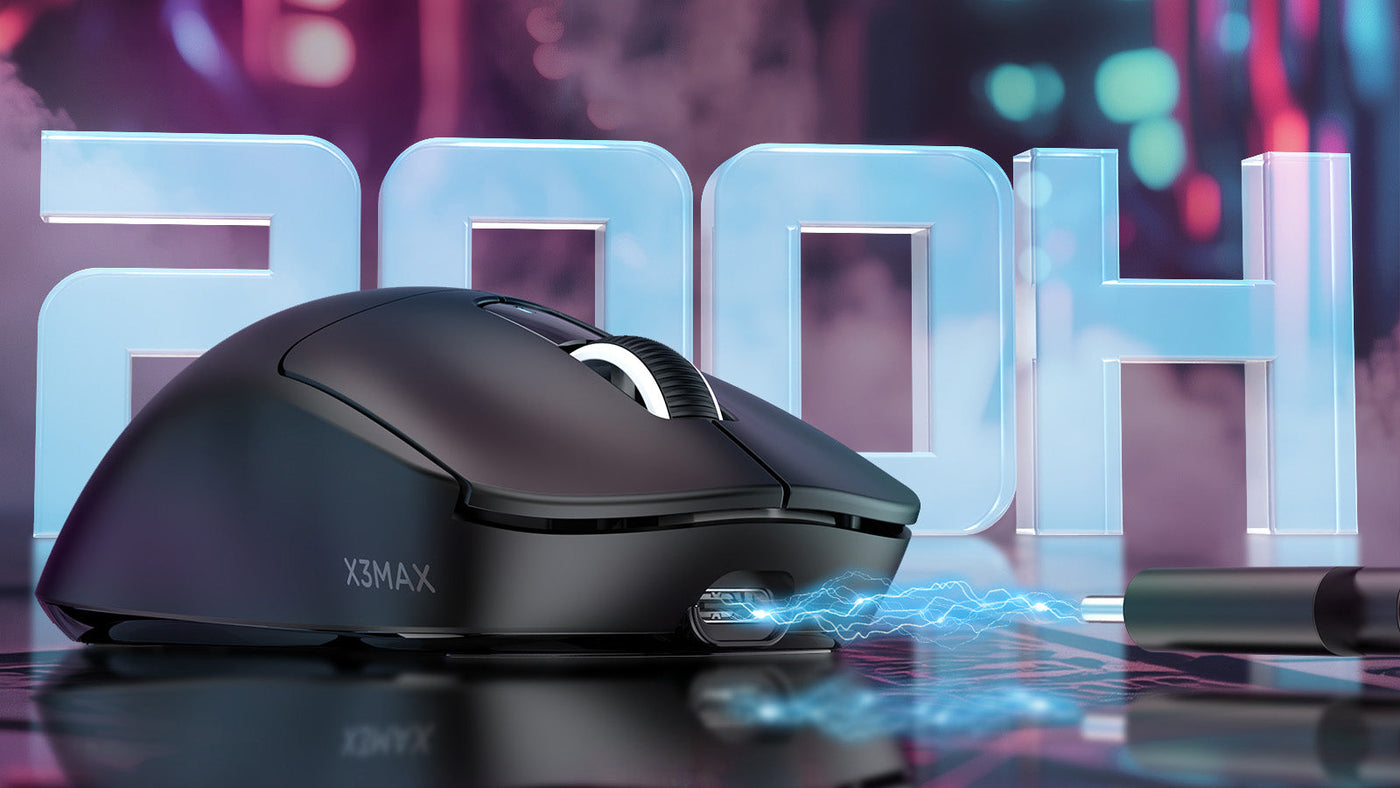
Upgrading to a cable-free setup provides excellent freedom of movement, but it introduces the need to monitor power levels. Having your equipment shut down during a competitive match is highly frustrating. Understanding how to manage energy consumption ensures your rechargeable wireless mouse performs reliably for years.
This guide provides actionable steps to optimize power settings, adjust lighting, and build charging habits that significantly extend battery capacity and protect your internal hardware from premature chemical degradation.

How Long Should a Wireless Mouse Battery Last?
Modern gaming peripherals rely on advanced lithium-ion or lithium-polymer batteries. Understanding the baseline performance of these power cells helps you identify when your hardware begins to fail.
Average Hours Per Charge
The duration of a single charge depends heavily on the internal sensor and the connection method. A high-performance 2.4GHz wireless connection provides ultra-low latency necessary for gaming but requires continuous data transmission, draining the battery faster.
Under standard 2.4GHz operation, you can expect 40 to 80 hours of use from a quality wireless mouse. If the device supports Bluetooth, switching to this mode for standard desktop work drastically reduces power consumption, often extending the wireless mouse battery life to 150 hours or more per charge.
Total Chemical Lifespan
Beyond a single charge, you must consider the overall chemical lifespan of the internal battery. Lithium-ion batteries degrade over time due to chemical aging. A standard rechargeable mouse typically functions optimally for three to five years. Manufacturers measure battery longevity in charge cycles.
One cycle equals draining the battery from 100% down to 0% and recharging it back to 100%. Most gaming peripherals handle 300 to 500 full charge cycles before the battery capacity drops to 80% of its original factory level.

Maximize Gaming Peripheral Battery with Smart Settings
Companion software provided by hardware manufacturers allows you to adjust internal device parameters. Modifying these settings is the most effective way to lower energy consumption without buying new hardware.
Lowering the Polling Rate
The polling rate dictates how many times per second the device reports its physical position to your computer. A 1000Hz polling rate updates 1,000 times per second. This guarantees instant reaction times for competitive first-person shooters, but it forces the sensor and wireless transmitter to work at maximum capacity. Lowering the polling rate to 500Hz for single-player games or 125Hz for basic web browsing will significantly extend your device's power duration. Many modern software hubs allow you to link polling rates to specific games, automating this power-saving process.
Configuring Aggressive Sleep Timers
Gaming peripherals feature an idle mode that powers down the sensor when the device stops moving. By default, many devices wait ten to fifteen minutes before entering sleep mode. To extend your wireless mouse battery life, access the device settings and reduce the sleep timer to three minutes. This ensures the device shuts off immediately when you step away from your desk, preventing unnecessary background power drain.
Turn Off or Dim RGB Lighting to Save Power
Bright, colorful LEDs are visually appealing but act as the primary source of rapid battery depletion in gaming hardware.
Disabling or reducing RGB lighting is one of the most impactful steps you can take. A rechargeable wireless mouse that operates for 100 hours with the lights turned off might drain completely in just 20 hours with maximum RGB brightness enabled.
If you prefer keeping the lights on, you must optimize how they operate. Lower the overall LED brightness to 20% or 30%. This provides visual flair while cutting power consumption in half. Additionally, configure the lighting to shut off automatically when the sensor detects movement. Because your hand physically covers the peripheral during active use, keeping the lights running while you play wastes energy. Using a static color profile instead of a moving rainbow wave also reduces the processing load on the device.
Charge Your Rechargeable Wireless Mouse Correctly
How you replenish the power directly impacts the chemical health of the lithium-ion cells. Applying poor charging habits will permanently reduce the maximum capacity of the battery.
Follow the 20-80 Charging Rule
Lithium-ion batteries operate best under moderate voltage stress. Draining the battery completely to 0% causes deep discharge stress, which damages the internal cell structure. Charging it fully to 100% places maximum voltage stress on the chemicals. To preserve the health of your rechargeable wireless mouse, plug the cable in when the battery level drops to 20% and unplug it when it reaches 80%. Keeping the battery within this specific range minimizes chemical wear and doubles the total lifespan of the battery.
Avoid High-Wattage Wall Adapters
Always charge your gaming peripherals by plugging them directly into the USB ports on your computer motherboard. Computer USB ports deliver a steady, low-amperage current (usually 5V/0.5A or 5V/1A). Using a fast-charging smartphone wall adapter pushes too much current into the device. While modern peripherals have internal regulators, excess voltage generates high levels of heat. Heat accelerates chemical degradation inside the battery. Using an older cable setup instead of a modern mouse wireless usb type c connection can further increase the risk of poor power regulation.
Pick a Mouse Wireless USB Type C for Faster Charging
When purchasing new equipment, the physical connection type matters just as much as the internal sensor. Outdated charging ports limit efficiency and durability.
The Limitations of Micro-USB
Older gaming peripherals utilize micro-USB ports. These ports are fragile and highly susceptible to physical damage. Repeatedly inserting the cable upside down bends the internal pins, eventually breaking the charging mechanism entirely. Micro-USB also transfers power slowly and lacks advanced power management protocols, making it inferior for modern high-capacity batteries.
The Advantages of Modern Connectivity
Upgrading to a mouse wireless USB Type-C connection resolves these physical and technical limitations. The symmetrical, reversible connector eliminates physical wear and tear on the port. More importantly, USB-C supports better power delivery communication. The peripheral can communicate precisely with the computer to draw the exact amount of current needed without overheating. Upgrading to this standard connection type is a hardware-level choice that helps maximize gaming peripheral battery health by ensuring safe, regulated charging cycles every time you plug the device in.
Avoid Overcharging Your Rechargeable Mouse
Leaving your hardware plugged in unnecessarily creates constant voltage stress, leading to permanent hardware damage and shorter battery longevity.
Many players plug their peripherals in before going to sleep to ensure a full battery the next day. This habit physically destroys lithium-ion cells. When the battery reaches 100%, the internal circuitry stops the charge. However, as the battery naturally drops to 99%, the charger activates again to push it back to 100%. This continuous trickle charging generates constant heat and holds the rechargeable mouse at maximum voltage stress for hours. Over time, this causes the internal battery casing to swell, which can crack the plastic shell of your device.
Disconnect the cable immediately once the battery indicator shows sufficient charge. If you plan to travel or store your rechargeable mouse in a drawer for several weeks, do not store it at 100% or 0% capacity. Charge or discharge the battery to exactly 50%. Storing a lithium-ion battery at a 50% charge state stabilizes the internal chemistry, preventing deep discharge damage and capacity loss while the device remains inactive.
Conclusion: Simple Habits Protect Your Battery for Years
Maintaining your wireless equipment requires simple adjustments to your daily routine. Lowering polling rates during casual use, disabling unnecessary RGB lighting, and following strict charging habits will protect the internal battery chemistry. Upgrading to modern hardware with efficient connections also helps maximize gaming peripheral battery life. Implementing these practical steps prevents premature hardware failure and guarantees your gear will provide flawless, uninterrupted performance through years of intense gaming sessions.
FAQs
Can I use a fast wall charger for my wireless gaming mouse?
It is highly advised against. High-wattage wall chargers generate excess heat during the charging cycle. Heat is the primary enemy of lithium-ion batteries and will permanently degrade the cell capacity. You should always charge your peripherals using the standard USB ports located directly on your computer motherboard to ensure a safe, low-voltage power delivery.
Is it harmful to use a wireless mouse while it is plugged in and charging?
No, using the device while it charges will not damage the internal battery. The device simply switches data transmission from the wireless receiver to the physical cable. However, using the mouse while plugged in reintroduces cable drag, which temporarily affects your physical aiming precision in fast-paced games.
Why is my wireless mouse losing its charge so quickly?
Rapid power drain is usually caused by running a 1000Hz or higher polling rate combined with maximum RGB brightness. If you disable the lighting and lower the polling rate but still experience rapid drain, the physical battery has likely reached the end of its chemical lifespan (typically after 300 to 500 charge cycles) and requires a hardware replacement.