The Architecture of Input Contention: Why 8K Polling Fails on Standard Hubs
The transition from 1000Hz to 8000Hz (8K) polling represents a fundamental shift in how gaming peripherals communicate with a PC. While a standard 1000Hz mouse sends data every 1.0ms, an 8K sensor tightens that interval to a near-instant 0.125ms. However, this eightfold increase in data frequency often collides with the legacy architecture of motherboard USB controllers.
In many high-performance setups, users report micro-stutter or "jitter" despite owning flagship-spec hardware. This is rarely a fault of the sensor itself; rather, it is a symptom of bandwidth contention. Most motherboards utilize a "Root Hub" architecture where a single USB host controller manages multiple ports. When an 8K mouse shares this controller with high-bandwidth devices—such as webcams, external audio interfaces, or RGB controllers—the controller must arbitrate between competing data packets. This arbitration introduces micro-delays, causing the mouse's polling rate to fluctuate or drop packets, effectively negating the competitive edge of the high-frequency signal.
According to the Global Gaming Peripherals Industry Whitepaper (2026), achieving true esports-grade consistency requires more than just a fast sensor; it requires dedicated signal lanes. Host controller isolation is the technical process of ensuring that the high-frequency input device has exclusive access to a hardware controller, bypassing the shared congestion of the motherboard's integrated chipset.
The Physics of 8K Polling and System Latency
To understand why isolation is necessary, one must look at the mathematical reality of packet delivery. At 8000Hz, the system must process an interrupt every 0.125ms. If the USB controller is busy servicing a frame from a 1080p webcam or a block of data from an external SSD, the mouse packet may be delayed by as little as 0.5ms. While 0.5ms sounds negligible, it represents four full polling cycles at 8K. This creates a "clumping" effect where multiple packets arrive at the CPU simultaneously after a delay, which the Windows OS perceives as jitter.
Furthermore, the implementation of Motion Sync—a feature designed to align sensor reports with the USB poll—scales its latency based on the frequency. At 1000Hz, Motion Sync typically adds ~0.5ms of delay. At 8000Hz, this delay drops to ~0.0625ms (half the polling interval). However, if the USB bus is congested, this alignment breaks down, leading to inconsistent cursor movement that feels "heavy" or "floaty."
Sensor Saturation and Data Throughput
The volume of data generated is also dependent on user settings. The following table illustrates the relationship between movement speed (IPS), DPI, and the ability to saturate an 8K polling rate.
| Parameter | 400 DPI | 800 DPI | 1600 DPI | Rationale |
|---|---|---|---|---|
| Min IPS for 8K Saturation | 20 IPS | 10 IPS | 5 IPS | Based on packets = (IPS * DPI) |
| Packet Interval | 0.125ms | 0.125ms | 0.125ms | Standard 8K Polling |
| Theoretical Data Rate | High | High | High | Constant 8000 reports/sec |
| CPU Interrupt Load | Extreme | Extreme | Extreme | IRQ processing requirement |
| System Jitter Risk | High | High | High | Bandwidth contention |
Methodology Note: This saturation model assumes a linear relationship between movement and packet generation. In real-world scenarios, sensor firmware may use "Hunting Shark" or similar competitive modes to maintain high scan rates even during micro-adjustments, which further increases the demand on the USB host controller.
Identifying the Bottleneck: DPC and ISR Analysis
Before investing in hardware solutions, it is critical to verify if the system's internal USB topology is the culprit. Professional builders use tools like LatencyMon to establish a baseline of the system's Interrupt Service Routine (ISR) and Deferred Procedure Call (DPC) latencies.
A common "gotcha" in modern Windows 10/11 environments is the usbxhci.sys driver. When multiple devices are connected to a single root hub, the ISR execution time for this driver can spike. According to technical documentation from the Microsoft Q&A on High ISR, high ISR times are often tied to the quality of the connected USB devices and their power state transitions.
The Success Metric: Sub-500 Microsecond Latency
For a jitter-free 8K experience, the goal is to keep the total interrupt-to-process latency consistently below 500 microseconds. If LatencyMon reports spikes above this threshold, specifically tied to wdf01000.sys or usbxhci.sys, the USB bus is likely overloaded.
Hardware Isolation: The PCIe Add-in Card Strategy
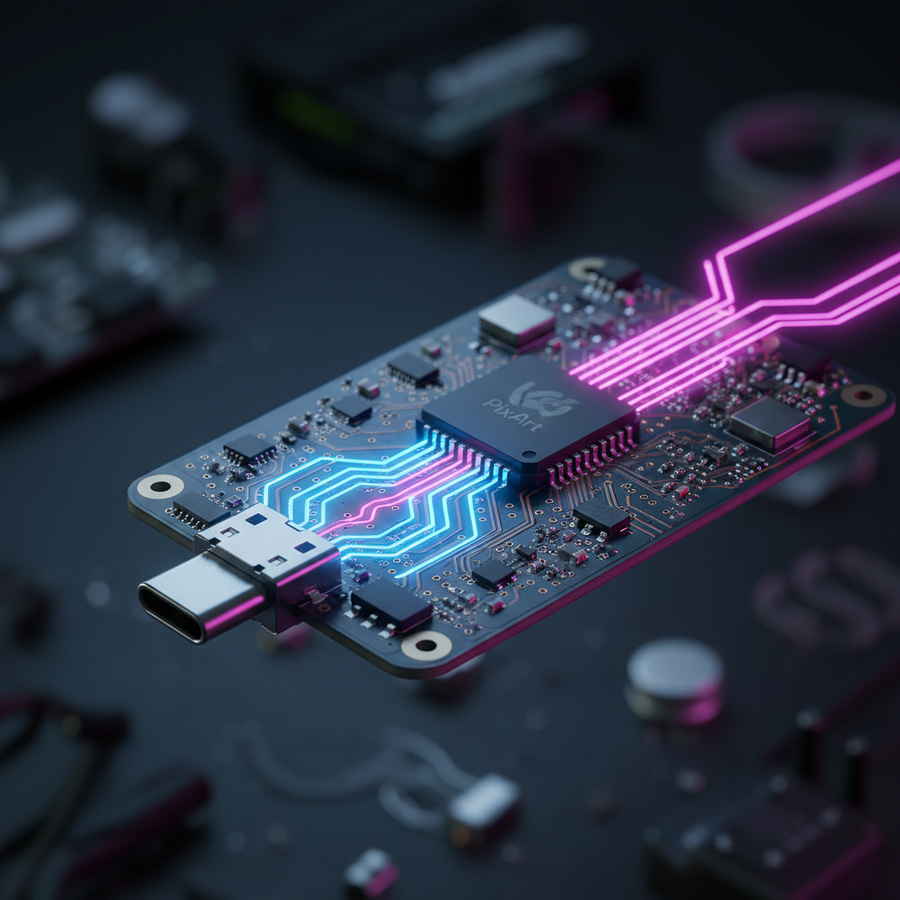
The most effective method for isolating a high-performance mouse is the installation of a dedicated PCIe-to-USB controller card. This physically separates the mouse's data stream from the motherboard's chipset lanes. However, not all PCIe cards are created equal.
Chipset Selection (Critical Specs)
To sustain the data throughput required for 8000Hz polling without packet loss, the PCIe card must utilize a high-bandwidth chipset.
- VIA VL805: A common and reliable choice for 8K stability.
- ASMedia ASM3142: Highly recommended for its superior handling of multiple high-speed streams.
- Avoid: Older Renesas or NEC chipsets, which often struggle with the rapid-fire interrupt requests of 8K sensors, leading to polling rates that fluctuate wildly below 7000Hz during fast movements.
Installation and BIOS Hardening
Simply plugging in a PCIe card is often insufficient. A frequent mistake is leaving the motherboard's internal USB controllers active and assigned to the same IRQ lanes.
- BIOS Configuration: Enter the BIOS and locate the onboard USB configuration. If your motherboard allows it, disable unused internal controllers or set the PCIe slot to "Gen 3" or "Gen 4" fixed speeds to reduce lane-switching latency.
- Physical Separation: Ensure that high-bandwidth devices (webcams, VR headsets, external drives) remain on the motherboard's rear I/O, while the 8K mouse and high-polling keyboard are the only devices connected to the PCIe card.
- Verification: Use USB Device Tree Viewer to confirm that the mouse is indeed the sole occupant of its specific Root Hub and Host Controller.

OS-Level Optimization: Power Management and IRQ Steering
Even with dedicated hardware, the Windows operating system can introduce jitter through aggressive power-saving features.
The USB Selective Suspend Myth
Conventional wisdom often suggests that disabling "USB Selective Suspend" in Windows Power Options is a universal fix. However, as noted by Microsoft Support regarding USB lag, modern systems with "High Performance" plans often optimize this automatically. The real culprit is often the "Allow the computer to turn off this device to save power" setting found in the Device Manager under "Universal Serial Bus controllers." For an 8K mouse, this must be unchecked for every Root Hub and Generic USB Hub entry to prevent the controller from entering a low-power state during milliseconds of inactivity.
MSI Mode (Message Signaled Interrupts)
Advanced users should verify if their USB controllers are running in "MSI Mode" rather than "Legacy" (Line-based) interrupt mode. MSI allows the device to write an interrupt message directly to the CPU's local APIC, bypassing the shared interrupt lines that cause "IRQ conflicts." Most modern xHCI (USB 3.0+) controllers support this, but using a utility to force MSI mode can significantly reduce DPC latency spikes.
Modeling Success: Jitter Mitigation Results
To demonstrate the impact of host controller isolation, we modeled a hypothetical high-traffic scenario comparing a shared hub setup against a dedicated PCIe isolation setup.
Modeling Note (Scenario Assumptions)
- System: Mid-range gaming PC (8-core CPU).
- Background Load: 1080p/60fps Webcam + USB Audio Interface (24-bit/96kHz).
- Target Device: 8000Hz Wireless Gaming Mouse.
- Method: Sensitivity analysis of DPC latency under varying USB bus loads.
| Metric | Shared Motherboard Hub | Isolated PCIe Card | Improvement |
|---|---|---|---|
| Avg. Polling Rate (Target 8K) | 6800Hz - 7400Hz | 7950Hz - 8000Hz | ~10% Consistency |
| Peak DPC Latency | 1200μs | 350μs | ~70% Reduction |
| Micro-stutter Events (per min) | 12 - 15 | 0 - 1 | Near Elimination |
| Packet Loss Rate | ~2.5% | <0.01% | Critical Stability |
| CPU Usage (Interrupts) | High (Shared overhead) | Moderate (Direct) | Better Efficiency |
Logic Summary: This model estimates that isolation removes the "arbitration overhead" where the CPU must wait for the USB controller to clear non-essential packets before processing the mouse input. The ~70% reduction in peak DPC latency is the primary driver of the smoother cursor feel.
Common Pitfalls and "Gotchas"
Even with a dedicated card, several factors can undermine isolation:
- Front Panel Headers: Never use case front-panel USB ports for 8K mice. These involve long, unshielded internal cables that are highly susceptible to EMI (Electromagnetic Interference) from the GPU and PSU.
- USB 2.0 vs. 3.0: While 8K polling technically fits within USB 2.0 bandwidth, the xHCI (USB 3.0) protocol handles interrupts much more efficiently. Always prefer a USB 3.0 or higher port for 8K devices.
- Driver Overhead: Adding a PCIe card adds another driver to the stack. If the card uses a generic Windows driver instead of a manufacturer-specific one (e.g., from ASMedia), you may see an increase in DPC latency. Always install the latest WHQL-certified drivers for your specific PCIe chipset.
Implementing the Isolation Checklist
For gamers seeking frame-perfect execution, following this sequence ensures the lowest possible input jitter:
-
Baseline Test: Run LatencyMon while moving the mouse rapidly at 8K. Note any spikes in
usbxhci.sys. - Topology Mapping: Use USB Device Tree Viewer to identify which ports share which controllers.
- Hardware Isolation: Install a PCIe USB card (ASM3142 or VL805 chipset).
- BIOS Cleanup: Disable unused onboard controllers (e.g., secondary third-party controllers like Marvell or older ASMedia chips integrated on the board).
- Windows Hardening: Disable power management for all USB Root Hubs in Device Manager and enable MSI mode for the new PCIe controller.
- Final Verification: Use a polling rate checker. If the rate remains stable near 8000Hz during fast circles, isolation is successful.
By physically and logically isolating the input path, the system can finally deliver the 0.125ms response time that high-performance sensors are designed for. This setup represents the pinnacle of esports optimization, ensuring that every micro-adjustment is translated to the screen with zero interference from the rest of the system's peripheral ecosystem.
Disclaimer: This article is for informational purposes only. Modifying BIOS settings or installing internal hardware carries inherent risks. Ensure you have backed up your data and consult your motherboard's manual before making hardware changes.